Managed Service Provider (MSP) admin users can edit the details for any existing workspace within the MSP hierarchy for which they have access.
To edit a workspace:
Use the Channel workspace switcher to select the MSP containing the workspace you want to edit.
Select the channel or child workspace in either hierarchy view or list view, then select Edit workspace from the ACTIONS menu.
Coro display a dialog enabling you to edit the workspace details. This differs depending the selected workspace type, child or channel.
If you select a child workspace, Coro displays the Edit child workspace info dialog.
The Details tab contains basic details for the workspace:
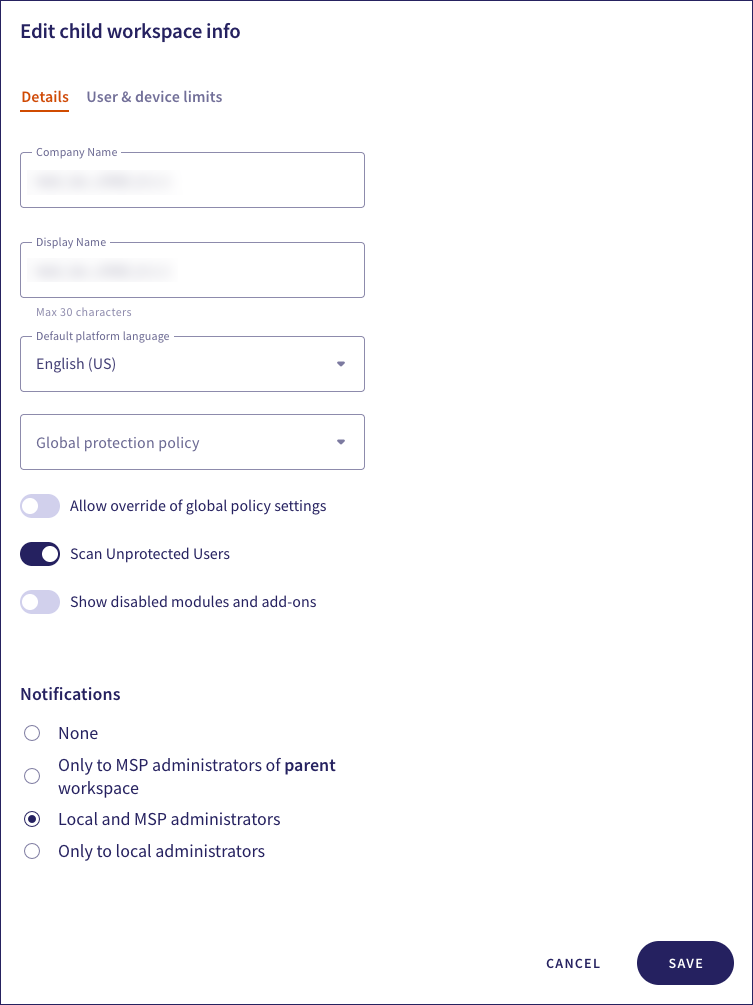
Edit the following fields:
- Company Name: The customer name.
- Display Name: The workspace display name.
- Default platform language: The language used for this workspace.
- Global protection policy: The global protection policy that contains the default policy settings you want to apply to the workspace.
- Allow override of global policy settings: Allow local workspace admin users to override protection policy settings.
- Scan Unprotected Users: Activate email malware and phishing scans for all protectable users in workspaces that are in Trial state.
- Show disabled modules and add-ons: Display disabled modules and add-ons in the workspace.
- Notifications: Select which admin users should receive email notifications.
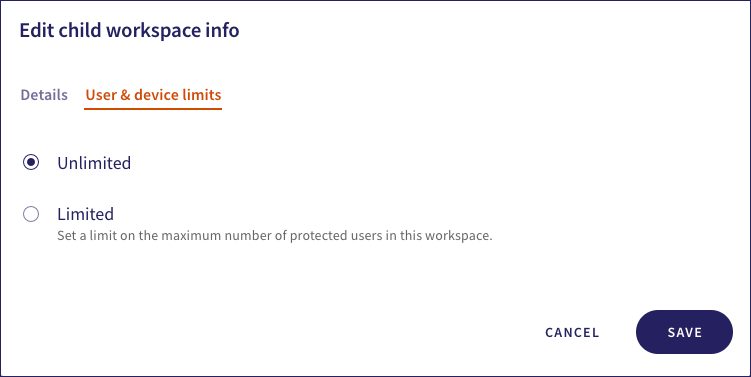
The User & device limits tab enables admin users to set limits on the maximum allowed protected users and devices in the workspace.
User and device limits apply only to child workspaces. You cannot configure limits for channel workspaces.
Select from:
Unlimited: No limits on the maximum number of protected users and devices that can be added to the workspace:
Limited: Configure a maximum allowed number of protected users and devices that can be added to the workspace.
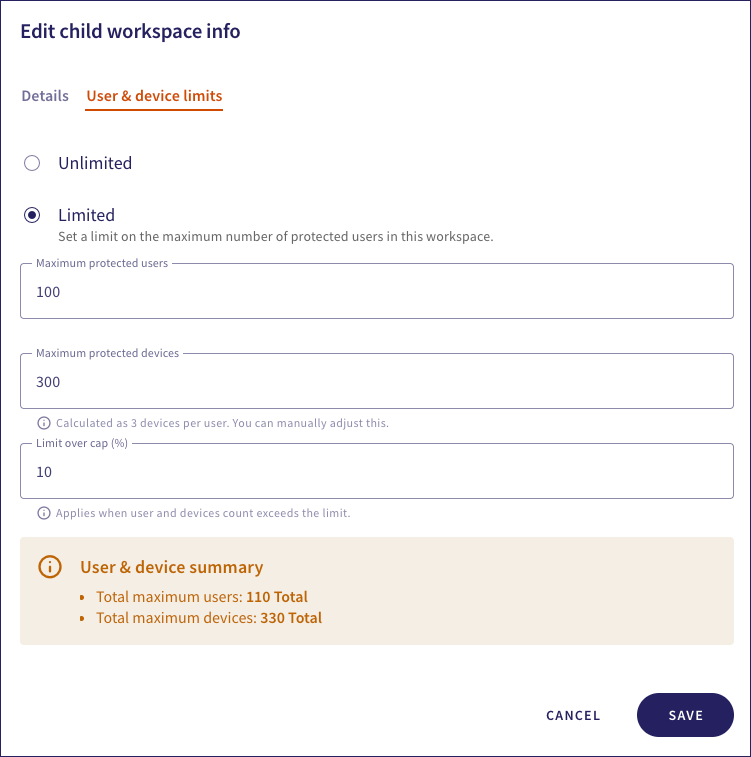
Use Limit over cap (%) to provide an optional additional allowance, as a percentage of the defined limits, that enables customers to exceed the maximum without encountering restrictions. This option is useful if you require a soft limit on agreed allowances.
Select SAVE to save your changes.
If you select a channel workspace, Coro displays the Edit channel workspace info dialog:
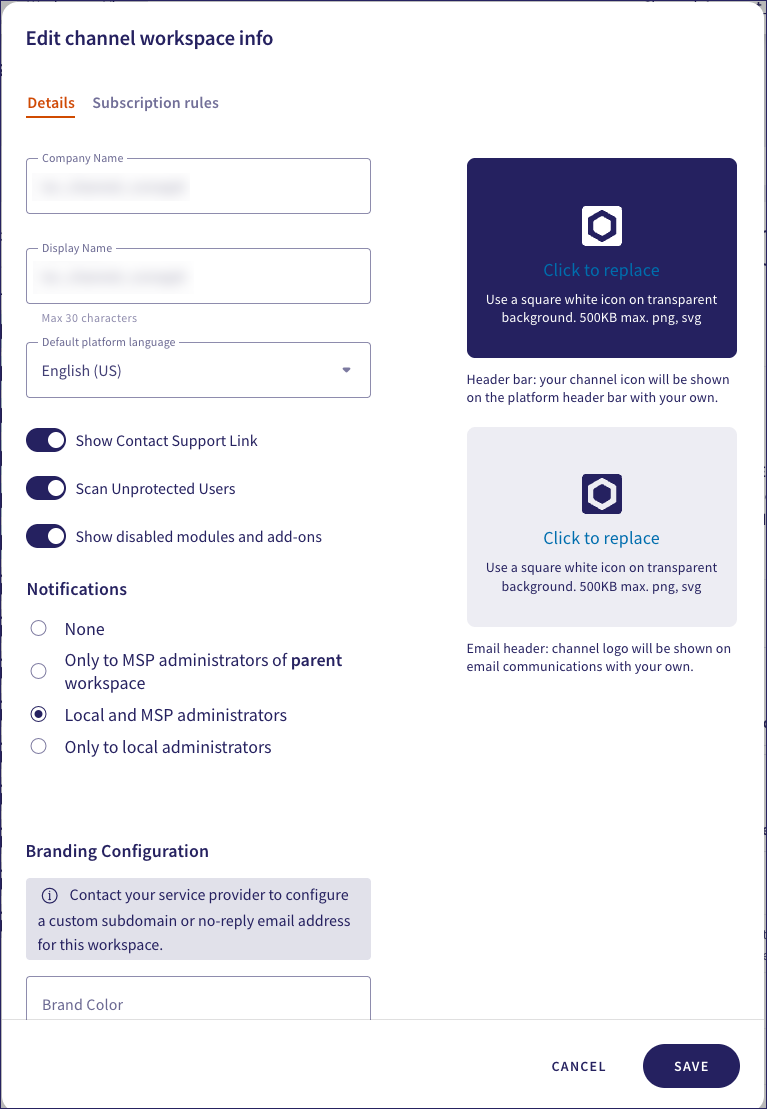
Select the Details tab to edit the workspace settings.
Select the Subscription rules tab to edit rules for descendant workspace subscriptions. For more information, see Editing subscription rules.
Edit the following fields:
- Company Name: The customer name.
- Display Name: The workspace display name.
- Default platform language: The language used for this workspace.
- Show Contact Support Link: Display a link to Coro Support in the workspace.
- Scan Unprotected Users: Activate email malware and phishing scans for all protectable users in workspaces that are in Trial state.
- Show disabled modules and add-ons: Display disabled modules and add-ons in the workspace.
- Notifications: Select which admin users should receive email notifications.
- Branding Configuration: (Optional) Identity, color palette, logo, and link settings to facilitate workspace branding. For more details, see brand settings.
Select SAVE to save your changes.