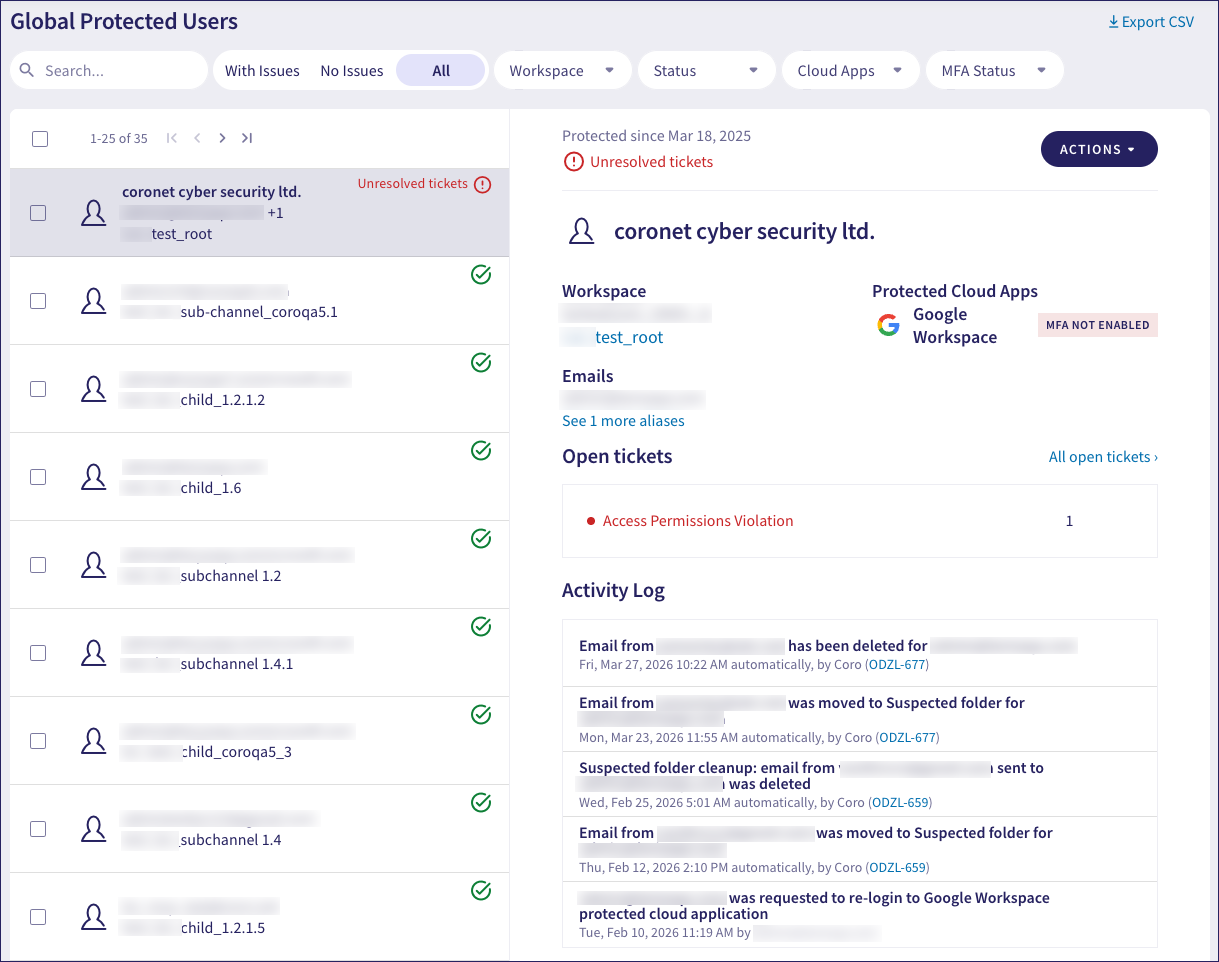
When in the global view, Managed Service Provider (MSP) admin users with sufficient permissions can access the global ticket log, devices, and protected users pages.
The global ticket log includes tickets from a channel workspace and its descendant workspaces. Select a ticket to view details, including the workspace to which it belongs. For other details and actions, see Using the ticket log.
After 90 days of inactivity, Coro permanently archives closed tickets. Open tickets are unaffected. Archiving removes a ticket from workspace and global ticket logs, so you can no longer search for it or retrieve its details. You cannot unarchive a ticket. However, you can still view limited details for archived tickets by creating a ticket log CSV export.
To access the Global Ticket Log:
Select Global view:

Select Tickets:
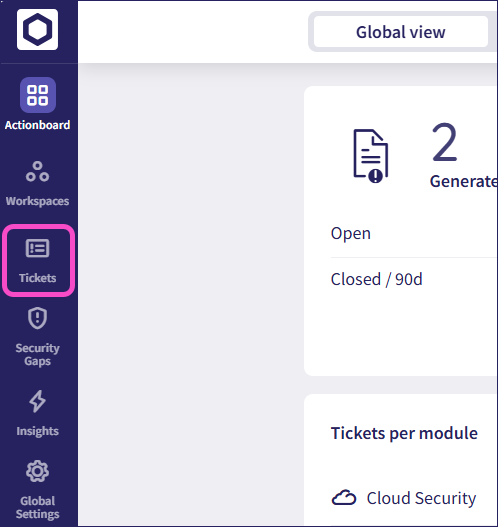
Coro displays the Global Ticket Log page:
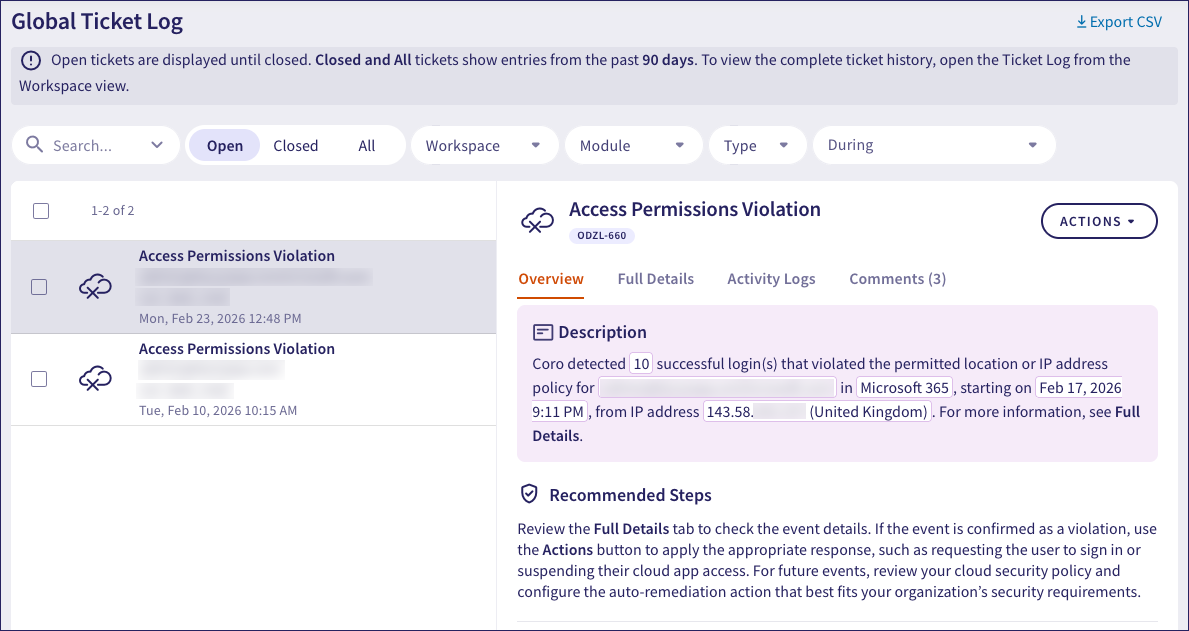
Ticket display in the Global Ticket Log:
Coro displays tickets across three tabs:
- Open: Displays all open tickets indefinitely, regardless of when they were created.
- Closed: Displays closed tickets from the past 90 days.
- All: Displays all tickets — open and closed — from the past 90 days.
To view the complete ticket history for a workspace, open the Ticket Log from the Workspace view.
Email Security tickets include Allow and Block actions to enable MSP admin users to add the sender email address, domain, or IP address to the allowlist or blocklist. This means future emails from the same sender are either marked as safe or automatically blocked. To learn more about the impact of allowlists and blocklists, see Allow or block email senders.
For tickets in the global ticket log, MSP admin users can select whether to add the details to the global allowlist or blocklist affecting this and all descendant workspaces, or to the local allowlist or blocklist of just the affected customer workspace.
To add a sender to an allowlist:
From the Email Security ticket, select ACTIONS > Allow:
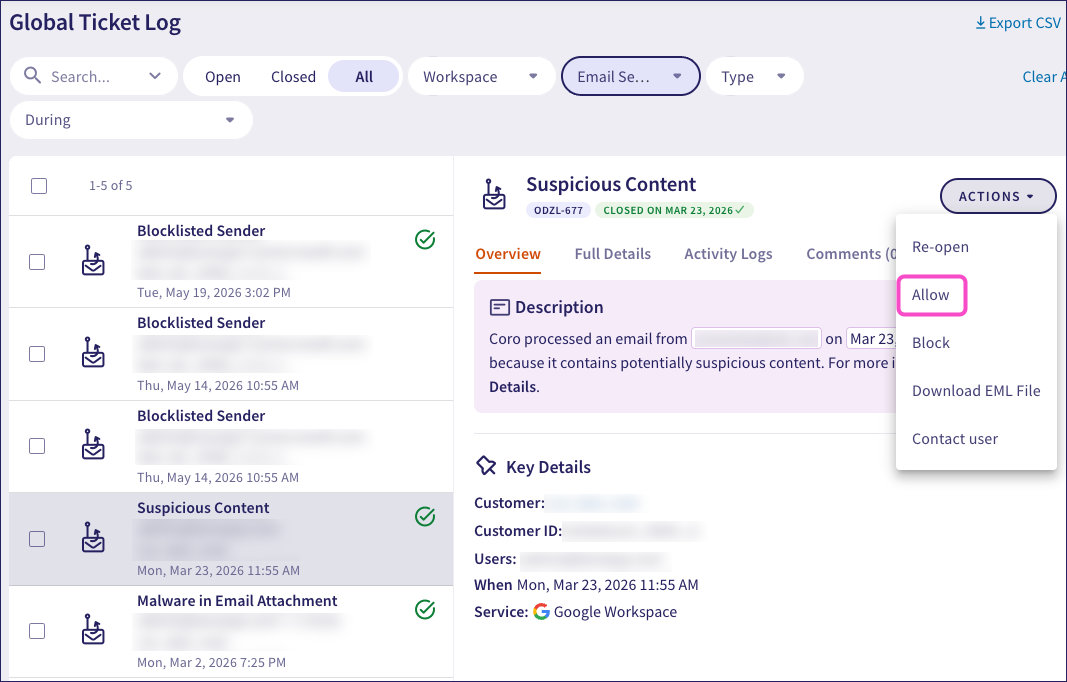
In the Allow dialog, select from the following options:
This workspace only: Add the sender details to the local allowlist for the affected workspace only.
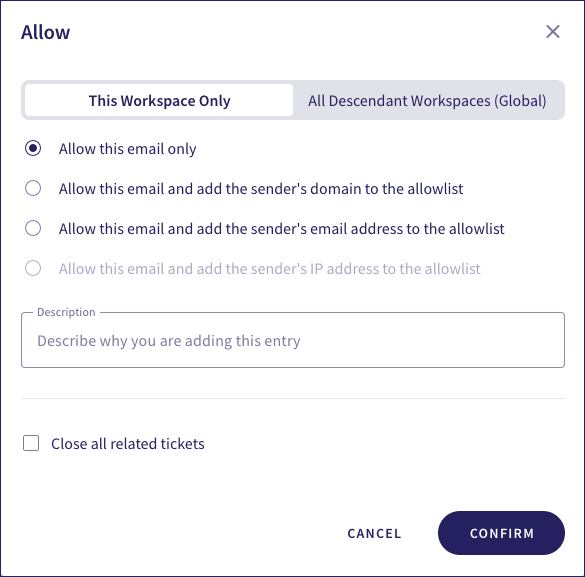
All Descendant Workspaces (Global): Add the sender details to the global allowlist for the MSP channel workspace, affecting this and all descendant workspaces.
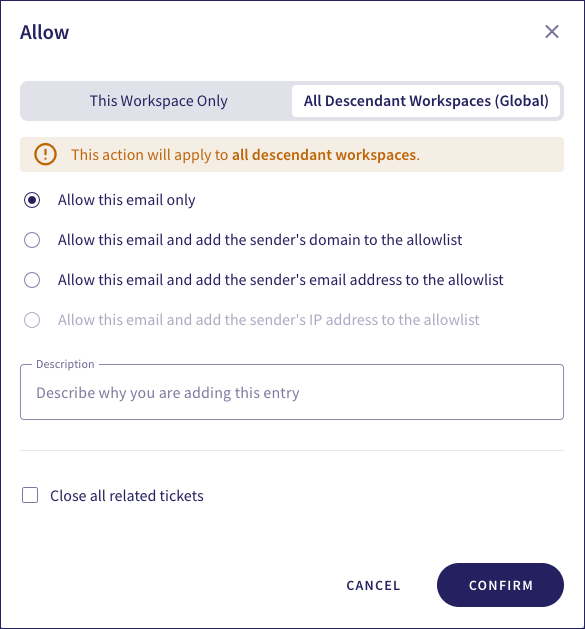
Select an allowlist option. To learn more, see allowlist options.
Use Description to optionally provide a reason for adding this entry to the allowlist.
Enable Close all related tickets to request Coro to close all related tickets connected to the event.
Select CONFIRM.
To add a sender to a blocklist:
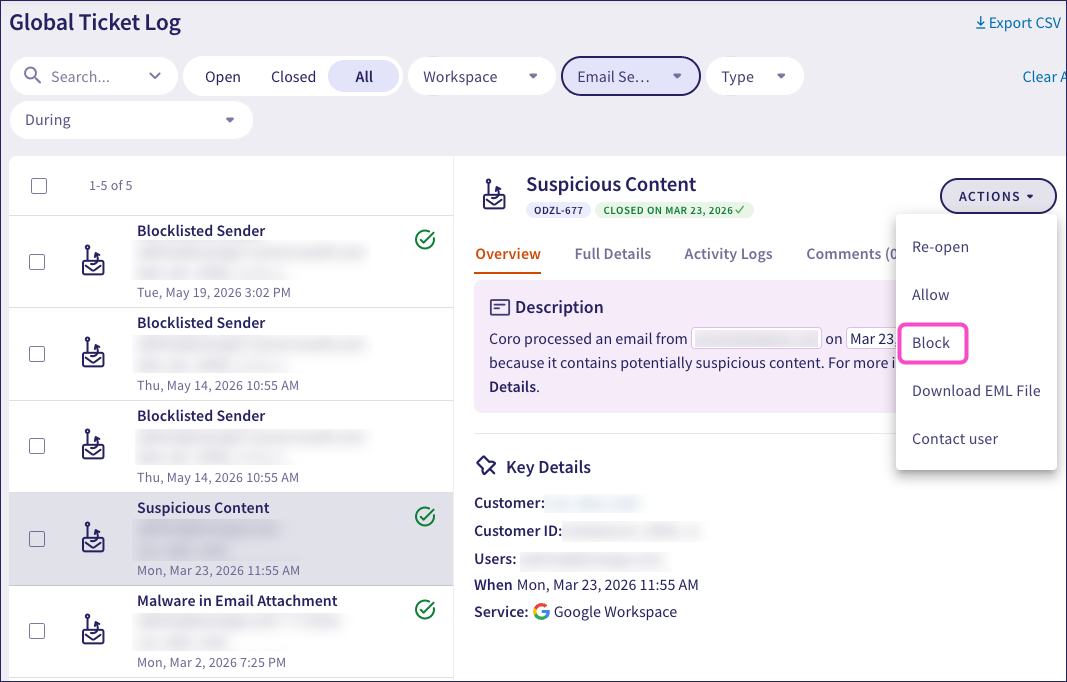
From the Email Security ticket, select ACTIONS > Block:
In the Block dialog, select from the following options:
This workspace only: Add the sender details to the local blocklist for the affected workspace only.
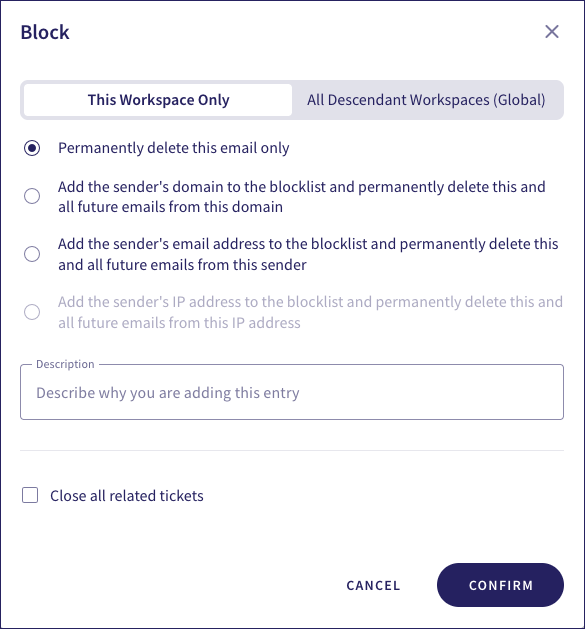
All Descendant Workspaces (Global): Add the sender details to the global blocklist for the MSP channel workspace, affecting this and all descendant workspaces.
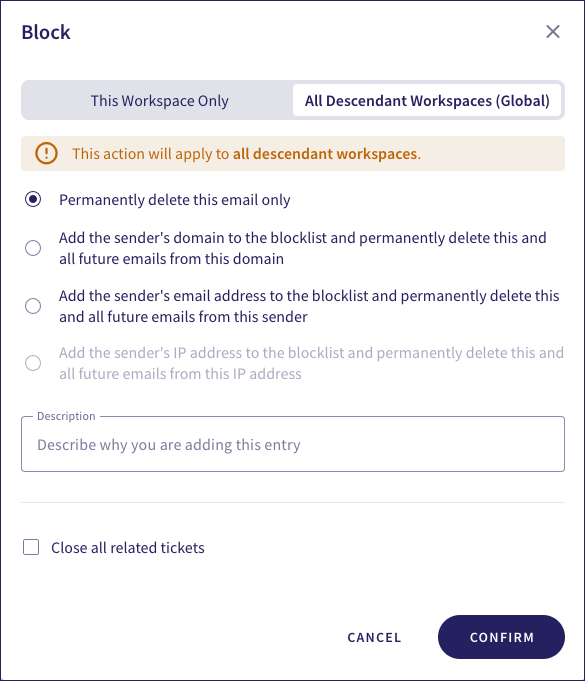
Select a blocklist option. To learn more, see blocklist options.
Use Description to optionally provide a reason for adding this entry to the blocklist.
Enable Close all related tickets to request Coro to close all related tickets connected to the event.
Select CONFIRM.
The global devices page includes Devices and Drives.
To access Global devices:
Select Global view:
Select View all from the Protected devices panel:
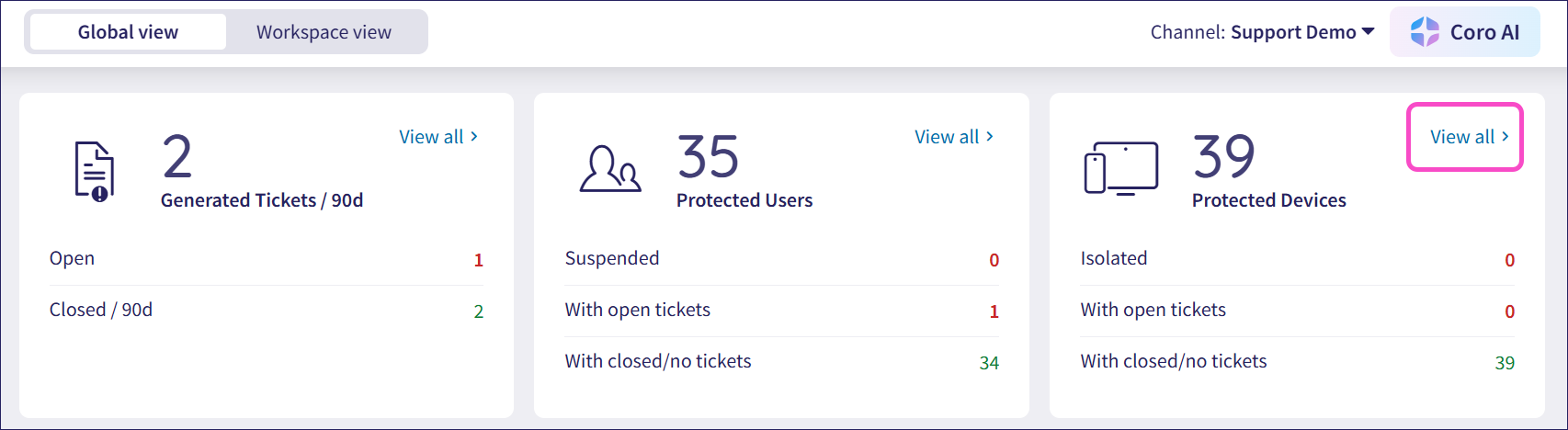
Coro displays the Global devices page:
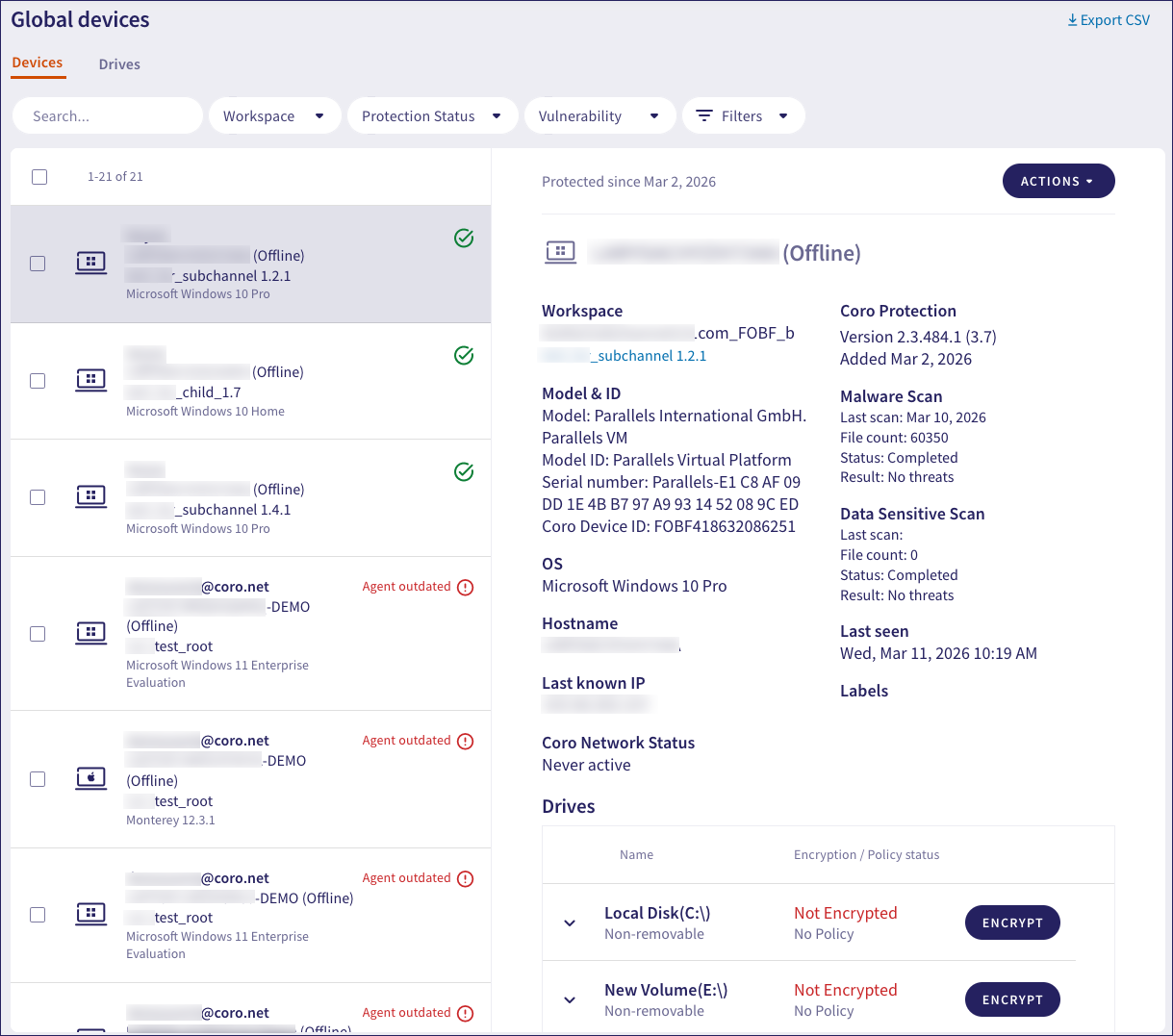
View and manage protected devices in the channel workspace and its descendant workspaces:
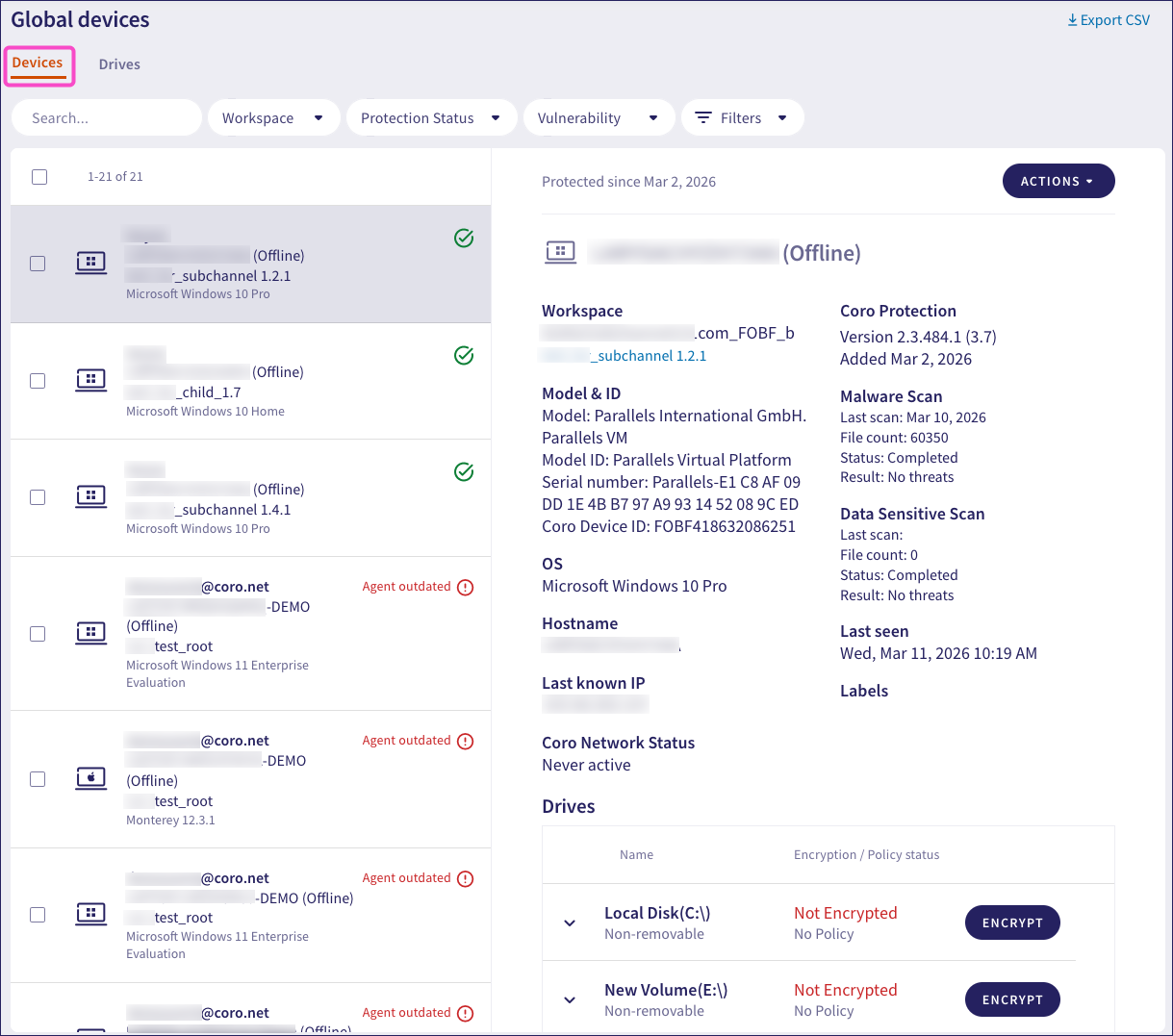
Indicators against each device identify if the device:
 Has unresolved issues, for example, outstanding tickets or the installed Coro Agent version is out of date. If a device has multiple issues, Coro displays the total issue count next to the indicator:
 Has no open tickets.
 Belongs to any custom device label groups.
Filter the display by:
- Workspace: One or more selected workspaces.
- Protection status: Show only protected or unlicensed devices.
- Vulnerability: Detected vulnerabilities on the device.
- Additional filters:
- Labels: Assigned device labels.
- OS version: The operating system (OS) running on the device.
- Status: Device connectivity status.
- Coro version: The installed Coro Agent version.
- Agent health: Devices with impaired Agent functionality due to required restarts, security software conflicts, or outdated Agent versions.
- User association: Devices associated with protected users.
Select a device to view its details, including its associated workspace and a summary of any unresolved issues.
For other details and actions, see Devices.
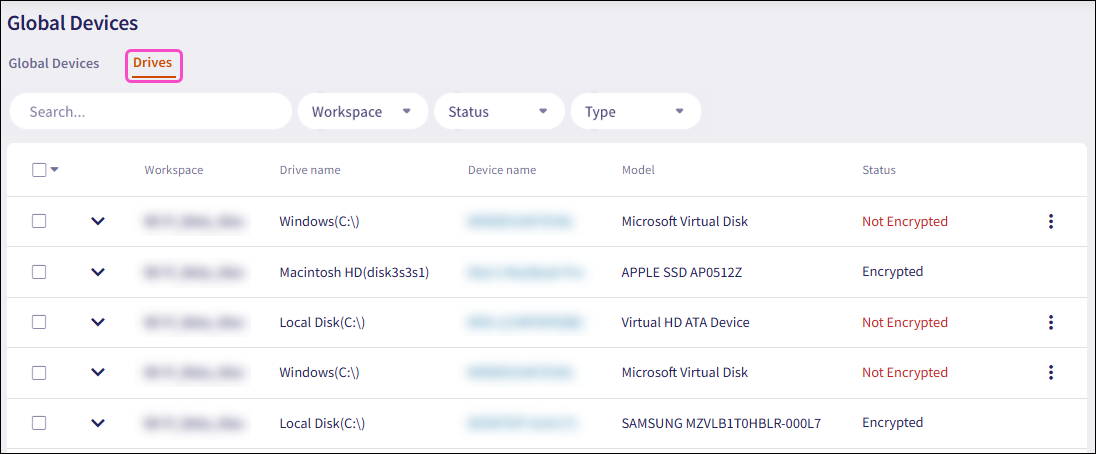
View and encrypt device drives in the channel workspace and its descendant workspaces.
Use Drives to:
- View drive details, including the workspace to which it belongs, and encryption information.
- Filter the display by workspace, encryption status, and drive type.
- Perform a free text search to find drives.
- Encrypt a single drive or bulk encrypt a group of drives across all devices. For more information, see Encrypting endpoint device drives.
The drives list contains the following details:
| Attribute | Description |
|---|---|
| Workspace | Workspace name to which the device belongs. |
| Drive name | Display name of the drive. |
| Device name | Display name of the device. |
| Model | Drive identifiers, including the type and/or model. |
| Status | Current encryption status for the drive: - Encrypted: Drive is encrypted by third-party software. - Encrypted by Coro: Drive is encrypted by Coro. - Not Encrypted: Drive is not encrypted. - Encryption Failed: Drive encryption failed. See Troubleshooting encryption failures. - Encryption Suspended: (Windows drives only) Drive encryption is suspended. - Encryption In Progress: Drive encryption is in progress. |
To view additional drive details, select the dropdown to the left of a drives's workspace name:
| Attribute | Description |
|---|---|
| Type | The drive type (Removable or Non-removable). |
| Recovery Key | Unique key used to unlock an encrypted drive. |
| Serial Key | Manufacturer-assigned unique identifier for the drive. |
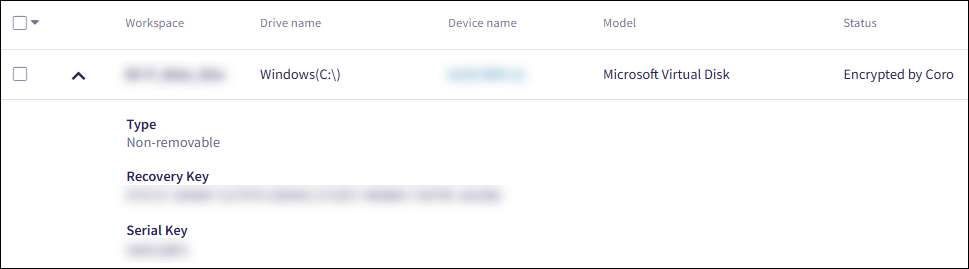
Coro displays additional drive details based on the drive's encryption status and available data.
The global protected users page includes protected users from a channel workspace and its descendant workspaces. Select a protected user to view details, including the workspace to which it belongs. For other details and actions, see Protected users.
To access Global Protected Users:
Select Global view:
Select View all from the Protected Users panel:
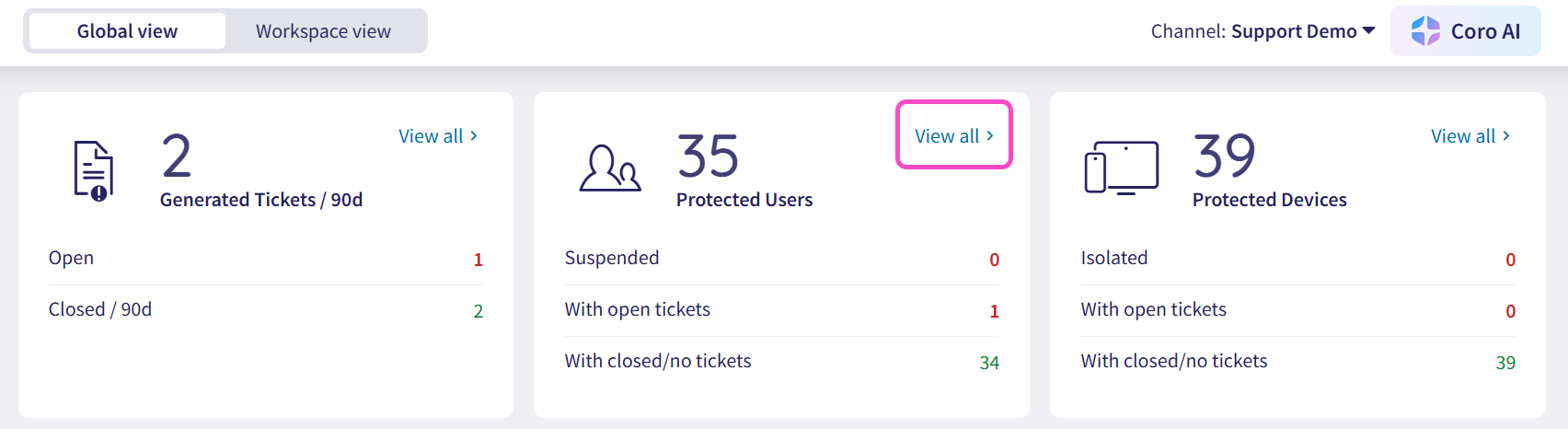
Coro displays the Global Protected Users page: