The global view provides Managed Service Provider (MSP) admin users with a unified dashboard to monitor all descendant workspaces. It consolidates key information, including tickets, protected users, protected devices, workspace security gaps, and insights from Coro.
This view supports large-scale workspace management by enabling:
Real-time visibility into activity across all workspaces.
Quick access to workspace-level details.
CSV export for external reporting or analysis.
Workspace labels to help organize and manage large sets of workspaces.
Role-based access control, allowing MSP admin users to manage visibility and permissions across the channel and descendant workspaces.
To access the global view, select Global view from the top of your console:

From the global Actionboard, MSP admin users see a summary of their channel workspace and all descendant workspaces:
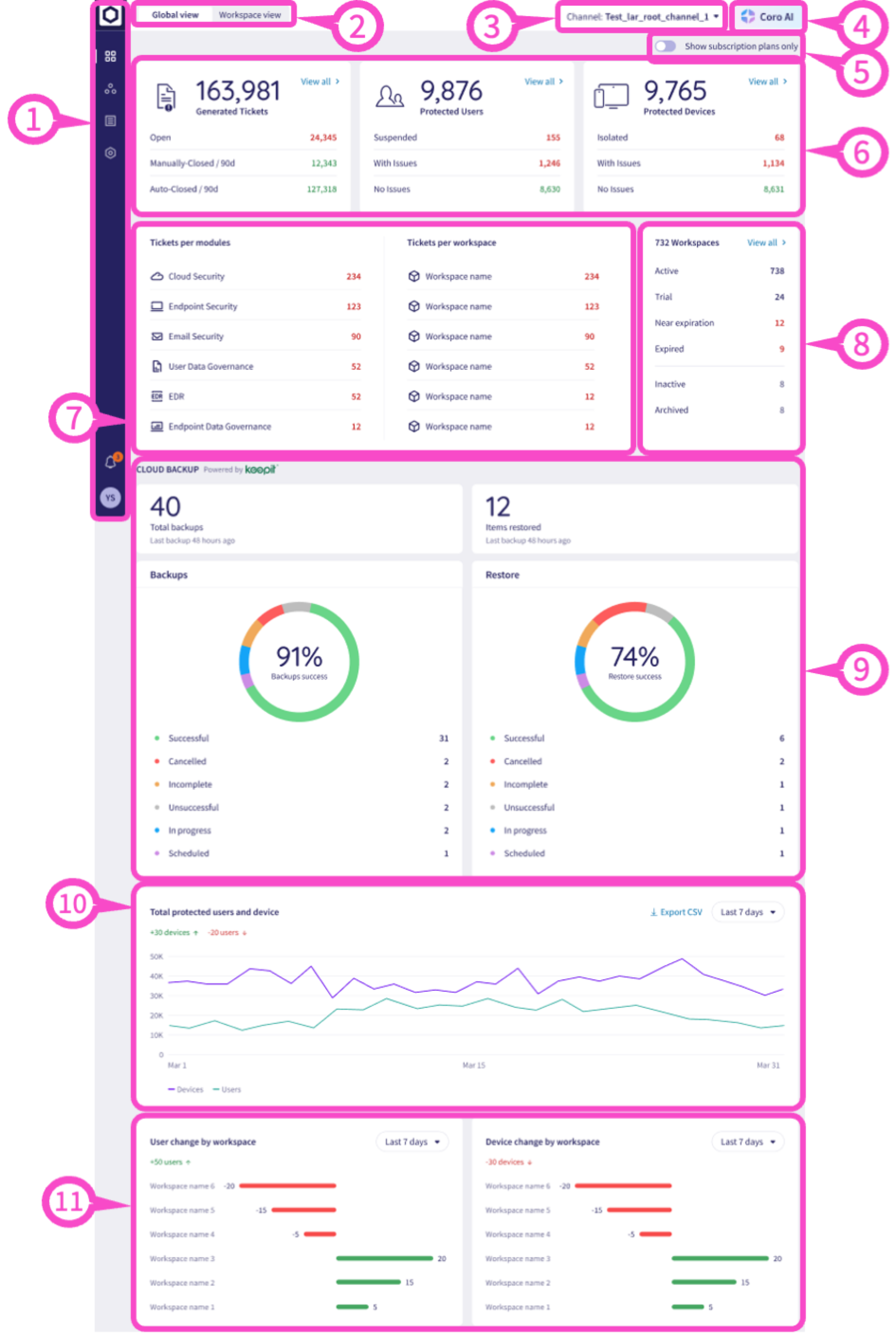
| Element | Description |
|---|---|
 | Sidebar Access and configure the following areas of your global view:
|
 | View toggle Toggle between global view and workspace view. |
 | Channel workspace switcher If you're an MSP admin user with access to multiple channel workspaces, select the channel workspace to view and manage. For more information, see Workspace hierarchy. |
 | Coro AI Assistant Powered by AI, Coro AI Assistant uses the Coro documentation to provide responses to your questions and direct you to helpful articles. |
 | Show subscription plans only Filter the dashboard panels to view data about both trial and subscription workspaces, or only subscription workspaces. This filter affects all dashboard panels except the Workspace statuses panel. |
 | Dashboards Ticket and activity dashboard panels for generated tickets, protected users, and protected devices. Select View all from each panel to access the:
|
 | Tickets overview View tickets by module and workspace. Select the module or workspace to see more details. |
 | Workspace statuses View the status of the channel workspace and each descendant workspace. Select a status to see more details about that workspace. |
 | Cloud Backup This panel appears only for Cloud Backup module subscribers. Activity overview for Cloud Backup module subscribers across all child workspaces in your estate, for the previous 30 days:
|
 | Total protected users and devices A graph of the total protected users and devices over a specific time period. Change the time period from the dropdown in the upper-right corner. Select Export CSV to export the data to a CSV file. |
 | User/device change by workspace A breakdown of user/device change by workspace over a specific time period, displaying the top three workspaces with the most positive and most negative changes. Change the time period from the dropdown in the upper-right corner. |