Managed Service Provider (MSP) admin users with sufficient permissions can manage their respective customer workspaces from the Workspaces page.
MSP admin users manage the following workspace types:
Regular: Standalone workspaces assigned to direct customers and managed by admin users. Regular workspaces cannot serve as parents or containers for channel workspaces.
Channel: MSP workspaces that function as the parent/container of child workspaces and other channel (subchannel) workspaces.
Child: Workspaces belonging to the customers of an MSP admin user.
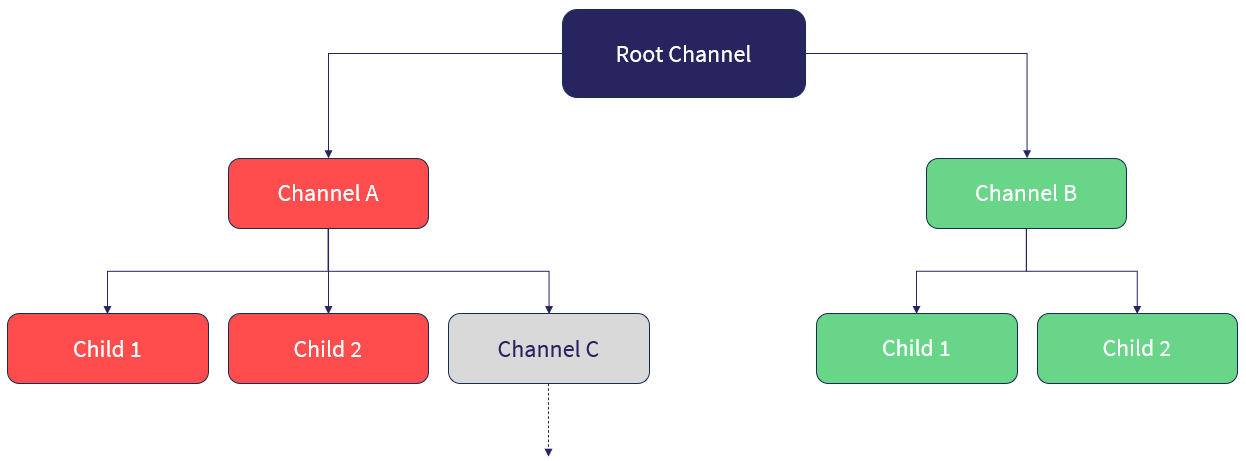
Coro organizes MSP-managed workspaces into the following hierarchical structure:
| Workspace type | Description |
|---|---|
| Root Channel | Coro creates this primary channel workspace from which descendant channel and child workspaces originate. MSP admin users oversee the entire network of descendant workspaces from this root channel. |
| Channel | MSP admin users create and manage channel workspaces directly from the root channel workspace or from within other respective descendant channel workspaces. Each channel workspace operates as a subordinate administrative center within the root channel's network, managing its own set of channel and child workspaces. |
| Child | MSP admin users create and manage child workspaces either directly from the root channel or from within other respective descendant channels. Child workspaces belong to MSP customers. MSP admin users cannot create additional workspaces from child workspaces. |
MSP admin users with responsibility for managing multiple MSPs can use the Channel workspace switcher at the top of the Global View console to switch between MSP channel hierarchies:
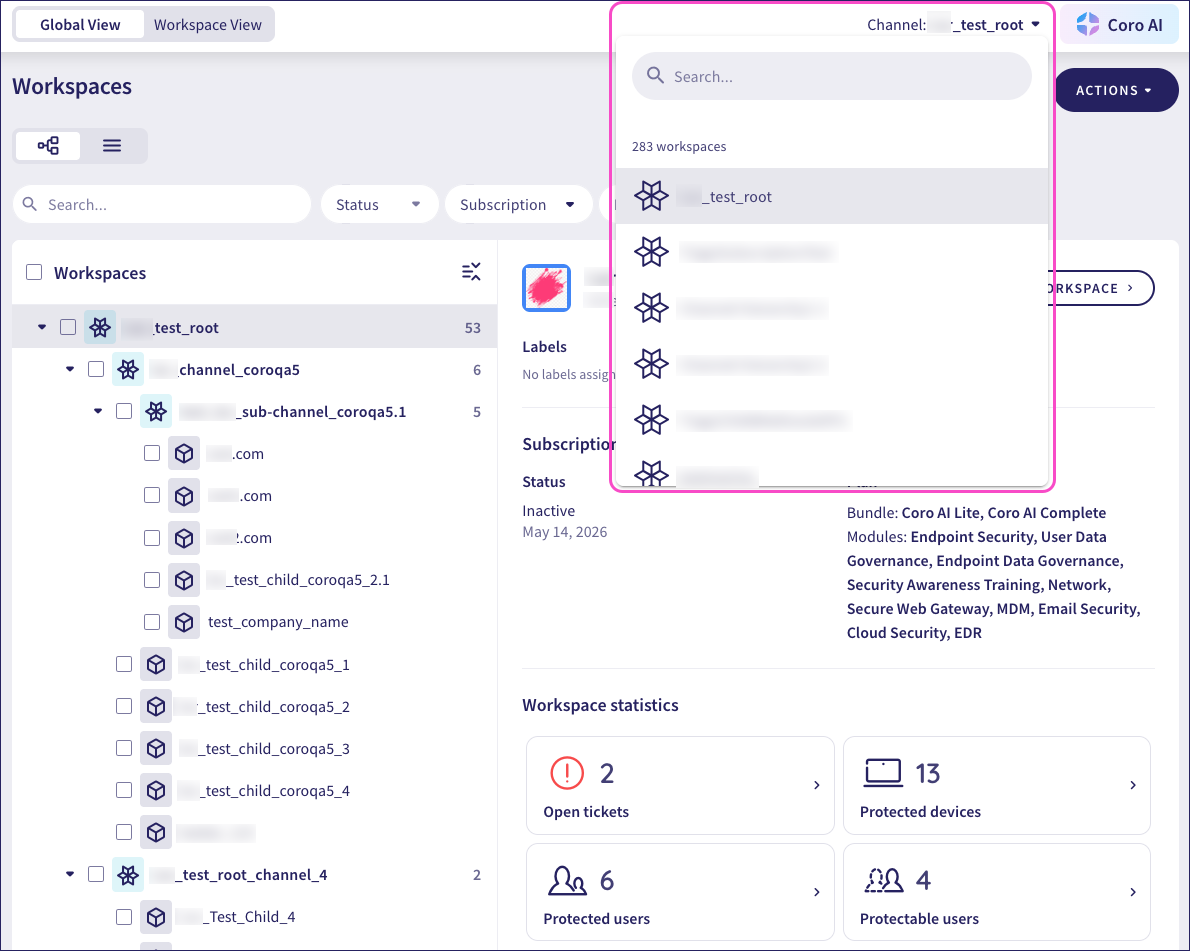
Coro updates the Workspaces page to reflect the workspace structure for the selected provider.
An account can serve as an MSP admin user in one workspace within an MSP hierarchy.
An account can also serve as an MSP admin user in other independent MSPs.
To access the Workspaces page:
Select Global view:

From the sidebar, select Workspaces:
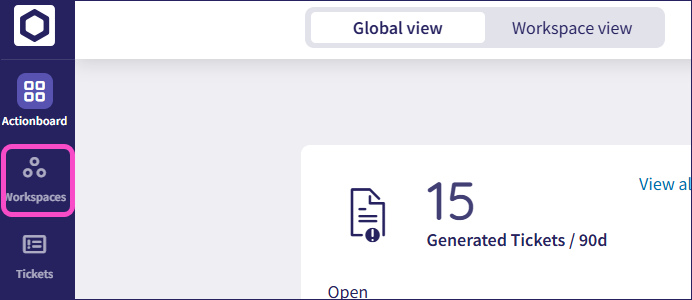
Coro displays the Workspaces page:
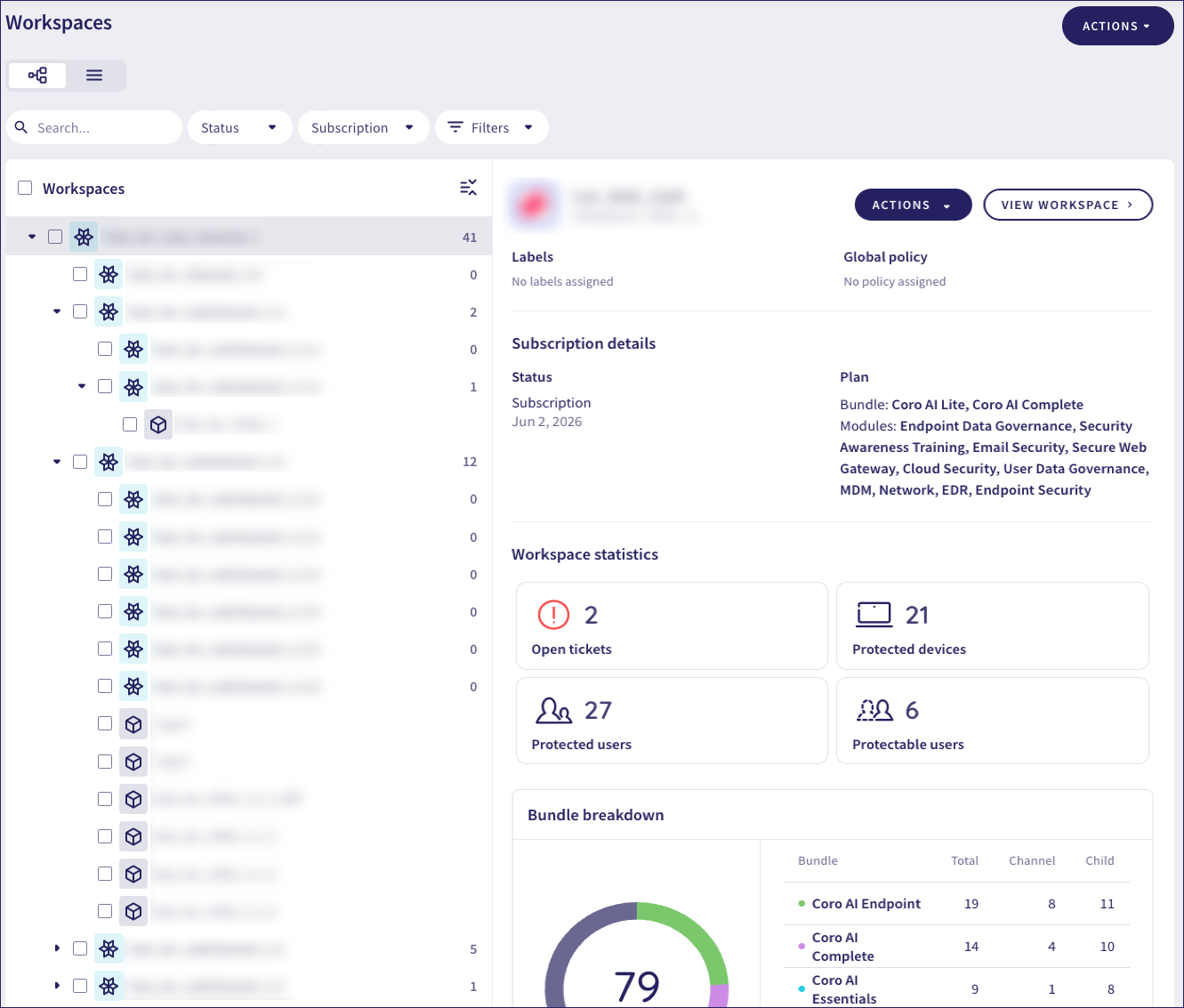
This page displays the currently signed-in workspace and all its descendant workspaces.
On this page, you can:
Switch between hierarchy view and list view using the workspace toggle:
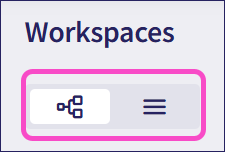
Perform global actions such as creating new workspaces and exporting data about your workspaces.
Perform actions on workspaces individually, or several at a time.
Search for workspaces by name or ID:

In hierarchy view, Coro helps MSP admin users explore their full workspace structure without pagination. In this view, you can filter the hierarchy to show only the workspaces that match your selected filters. You can also search for and take actions on your workspaces.
From the left pane, view your entire workspace structure and hierarchy. Select  to expand or collapse all workspaces:
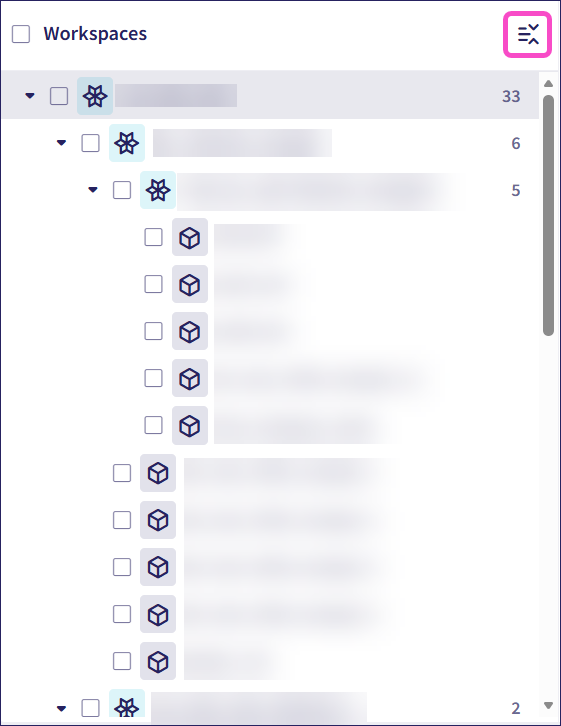
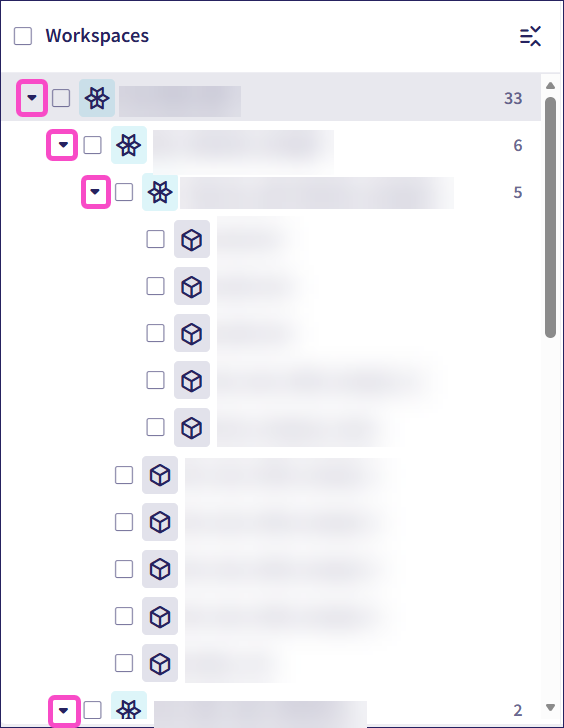
Coro displays a count of each channel workspace's descendant workspaces. Select the arrow next to a workspace to view its immediate descendant workspaces or collapse all descendant workspaces:
Use the filters at the top of the page to show only child workspaces that match specific criteria:
Status: Workspace status
Subscription: Workspace subscription
Additional filters:
Labels: Workspace labels

Filters do not affect channel workspaces which continue to show in all cases.
Select a single workspace to view more details in the right pane:
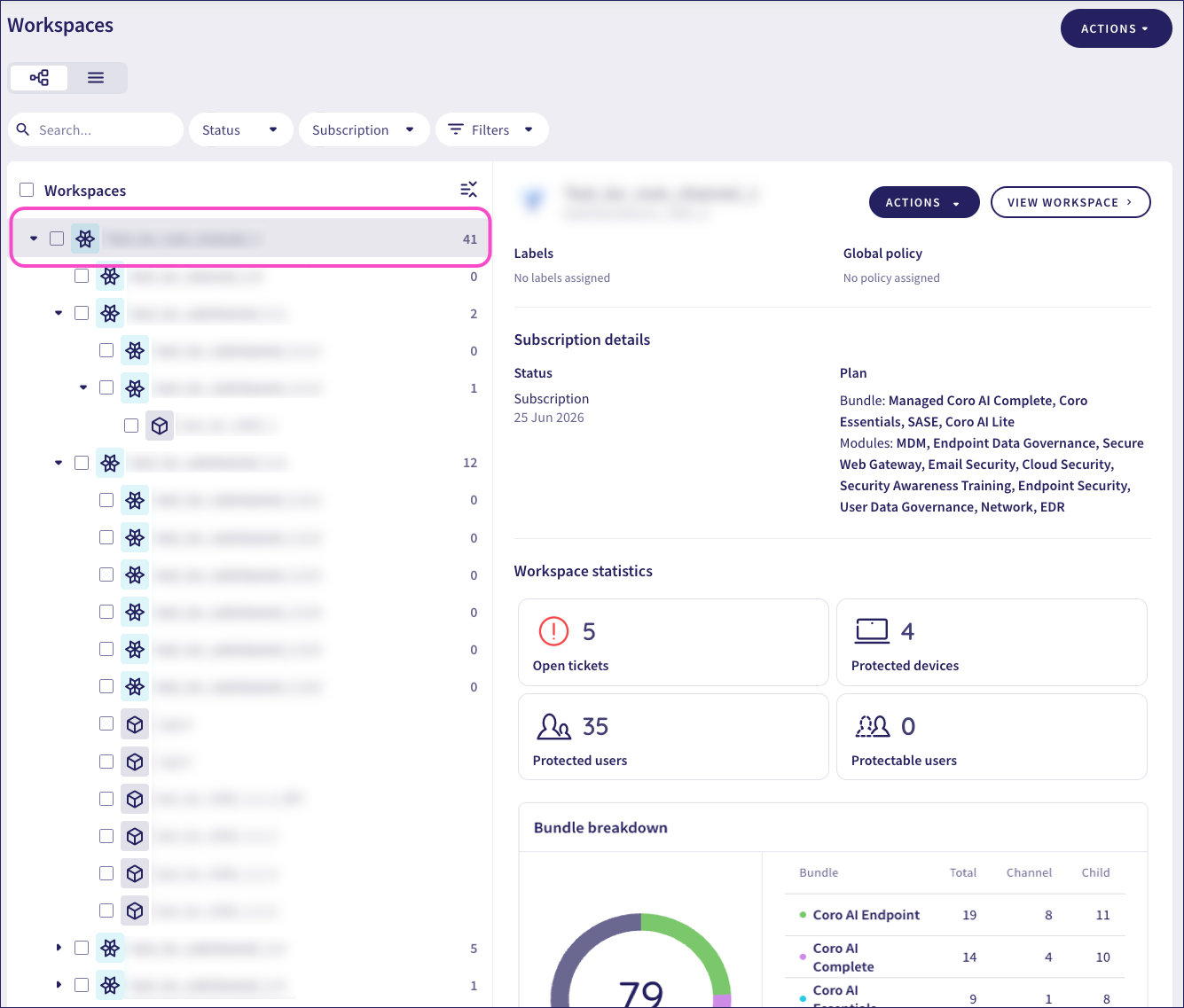
View details about the workspace, such as:
- Workspace ID.
- Workspace labels.
- Global policies.
- Workspace status.
- Subscription plan.
- Aggregated Workspace statistics for this and all active descendant workspaces:
- Total open tickets.
- Total protected devices.
- Total protected users.
- Total protectable users.
- Bundle breakdown (applicable to channel workspaces only) showing subscribed bundles across this and all descendant workspaces.
- Descendant child workspaces (applicable to channel workspaces only). For each child workspace, Coro shows the number of protected and protectable users, protected devices, and open tickets, as well as any associated workspace labels. Select the arrow adjacent to a child workspace to go to its Actionboard.
In list view, Coro provides a paginated display of all available workspaces. This view is useful for MSP admin users who want to scan, search, and take bulk actions across large sets of workspaces:
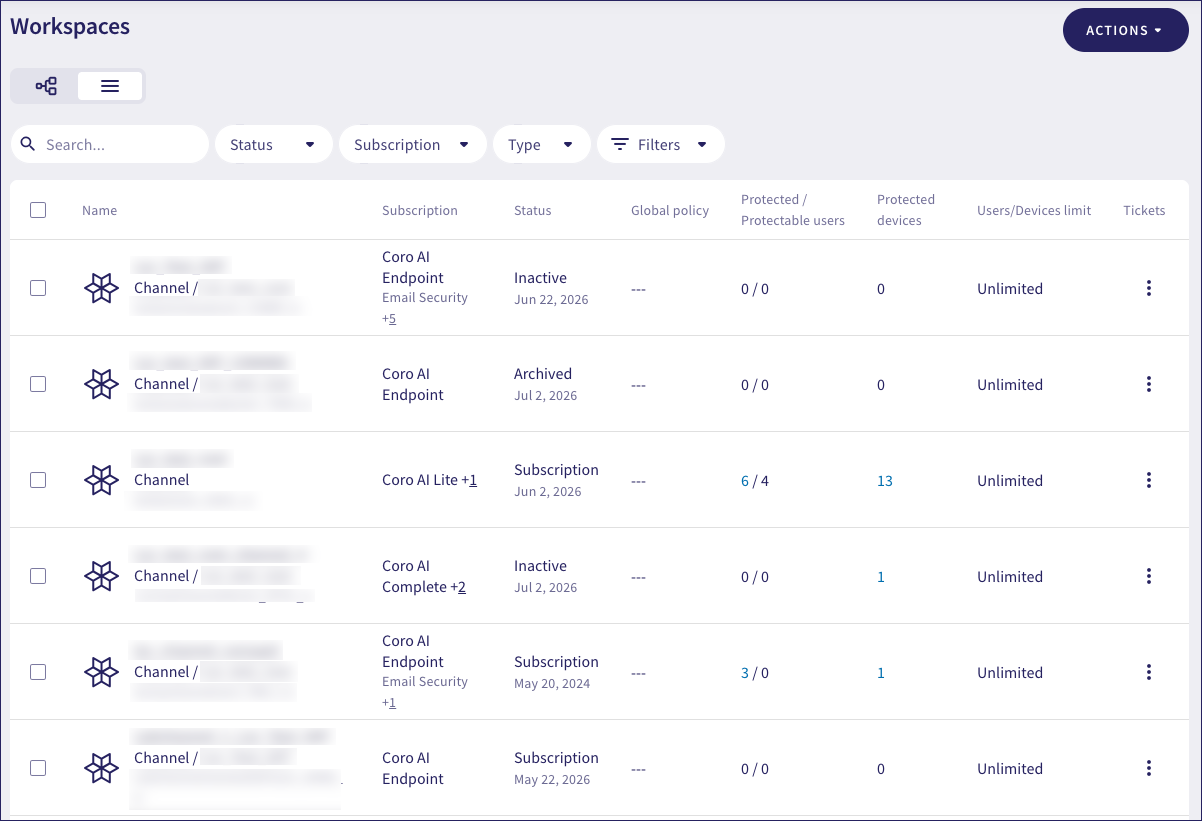
List view shows the following details for each workspace:
- Workspace name and ID.
- Workspace type: Channel or Child.
- Subscription plan.
- Workspace status.
- Global policies.
- Protected and protectable users. Select the number of protected users to view the workspace Protected Users list.
- Protected devices. Select the number of devices to view the workspace Devices list.
- User and device protection limits, if applicable.
- Open tickets.
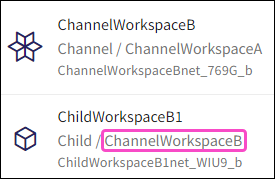
If applicable, list view displays the name of the parent channel workspace after the workspace type:
Use the filters at the top of the page to view workspaces by:
Status: Workspace status
Subscription: Workspace subscription
Type: Child or channel workspace
Additional filters:
Labels: Workspace labels
Max users limit: Show only workspaces that have a user protection limit, or only those that are unlimited.

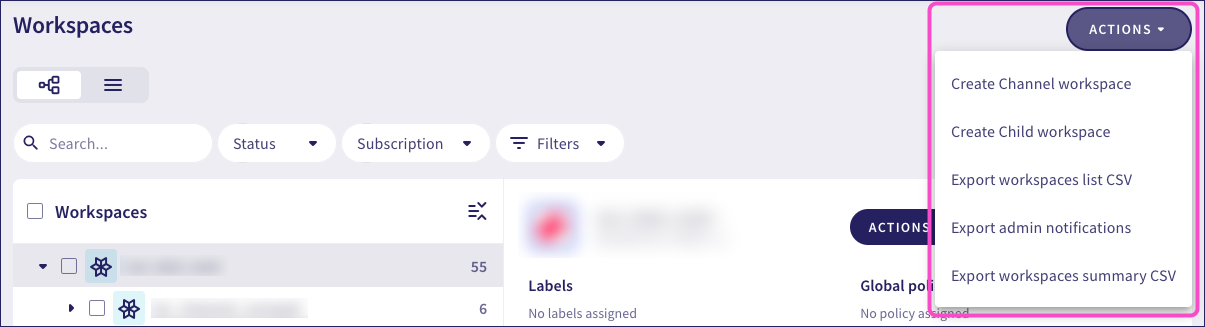
Use the actions menu at the top of the Workspaces page to perform high-level actions that apply to your entire workspace network.
Select ACTIONS to perform the following workspace actions:
From the Workspaces page, you can manage individual workspaces. Actions vary depending on your selected view (hierarchy or list) and your MSP admin user role. You can edit workspace details, manage subscriptions, archive workspaces, and add workspace labels, either individually or in bulk.
To perform actions for a workspace in hierarchy view, select the workspace in the left pane, and then select ACTIONS:
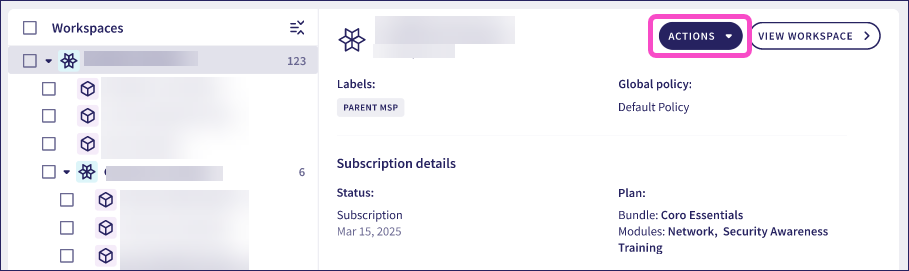
To perform actions for a workspace in list view, select the three-dot menu to the right of each workspace:
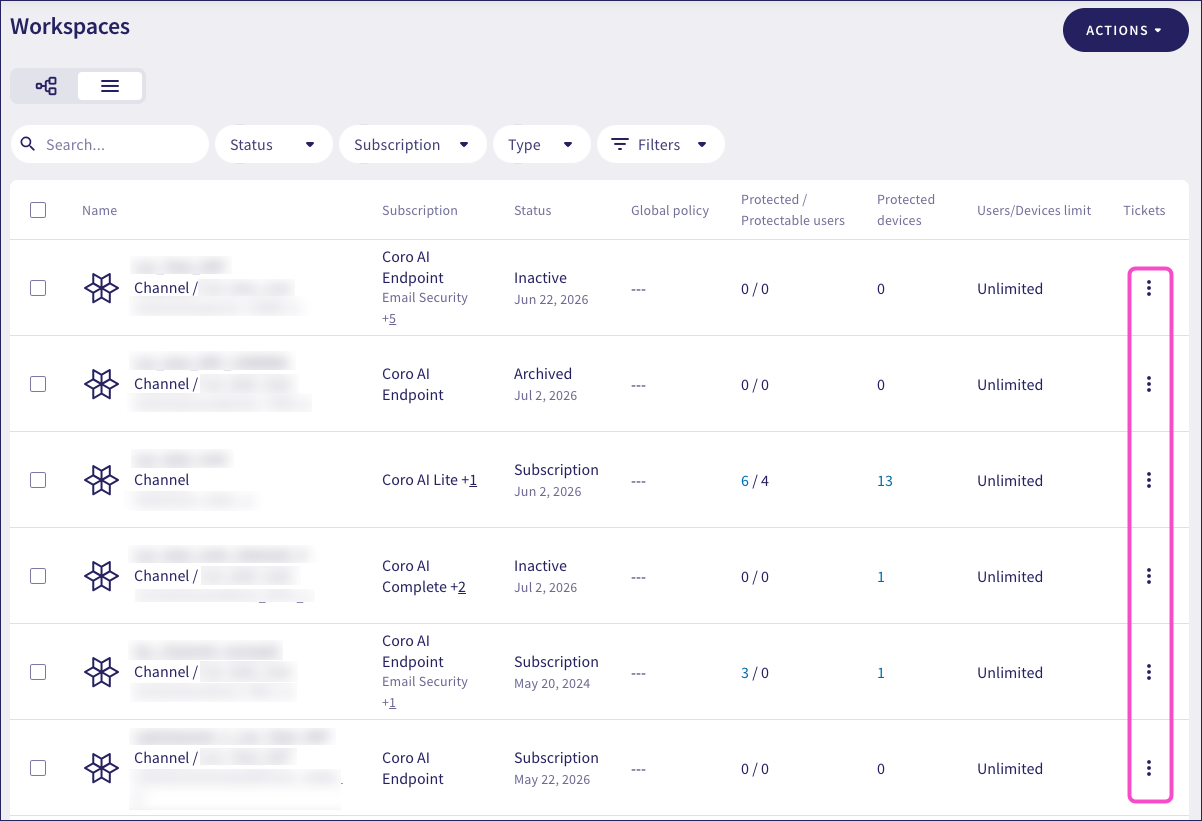
The actions include:
| Action | Description |
|---|---|
| Edit workspace | Edit workspace options, such as company name, display name, notification settings, default language, global protection policy, and branding settings. For more information, see Editing workspaces. |
| Archive workspace | Archive an inactive workspace. See Archiving an inactive workspace. |
| Edit subscription | Edit the existing workspace subscription. See Editing workspace subscriptions. |
| Start subscription | Start a new workspace subscription. See Starting a subscription. |
| Stop subscription | Stop the existing workspace subscription. See Stopping a subscription. |
| Edit labels | Add or remove workspace labels from a child workspace. See Workspace labels. |
To go to the Actionboard of the selected workspace, select:
VIEW WORKSPACE in hierarchy view:
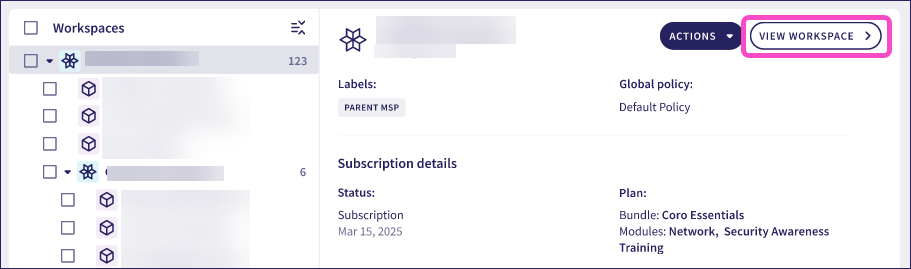
View workspace from the three-dot menu in list view:
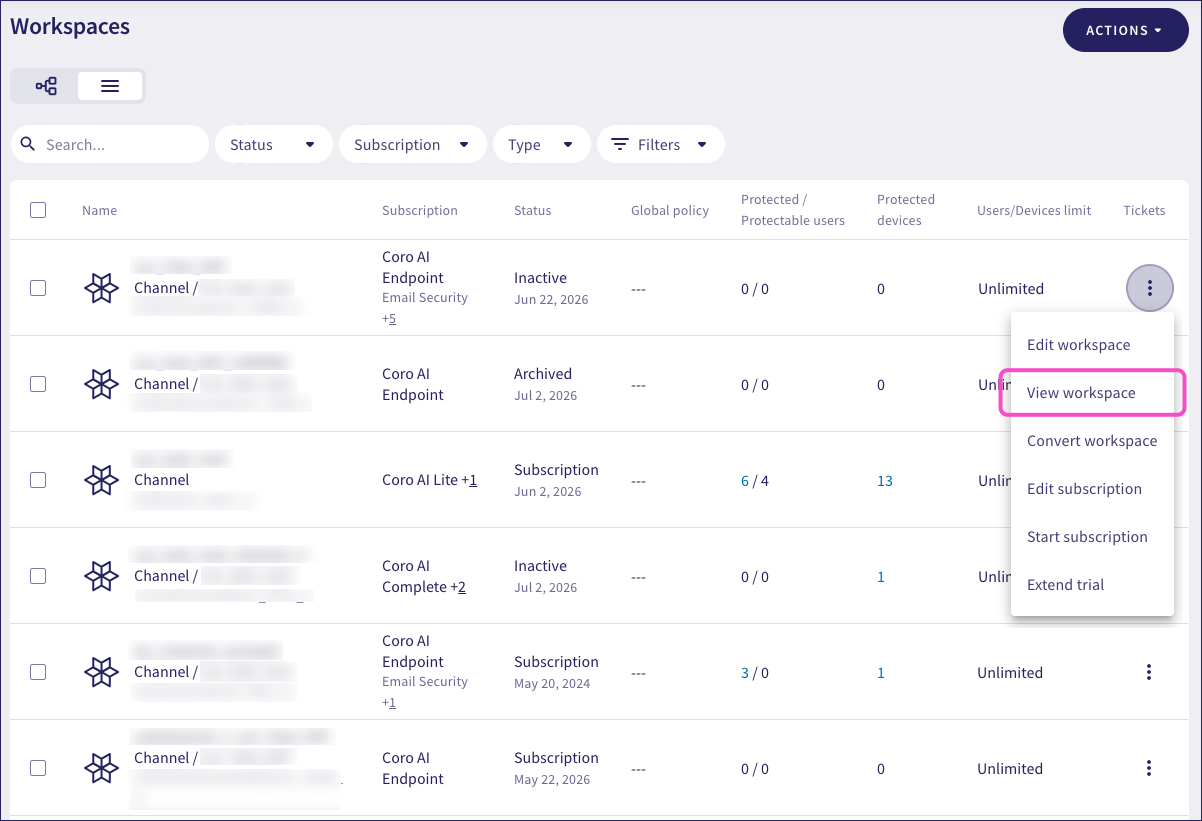
The actions available for each listed workspace depend on the MSP admin user's role within the MSP hierarchy to which the workspace belongs.
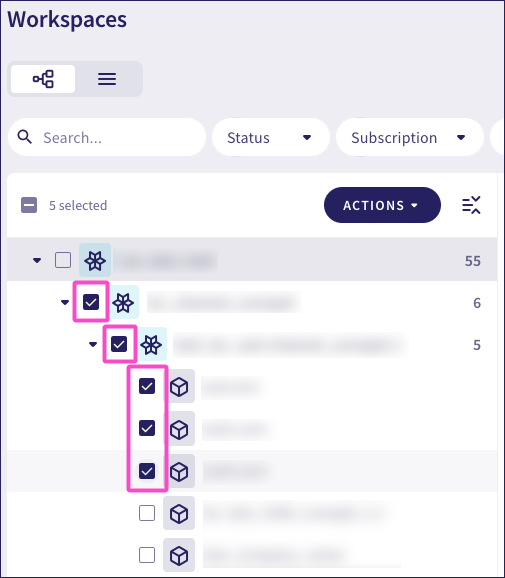
To perform an action on multiple workspaces together, select the checkboxes adjacent to the workspaces you want to affect:
In hierarchy view:
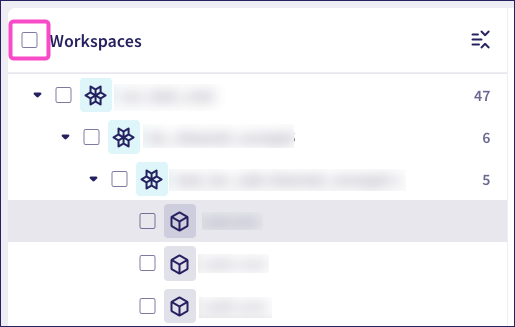
To select or deselect all workspaces in the hierarchy, select the checkbox adjacent to Workspaces:
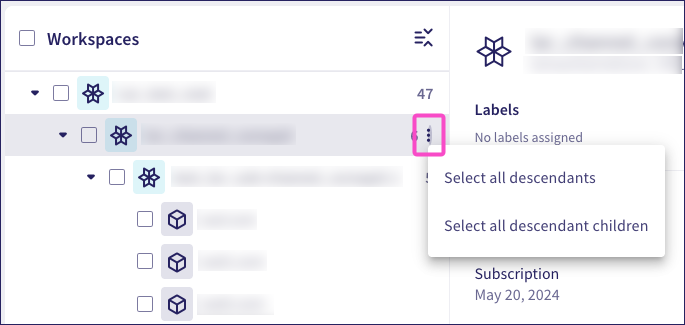
You can also hover over a channel workspace to view a three-dot menu. From the three-dot menu, select:
- Select all descendants: Select all descendant channel and child workspaces.
- Select all descendant children: Select all immediate child workspaces.
In list view:
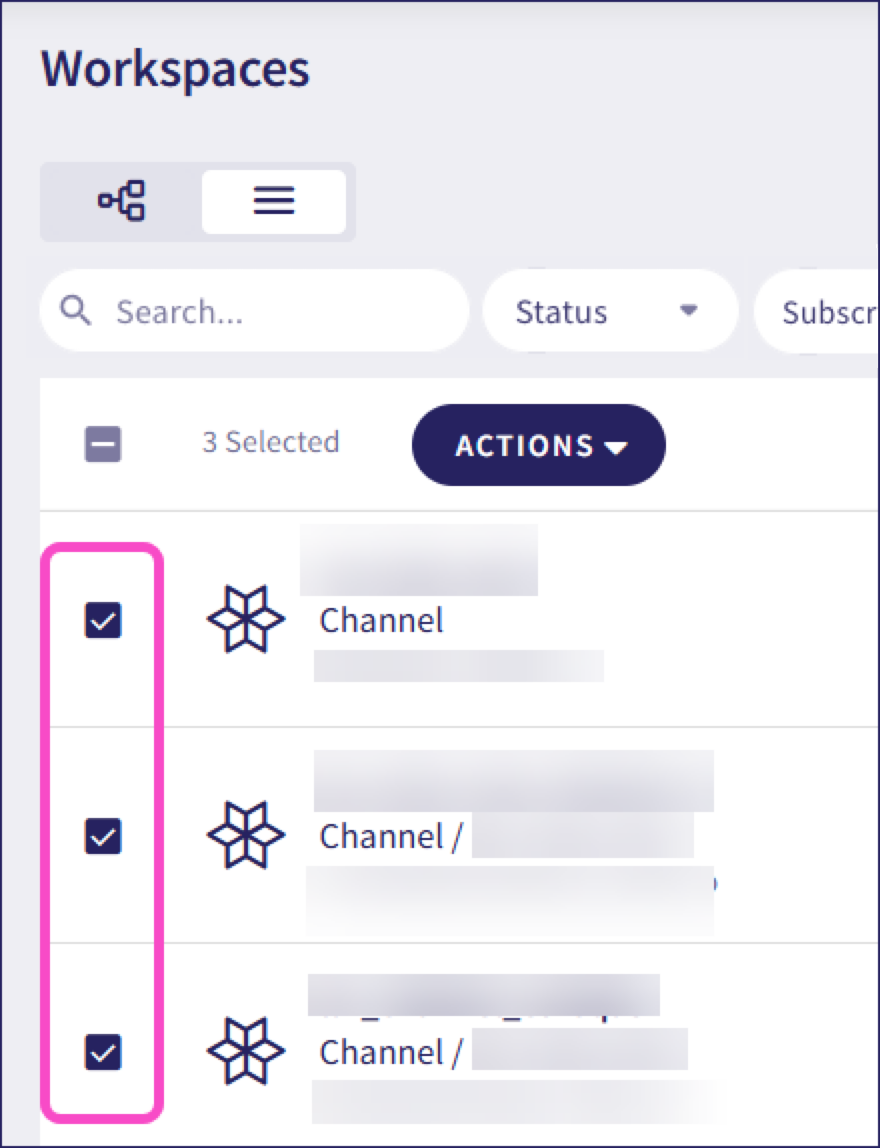
To select or deselect all workspaces in the current page, select the checkbox at the top:
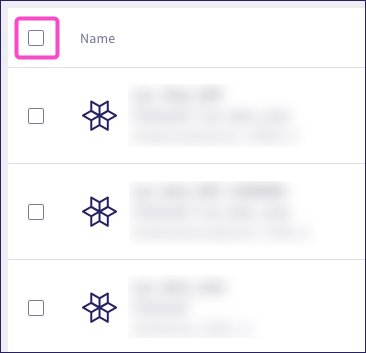
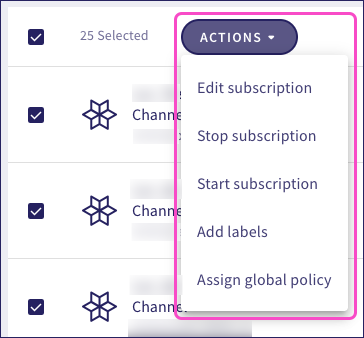
When you select multiple workspaces, Coro displays an additional ACTIONS button above the workspace list. The available actions reflect what is applicable to the workspaces you selected, such as editing workspaces, starting or stopping subscriptions, adding labels, and assigning global policies: