Coro's Cloud Security module enables you to connect to your organization's cloud applications to ensure monitored, protected, and controlled user access.
Use the Cloud Applications page to view details for each connection and to make new connections:
From the sidebar, select Control Panel. Then, select Cloud Applications:
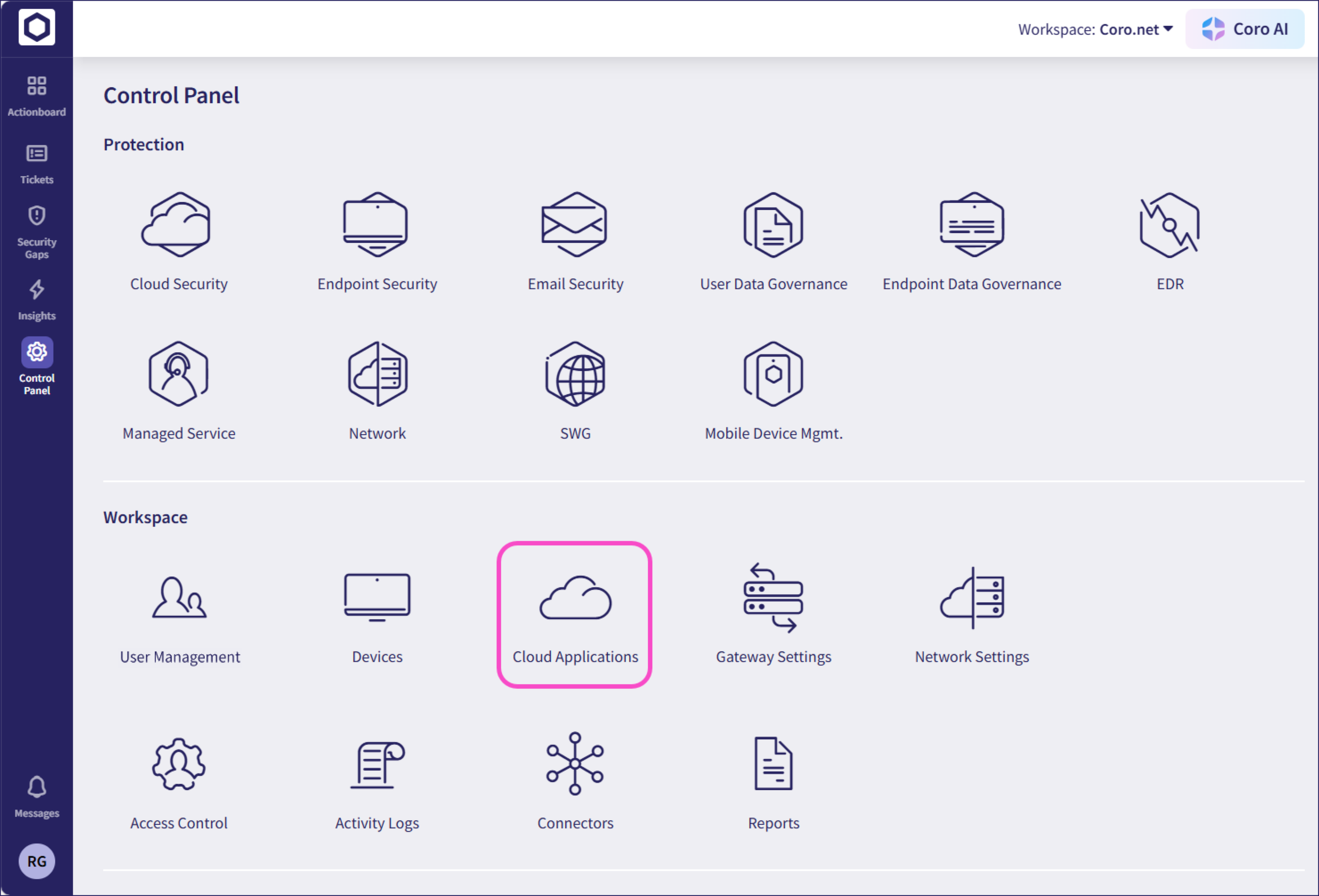
Coro displays the Cloud Applications page, where you can view your existing connections, or connect to (and disconnect from) a range of supported cloud applications:
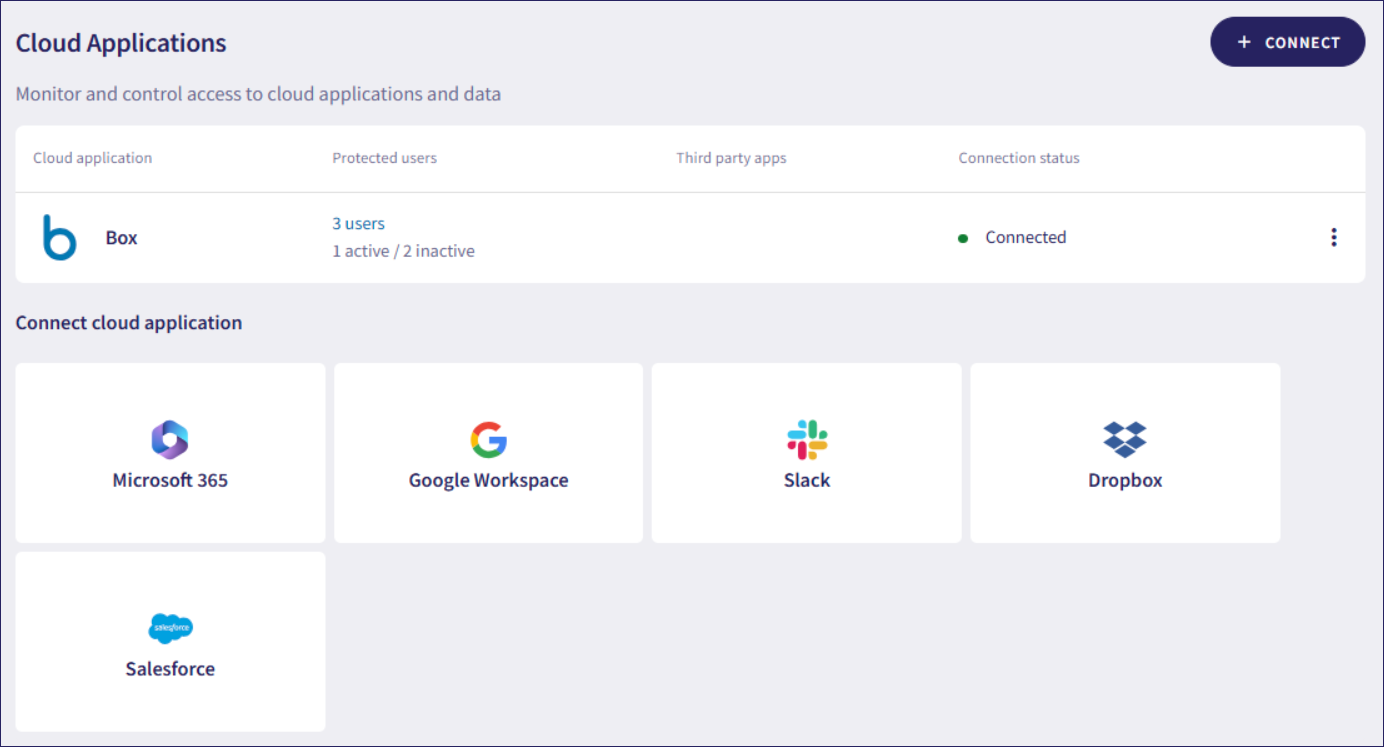
Coro shows the number of protected users, categorized into active and inactive statuses, the number of connected third-party applications, and the current status of the connection.
If the cloud application has a connection status of Connected (Additional setup required), you need to grant additional permissions for Coro to communicate with the cloud application. Select the connection status link to complete the process. This might also occur when new permissions are required to support functionality added in future versions of Coro. Your existing Coro protection continues based on the permissions you've already granted.
If the cloud application shows a connection status of Disconnected, Coro cannot connect to the application due to missing required permissions. Select the connection status link to learn which permissions are missing. Grant those permissions in your cloud application, then return to Coro to reestablish the connection.
From the Cloud Applications page, select a cloud application to start the connection process:
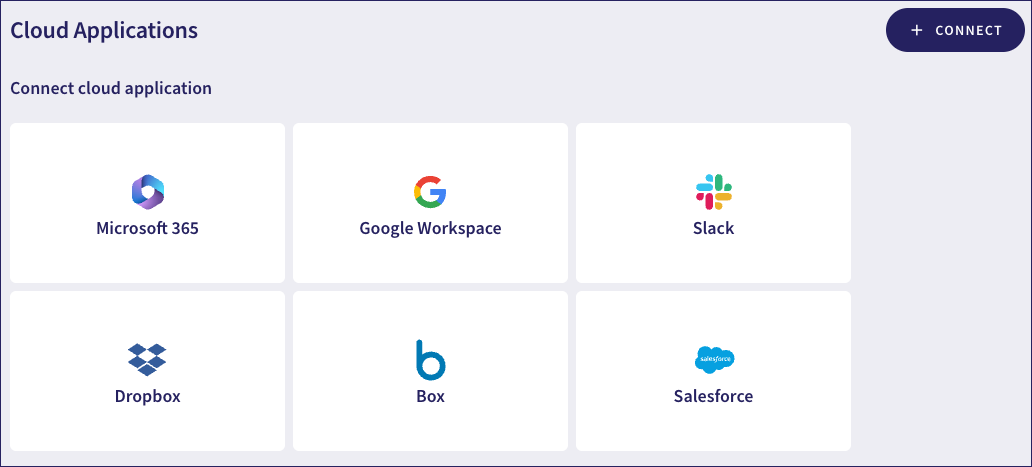
Coro supports:
Coro actively monitors Box for unauthorized access, unusual activity, malware, ransomware, and potential data leaks. To connect a Box account, see Connecting your Box account.
Coro actively monitors Dropbox for unauthorized access, unusual activity, malware, ransomware, and potential data leaks. To connect a Dropbox account, see Connecting your Dropbox account.
To connect a Google Workspace account, see Connecting your Google Workspace account.
To connect a Microsoft 365 account, see Connecting your Microsoft 365 account.
For Salesforce, Coro provides malware and ransomware detection, user access protection, and activity management. To connect a Salesforce account, see Connecting your Salesforce account.
Coro protects Slack user accounts and monitors their activity. To connect a Slack account, see Connecting your Slack account.