Coro's USB Lockdown device policy blocks USB device drives on macOS and Windows devices. Use the USB Lockdown device policy to:
Block portable devices: (Windows devices only) USB connected mobile devices.
Block mass storage devices: (macOS and Windows devices) USB connected flash drives or USB external hard drives.
Allow specific USB devices by serial number: (macOS and Windows devices) Allowlisted devices remain accessible when all other USB devices are blocked.
Coro does not trigger Endpoint Security tickets for this policy type because it directly enforces functionality on affected devices.
A USB Lockdown policy does not prevent endpoint devices from reporting data about connected USB devices to the Coro console. Admin users can review this data from the Drives section in the Devices page.
Locking USB drives on a device enforces security policies and reduces risk in several areas:
Reduced attack surface: Limits USB access to lower the number of potential entry points for malware.
Malware prevention: Blocks USB drives that may contain malware. Malware can spread in several ways:
Malware distribution: Infected USB drives can spread malware when connected to a device. Blocking USB drives prevents this type of distribution.
Automated malware execution: Some malware executes automatically when a USB drive is inserted. Blocking USB drives prevents this execution.
Zero-day exploits: USB-related vulnerabilities can be used by malware. Blocking USB drives reduces exposure to these vulnerabilities.
Insider threat mitigation: Blocking USB drives reduces the risk of unauthorized devices being used by employees to introduce malware.
To create a new USB Lockdown policy:
Select + ADD:

Select Add to Windows or Add to macOS.
Coro displays the Add new device policy dialog.
Select USB Lockdown from the Select policy type dropdown:
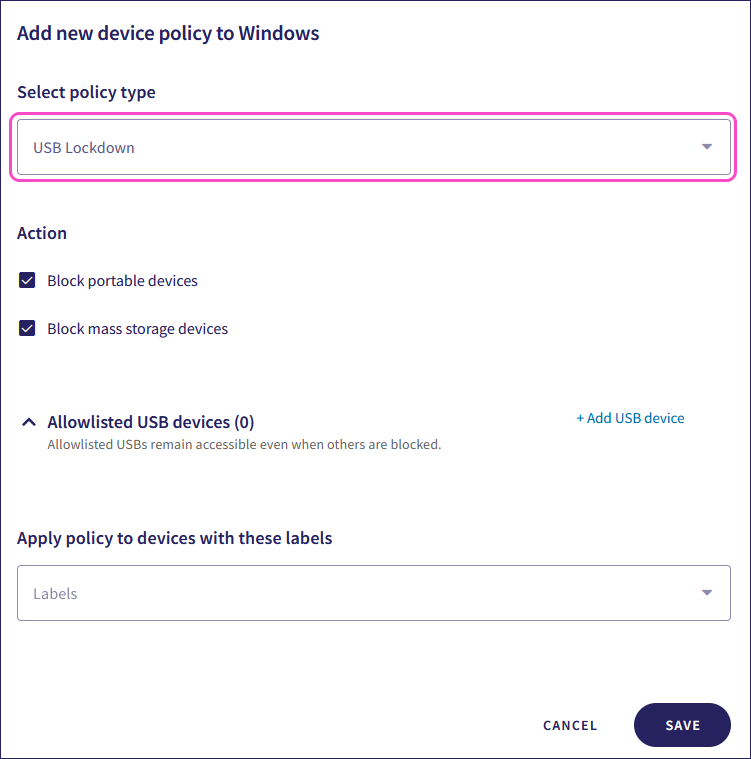
Configure the Action:
Block portable devices.
Block mass storage devices.
Block portable devices and Block mass storage devices are supported on Windows devices. Block mass storage devices is supported on macOS devices.
(Optional) To add a USB device to the allowlist, select + Add USB device:
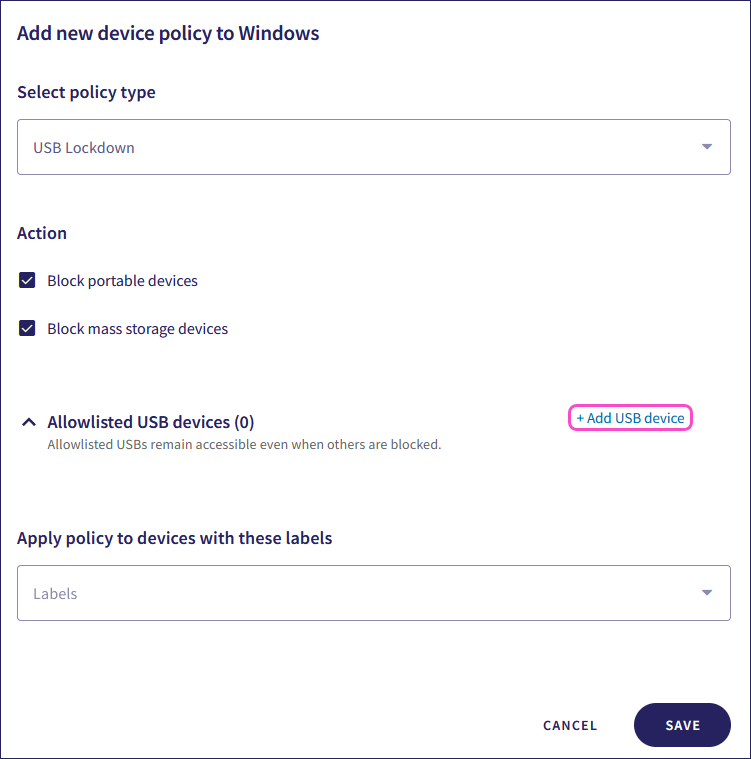
Enter the following USB device information:
- Serial number: Enter the serial number of the USB device.
- Description: (Optional) Enter a description for the USB device.
You can add multiple USB devices to the allowlist.
Enter device labels in the Labels field to assign the policy to specific groups of devices:

Select SAVE:
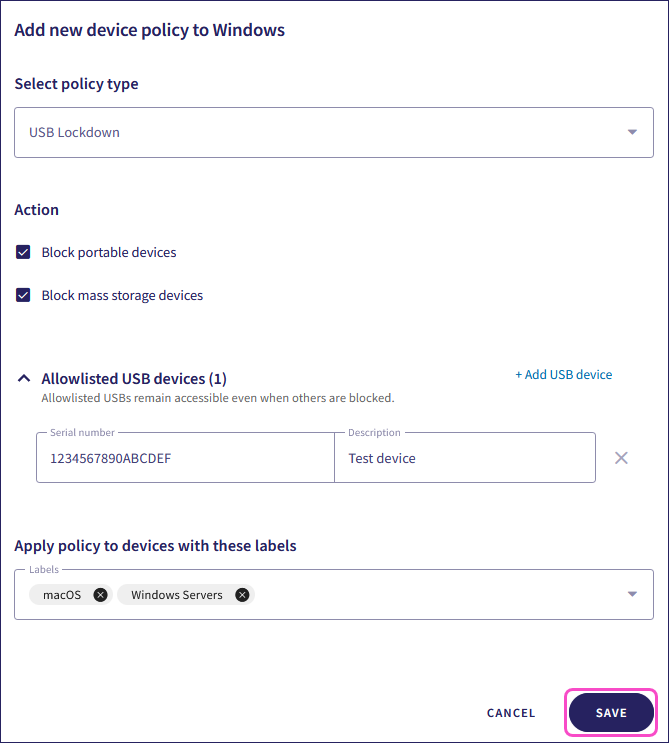
Coro creates the policy with the configured settings.
Select the USB Lockdown dropdown to view the policy.
Coro displays the following policy details:
Device labels applicable to the policy.
The action(s) applicable to the policy, for example, Block portable devices.

Use the three-dot menu of a configured USB Lockdown policy to:
- Edit Policy: Modify the configuration settings of the policy.
- Delete Policy: Remove the policy.
