Admin users with sufficient permissions can set and manage policies for endpoint devices via the Device Policies page. Coro analyzes connected devices to ensure compliance with these policies.
Device policies are grouped according to the following types:
Coro applies device policies to groups of devices by assigning device labels to each policy. Device labels enable Coro to apply policies to groups of devices that share the same label. Unless otherwise specified, Coro generates an Endpoint Security ticket and initiates the specified remediation action if a device fails to comply with a posture policy.
Coro lists device policies under each type together with their corresponding device labels:
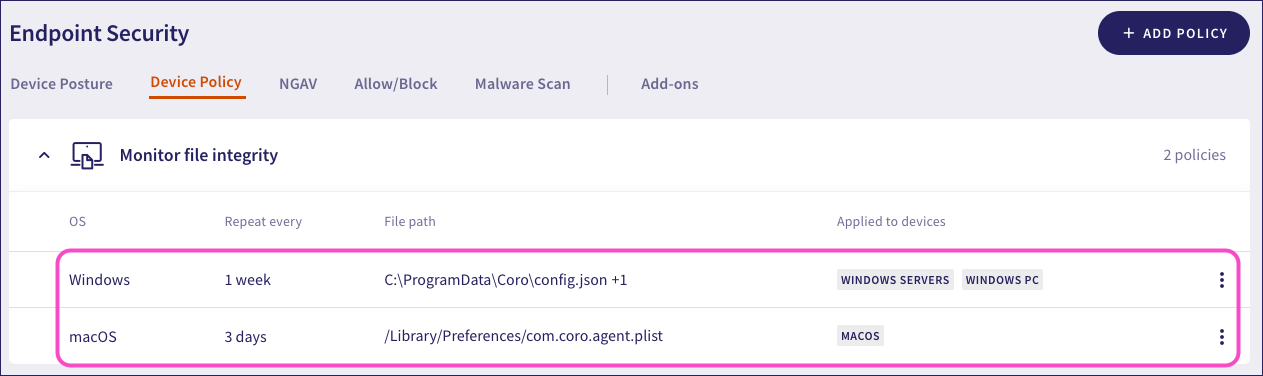
To access the Device Policy page:
Select Device Policy:
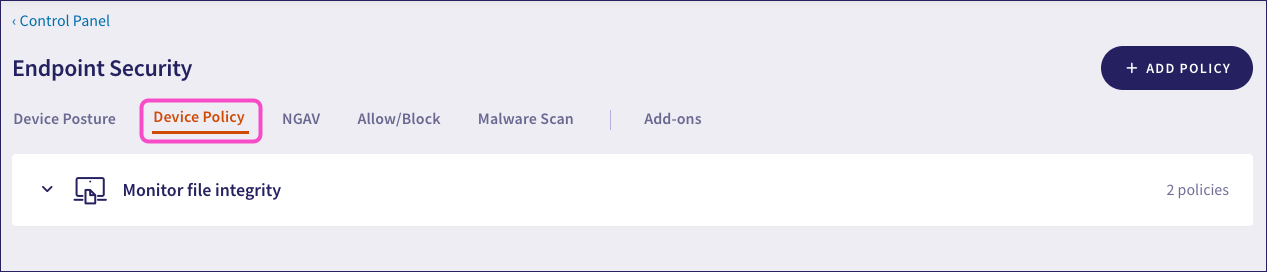
To edit an existing device policy:
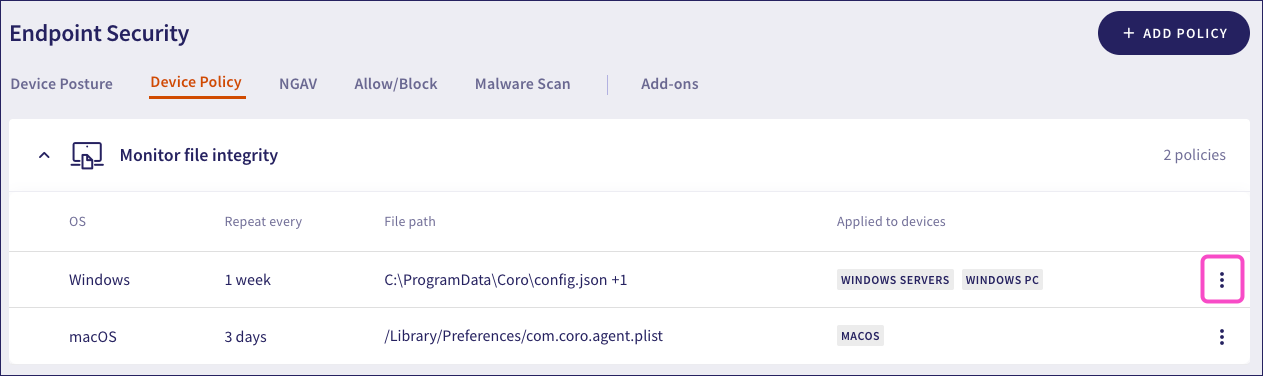
Select the dropdown next to the desired policy type:

Select the three-dot menu next to the desired policy:
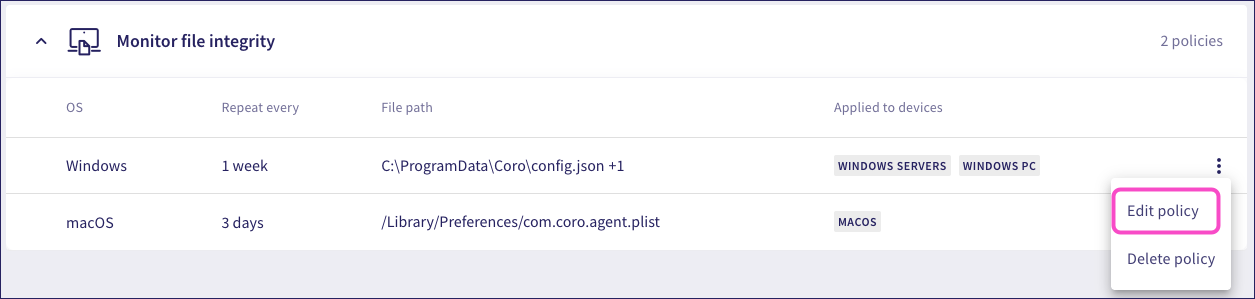
Select Edit policy:
Edit your policy settings.
Select SAVE to apply your changes.
To remove an existing device policy:
Select the dropdown next to the desired policy type:
Select the three-dot menu next to the desired policy:
Select Delete policy:
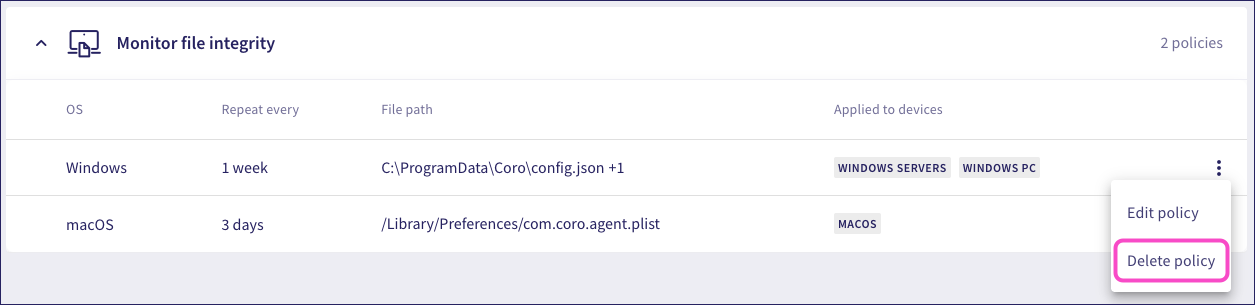
Coro displays the Delete policy dialog.
Select CONFIRM:
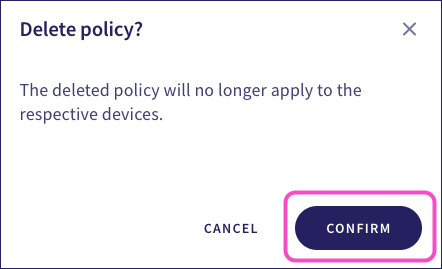
Coro removes the device policy.