The dashboard represents the main view in the Distribution portal and shows the entire customer workspace hierarchy for a Coro distributor or reseller.
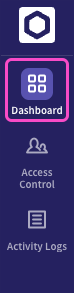
To access the dashboard, select Dashboard from the sidebar:
The portal displays the Dashboard page:
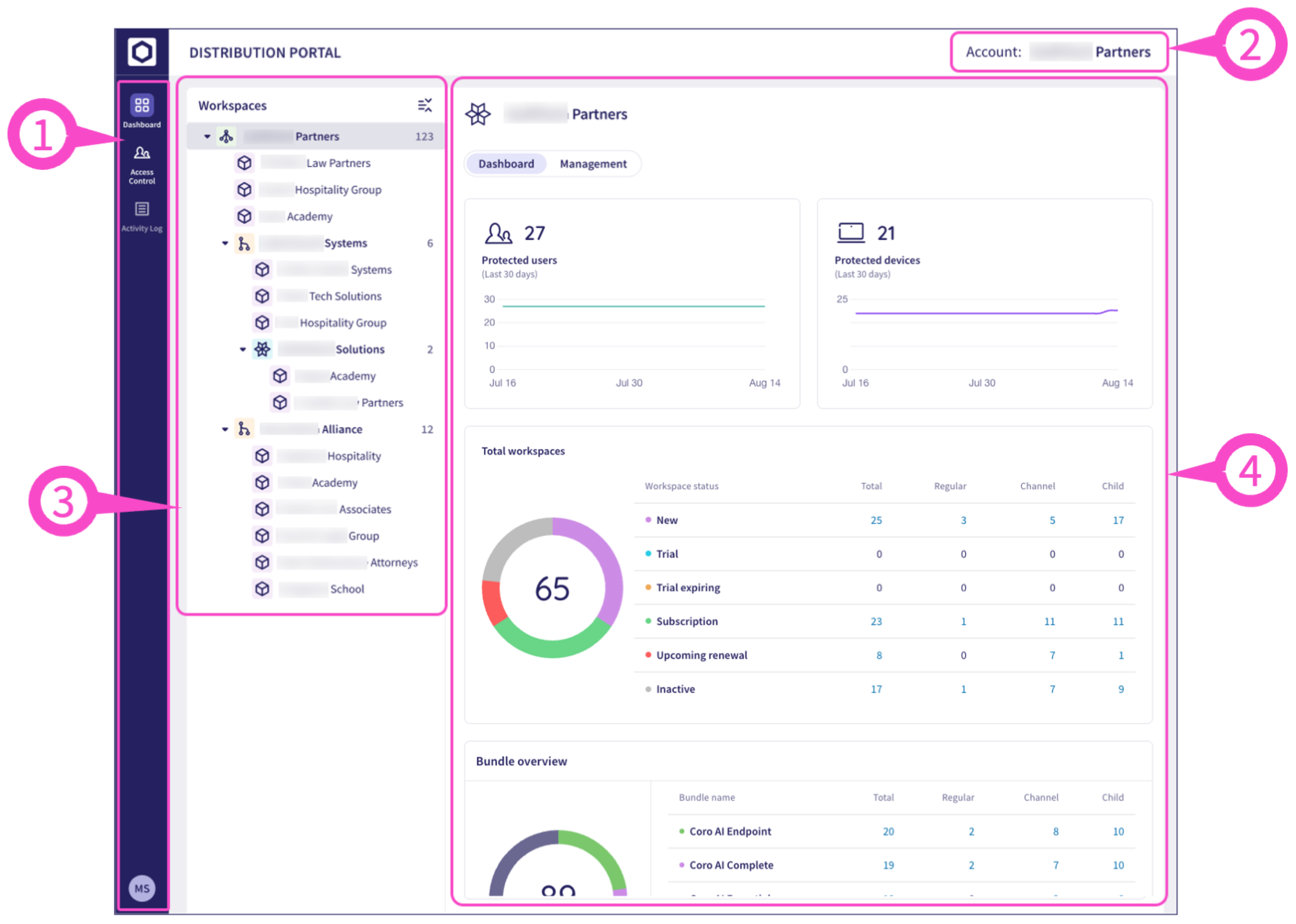
| Element | Description |
|---|---|
 | Sidebar Access and configure the following areas of the portal:
|
 | Account name Displays the current distributor or reseller account name. |
 | Workspaces Displays the hierarchy tree of workspaces and resellers. |
 | Workspace information Enables admin users to review information about the currently selected workspace or reseller, and to manage the descendant workspaces contained within the currently selected item. |
The Workspaces list enables distributors and resellers to explore their full customer portfolio. For each entry that contains descendants, the portal shows a count of all distributor, reseller, or channel workspaces.
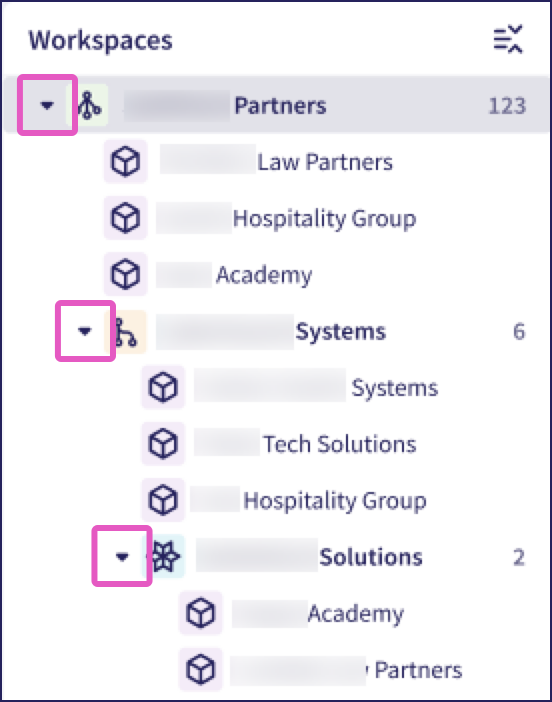
Select the arrow next to an item to expand or collapse the list of immediate descendants:
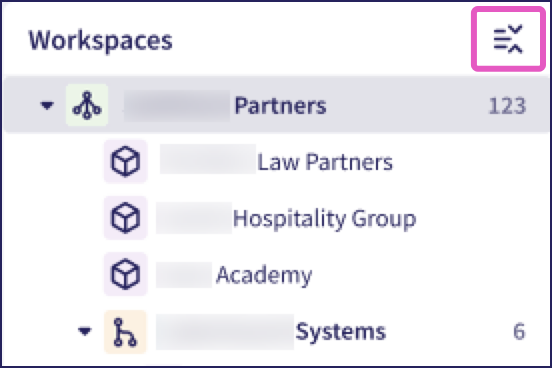
Select  to expand or collapse all descendants:
Select an entry from the left-hand Workspaces list to view relevant usage statistics and management options in the right-hand Workspace information pane. The view changes dynamically depending on the selected item.
Use the toggle at the top of the right-hand workspace information pane to switch between Dashboard view and Management view:

Toggle to Dashboard view to see usage information about workspaces under the selected entity.
For resellers ( ) and channel workspaces (
 ), the portal shows a series of panels giving cumulative totals and usage information across all channel and child workspaces within that hierarchy:
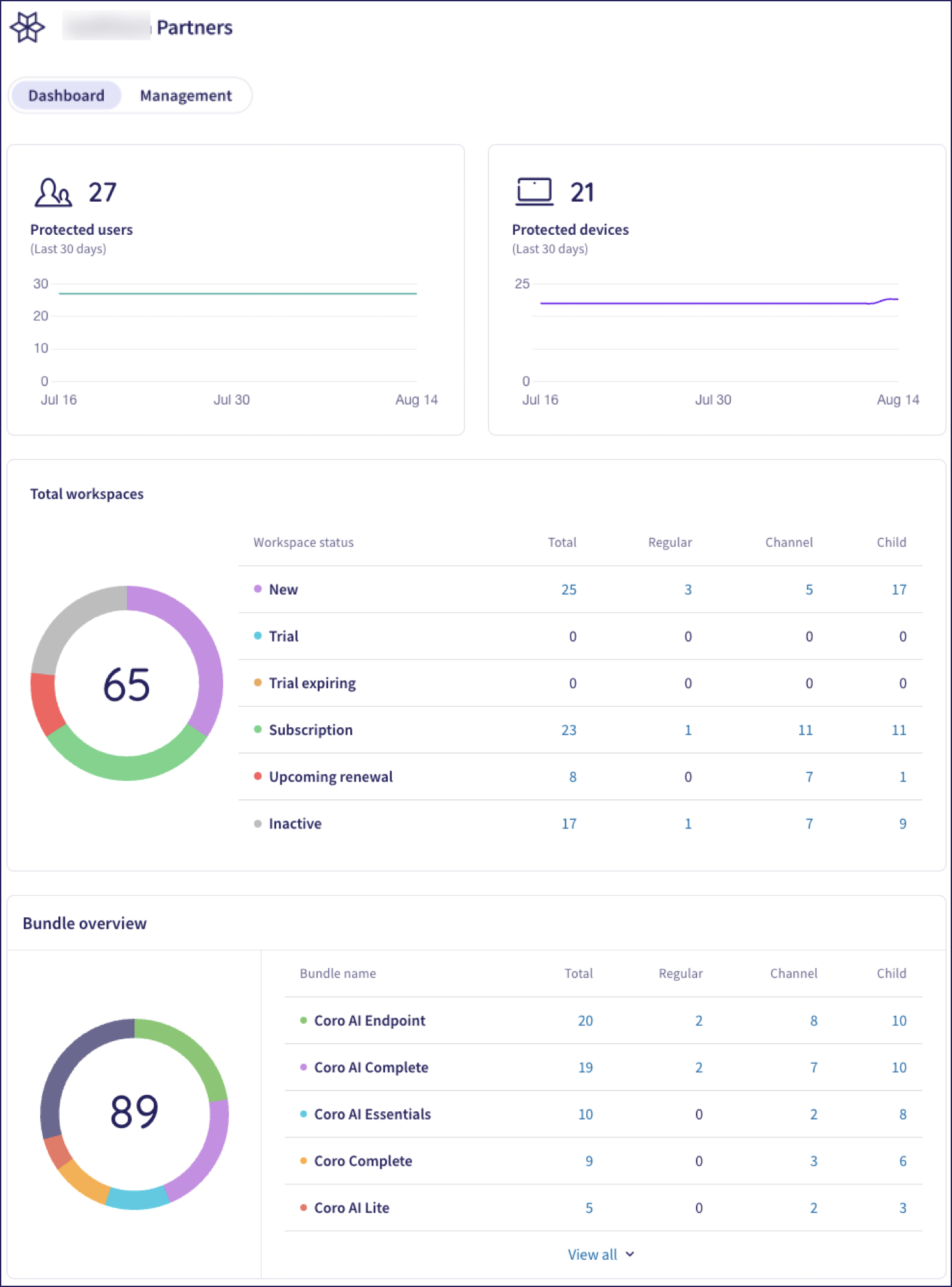
Protected users and devices: The cumulative totals of protected users and protected devices in all workspaces. Graphs show the trend across the previous 30 days.
Total workspaces: A breakdown of workspaces by type and status.
Bundle overview: A breakdown of subscription bundles per workspace type.
Select the individual data points in Total workspaces and Bundle overview to switch to a filtered Management view of all workspaces in the selected category.
For child ( ) and regular (
 ) workspaces, the portal displays totals and usage information relating only to that workspace:
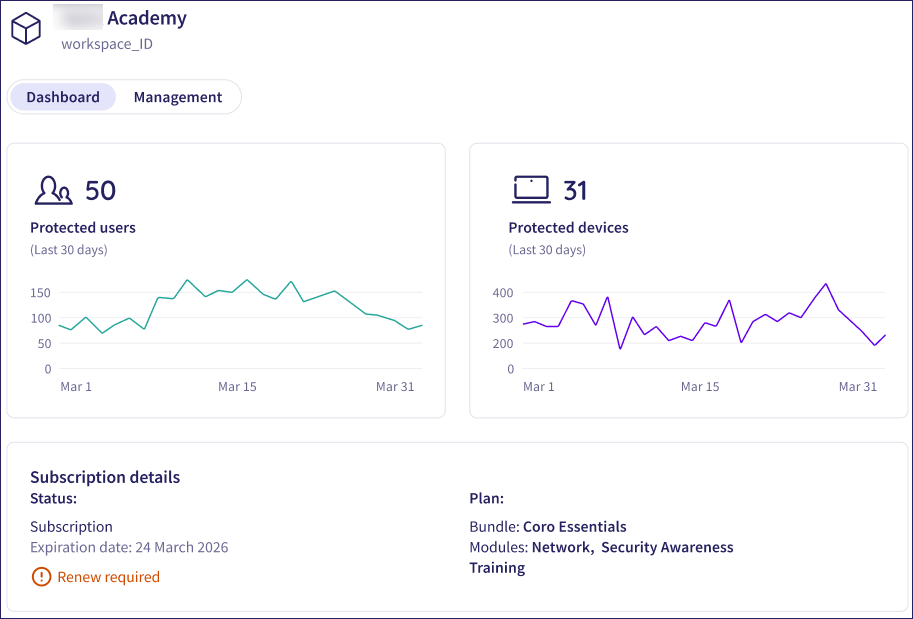
Protected users and devices: The number of protected users and protected devices in the workspace. Graphs show the trend across the previous 30 days.
Subscription details: The workspace status (including expiration details where appropriate) and selected bundles/modules in the current subscription plan.
Toggle to Management view to manage the workspaces under the selected entity.
The portal displays a list of all child and channel workspaces that fall under the selected workspace (including the selected workspace itself):
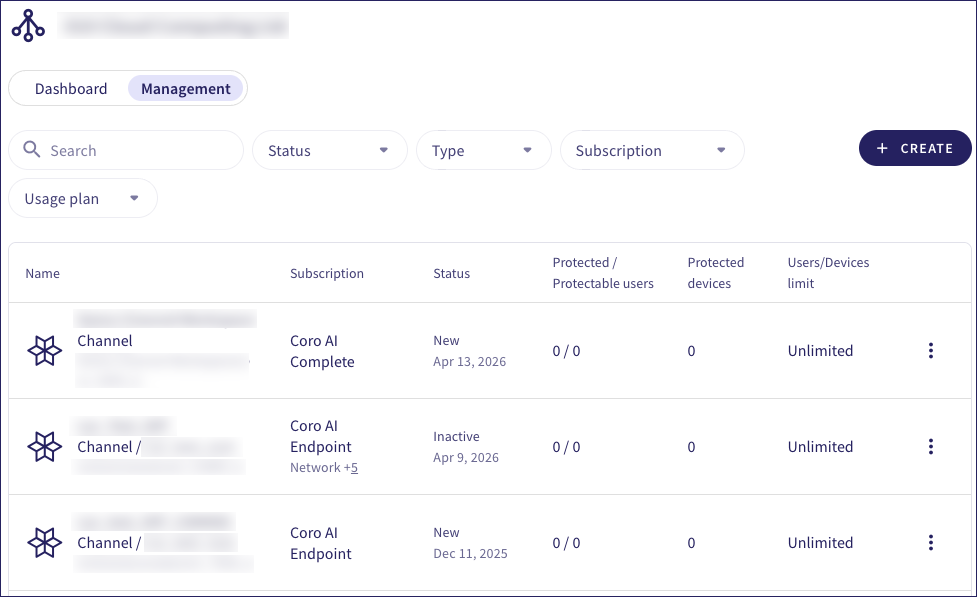
For each workspace, the portal shows:
- Name: The workspace name, type, parent, and internal name.
- Subscription: The workspace subscription plan, showing selected bundles and modules.
- Status: The workspace status, last change date, and expiry details (if relevant). To learn more about workspace statuses, see Workspace status.
- Protected / Protectable users: The total number of protected users, and users identified as protectable.
- Protected devices: The total number of protected devices.
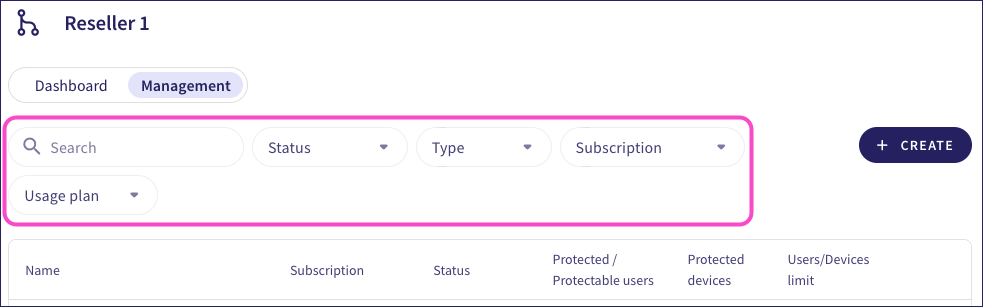
Use the filters at the top of the page to view workspaces by:
- Status: Workspace status
- Type: Child or channel workspace
- Subscription: Workspace subscription
- Usage plan: Unlimited or limited maximum users
- Subscription renewals: (Applies only where the Status filter is set to Subscription) Show workspaces with an upcoming renewal date. Choose from:
- All renewals
- Urgent - in 14 days or less
- Closing phase - in 30 days
- Action phase - in 60 days
- Heads up - in 90 days
Or, use Search to find a specific workspace:
From Management view, select the three-dot menu adjacent to a workspace to view the actions that you can perform on it:
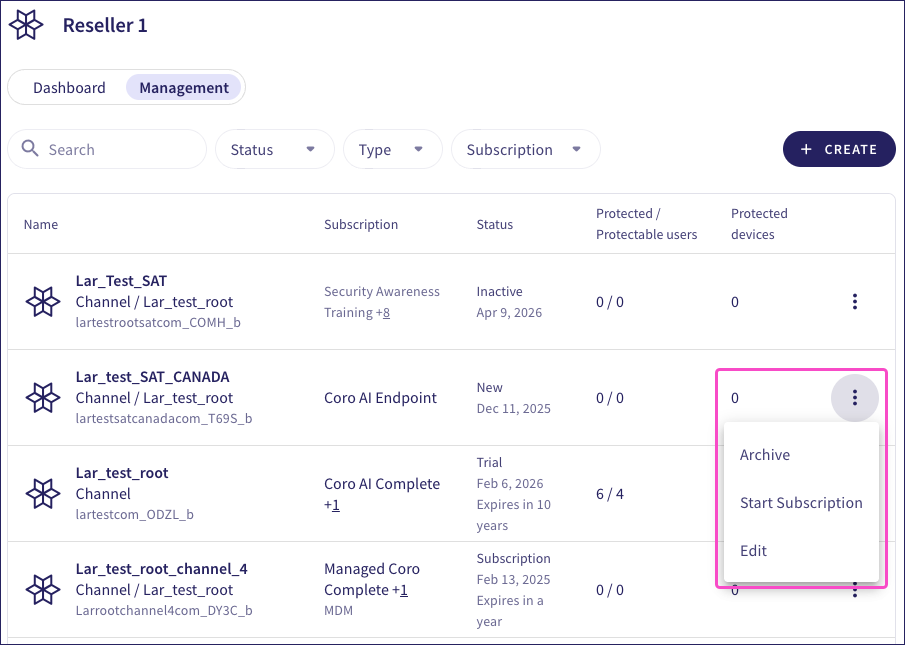
The options reflect the status of the workspace subscription and include the following:
Archive: Archive a new or inactive workspace.
Start subscription: Start a new, trial, or inactive workspace as a full subscription.
Stop subscription: Stop an active subscription. The workspace is marked as Inactive.
Edit: Edit the workspace settings. For more information, see Editing workspaces.
Editing workspace settings is applicable to distributors only.
This feature is applicable to distributors only.
From Management view, select + CREATE > Channel Workspace to create a new channel workspace in your distributor portfolio:
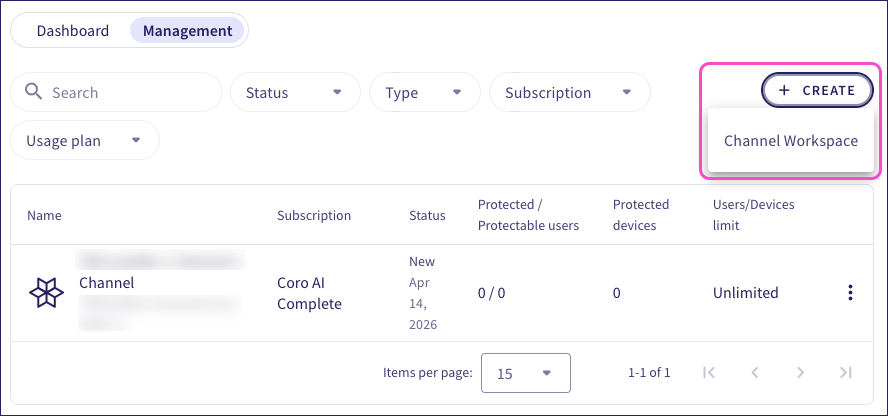
For information about creating channel workspaces, see Creating workspaces.
Be aware that your new workspace is created under the distributor you are signed in as, and not under the currently selected entity in the Workspaces list.