Use this page to manage the administrative users (admin users) that can sign in to the Distribution portal and manage the portfolio for this distributor or reseller.
To access the admin user list, select Access Control from the sidebar:

The portal displays the Access Control page:
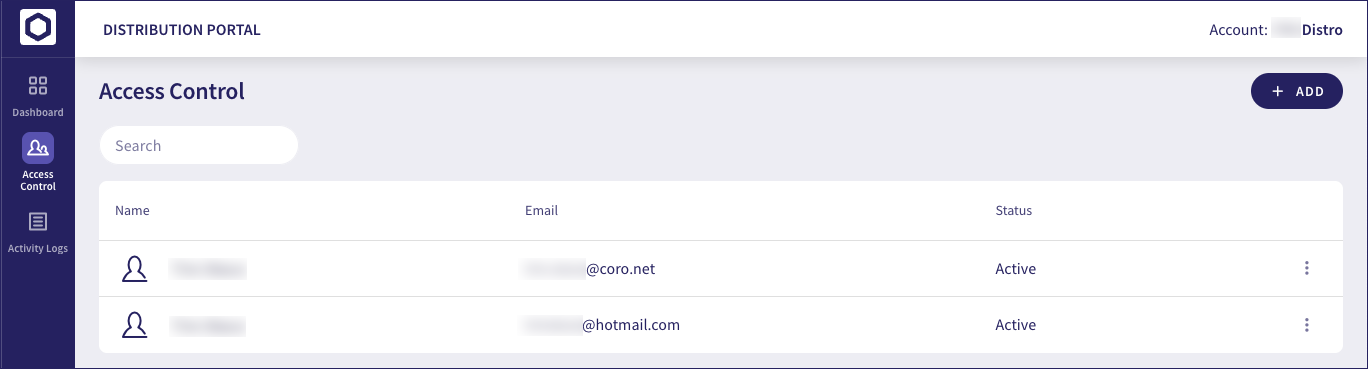
This page displays the name, email address, and status for each admin user.
Select the three-dot menu adjacent to a user to perform actions on that user account:
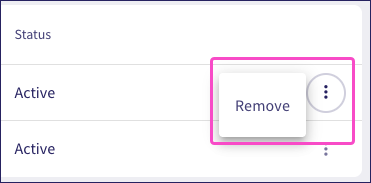
Actions include:
- Remove: Delete this admin user.
You cannot remove your own account.
You can add extra users to help manage the Coro customer portfolio for this distributor or reseller. When you add a new user, Coro sends an email inviting them to join the portal. Make sure your new user has an email address that can receive external emails.
To add a new admin user:
Select + ADD:
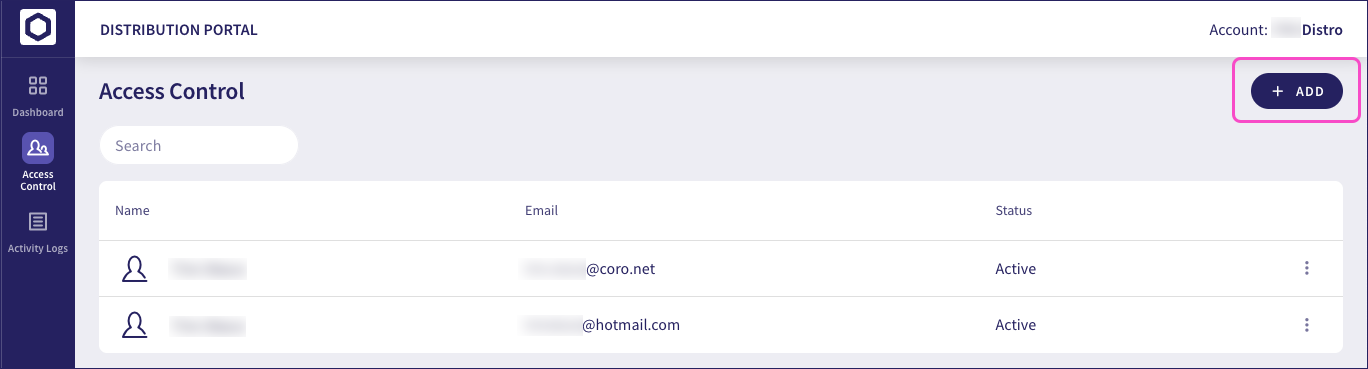
The portal displays the Add new user dialog:
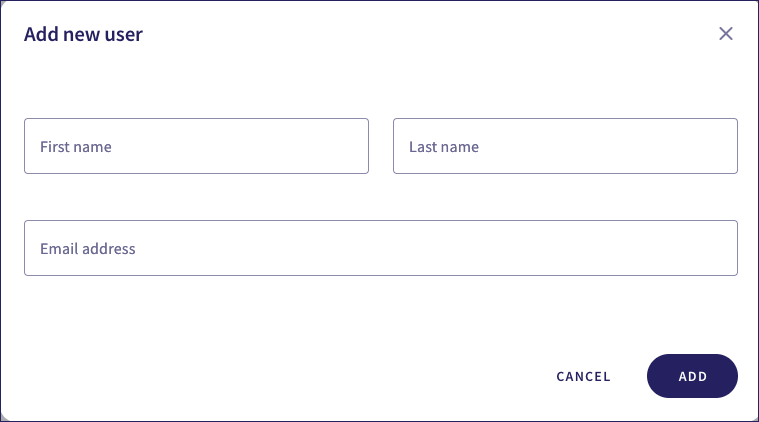
For your new admin user, enter a First name, Last name, and the Email address at which they will receive an invitation email to join the portal.
Select ADD.
Your new user is added to the Access Control page with a status of Pending. Coro send an invitation email to the nominated email address containing a secure one-time activation link.
After the recipient selects the acceptance link, Coro prompts them to enter a password for their account.
If the process is successful, their status is updated to Active.