The Setup Hub is a customized onboarding checklist that helps admin users complete essential setup tasks in the Coro console. When you sign in to a new, trial, or subscription workspace, the Setup Hub appears at the bottom of the console. You can also access it anytime from the user profile menu. Tasks are tailored to your workspace so you can complete setup efficiently and start protecting your organization.
To access the Setup Hub:
Select Setup Hub from the bottom of the console:
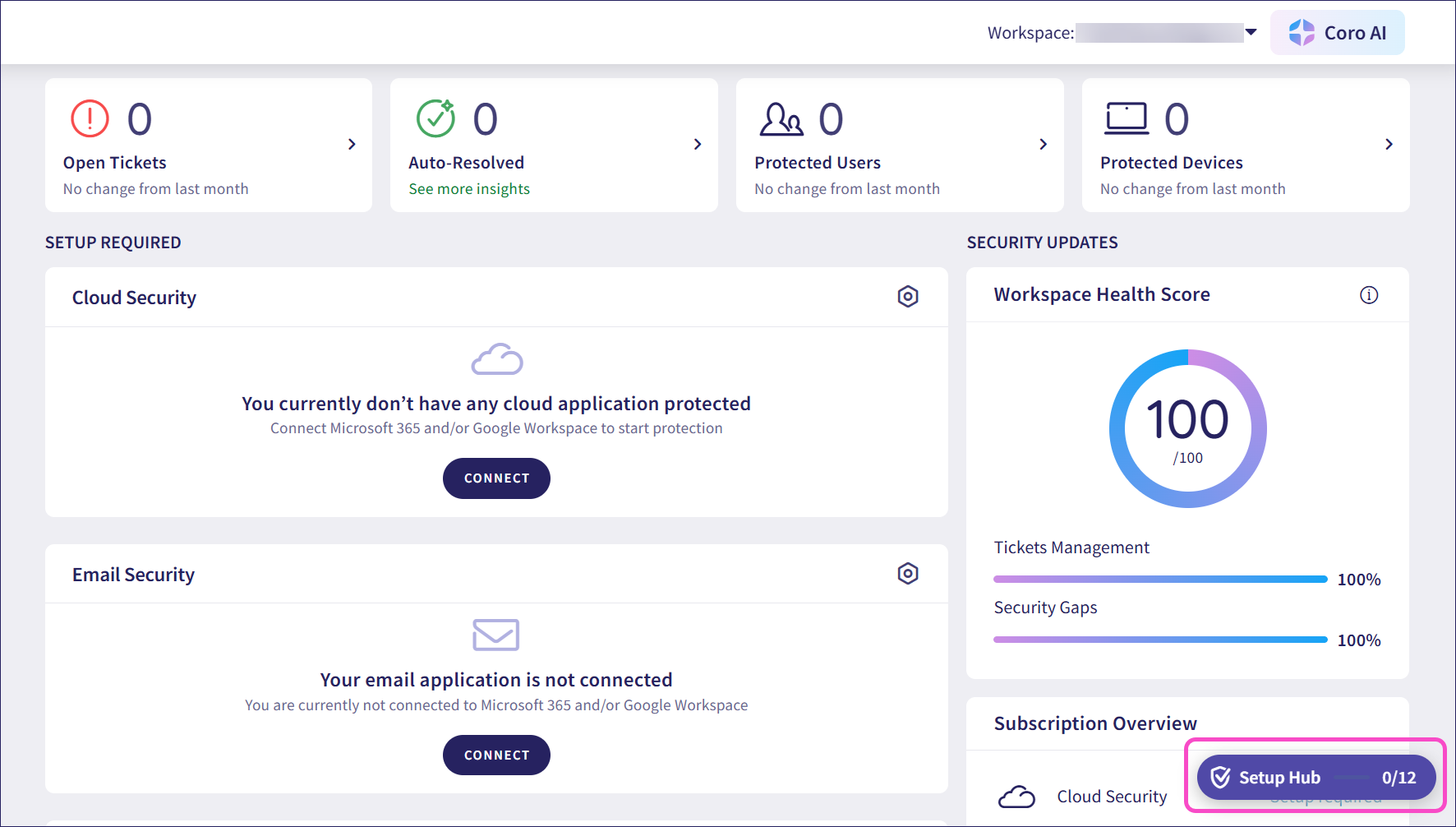
If the Setup Hub icon isn't visible, select Launch Setup Hub from the user profile menu:
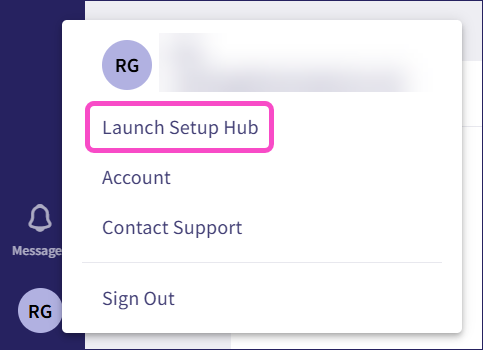
Coro only displays Launch Setup Hub in your user profile when the Setup Hub has been dismissed.
Coro opens the Setup Hub:
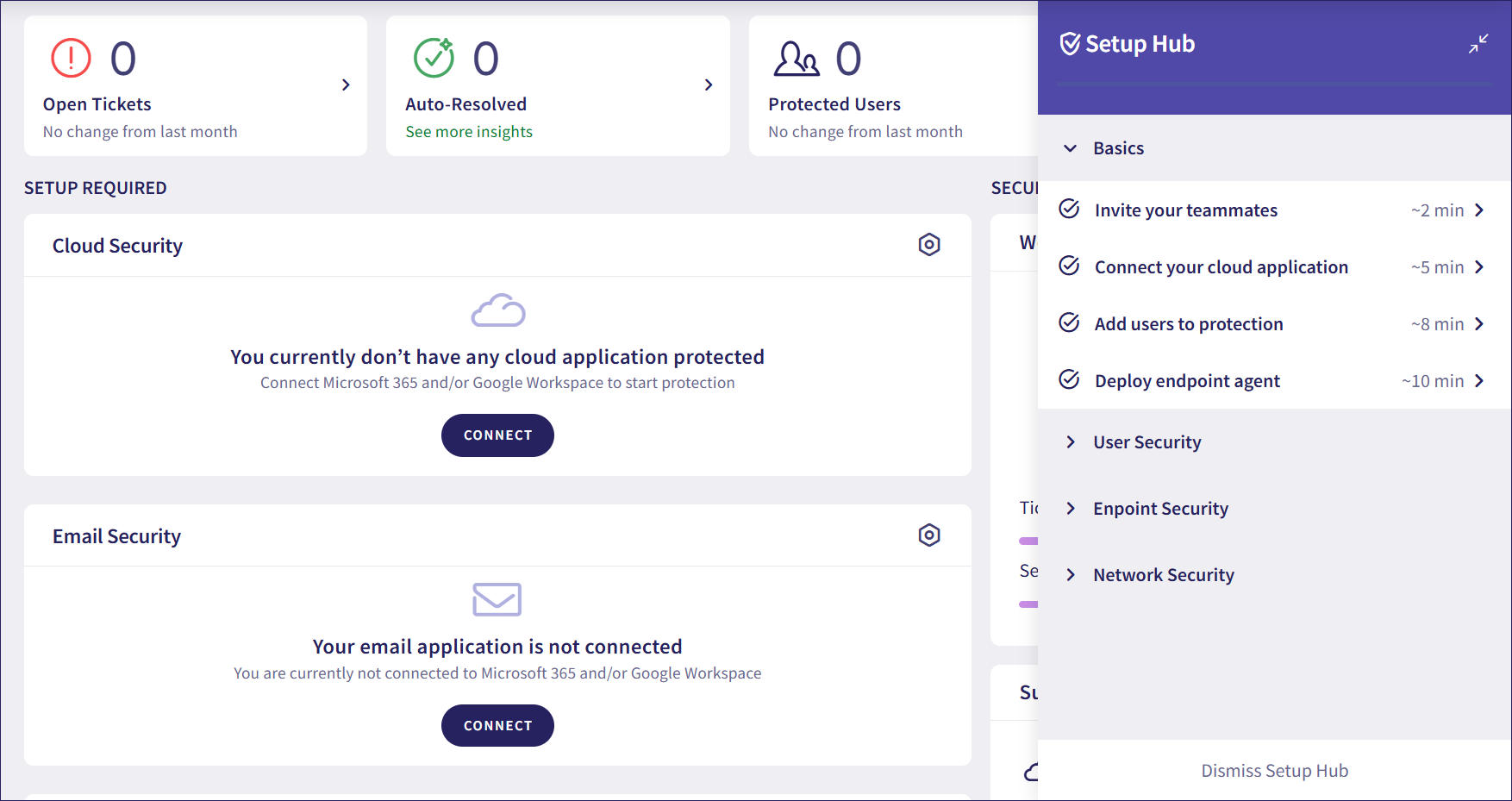
Coro customizes the Setup Hub checklist based on the modules enabled in your workspace subscription. It includes tasks required to complete initial setup, such as:
- Connecting cloud applications
- Adding users to protection
- Deploying the endpoint agent
- User security
- Endpoint security
- Network security
When you select a task, Coro redirects you to the relevant area of the console and displays the following:
- An estimated time to complete the task.
- A short description.
- A link to the related page in the console.
- A link to the relevant documentation.
- A SKIP THIS STEP button to skip the task. Admin users can return to it later.
Coro marks a task as complete after you complete the suggested steps or choose to skip the task.
For example, one of the tasks is connecting a cloud application:
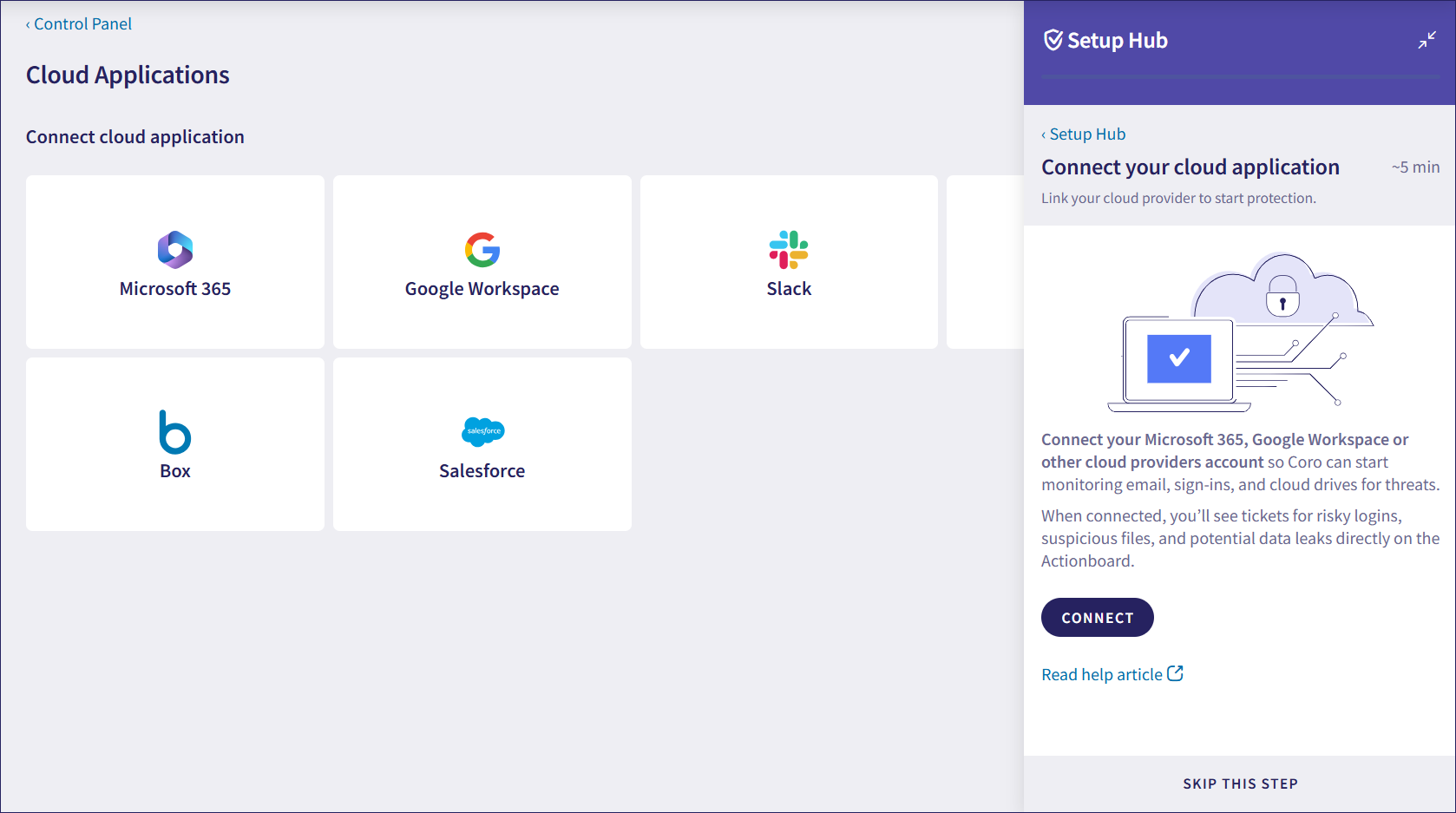
Coro redirects you to the Cloud Applications page and displays the following:
- The estimated time it takes to complete the task: Five minutes.
- A brief description of the task.
- A CONNECT button: Opens the Connect cloud applications dialog where you can connect your cloud applications.
- A Read help article link: Takes you to the relevant documentation, Connecting cloud applications to Coro.
- A SKIP THIS STEP button: Lets you skip the task and move to another one.
After at least one supported cloud application is connected, Coro marks the task as complete.
To reduce the Setup Hub’s footprint in the console or temporarily remove it from view, you can minimize or dismiss it.
To minimize the Setup Hub, select  :
:
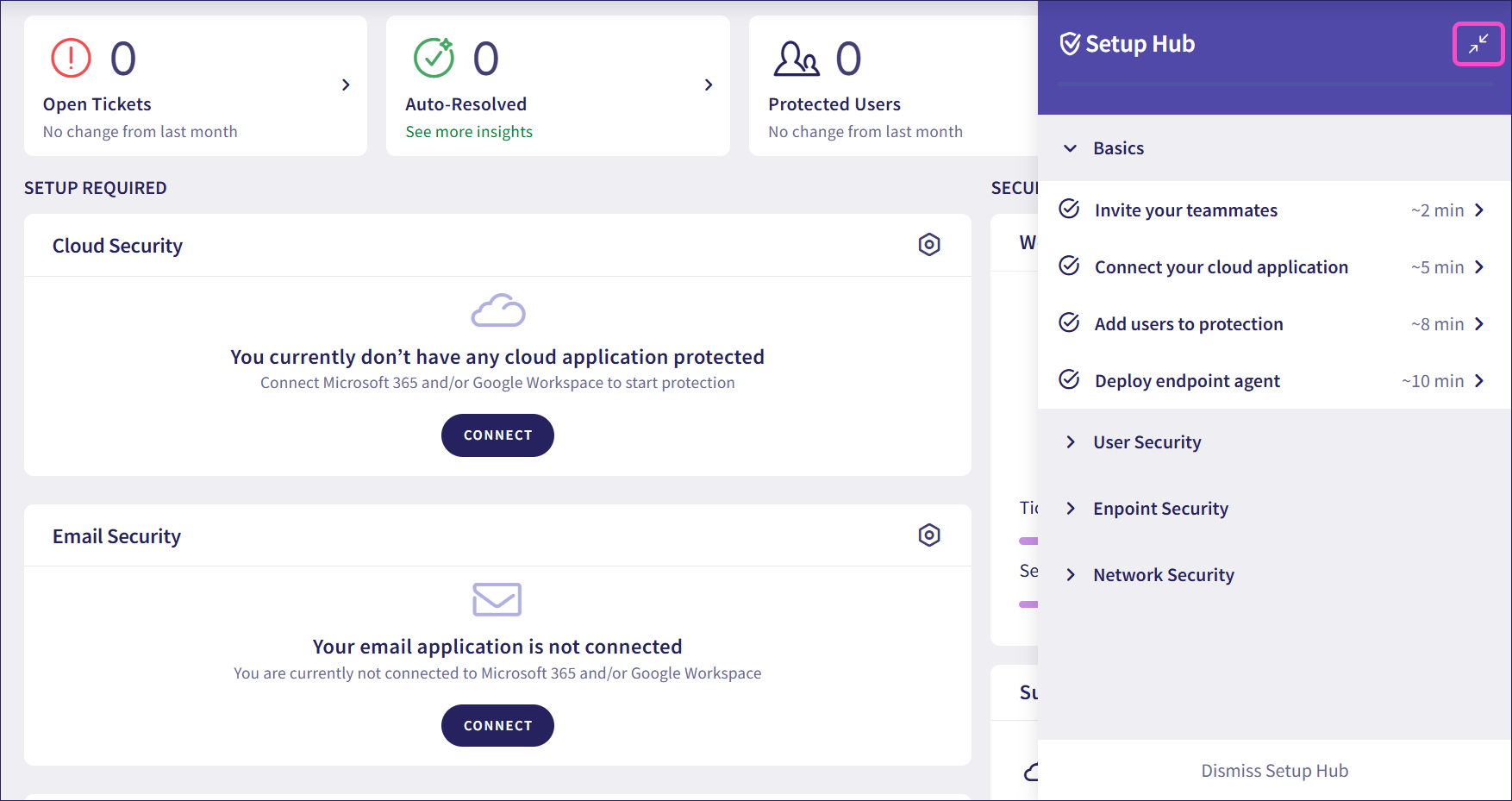
The Setup Hub minimizes to the Setup Hub icon at the bottom of the console. Select Setup Hub to reopen it:
To dismiss the Setup Hub, select Dismiss Setup Hub:
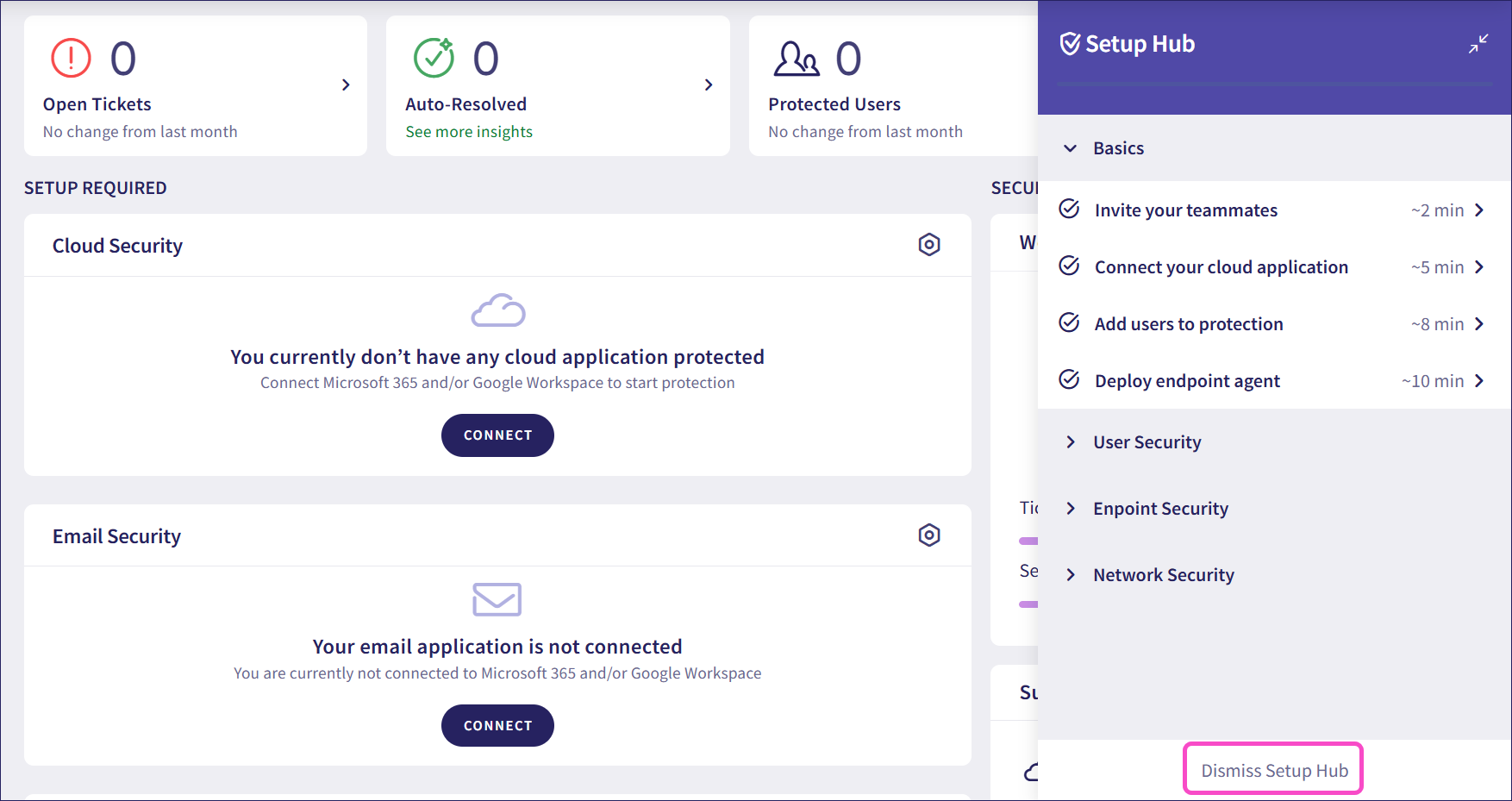
To reopen the Setup Hub, go to the user profile menu and select Launch Setup Hub:
Coro only displays Launch Setup Hub in your user profile when the Setup Hub has been dismissed.