Use this guide to integrate Coro with Fluency (fluencysecurity.com) for collection of ticket data related to events.
To configure a Fluency connector:
From the sidebar, select Control Panel.
Under Workspace, select Connectors:
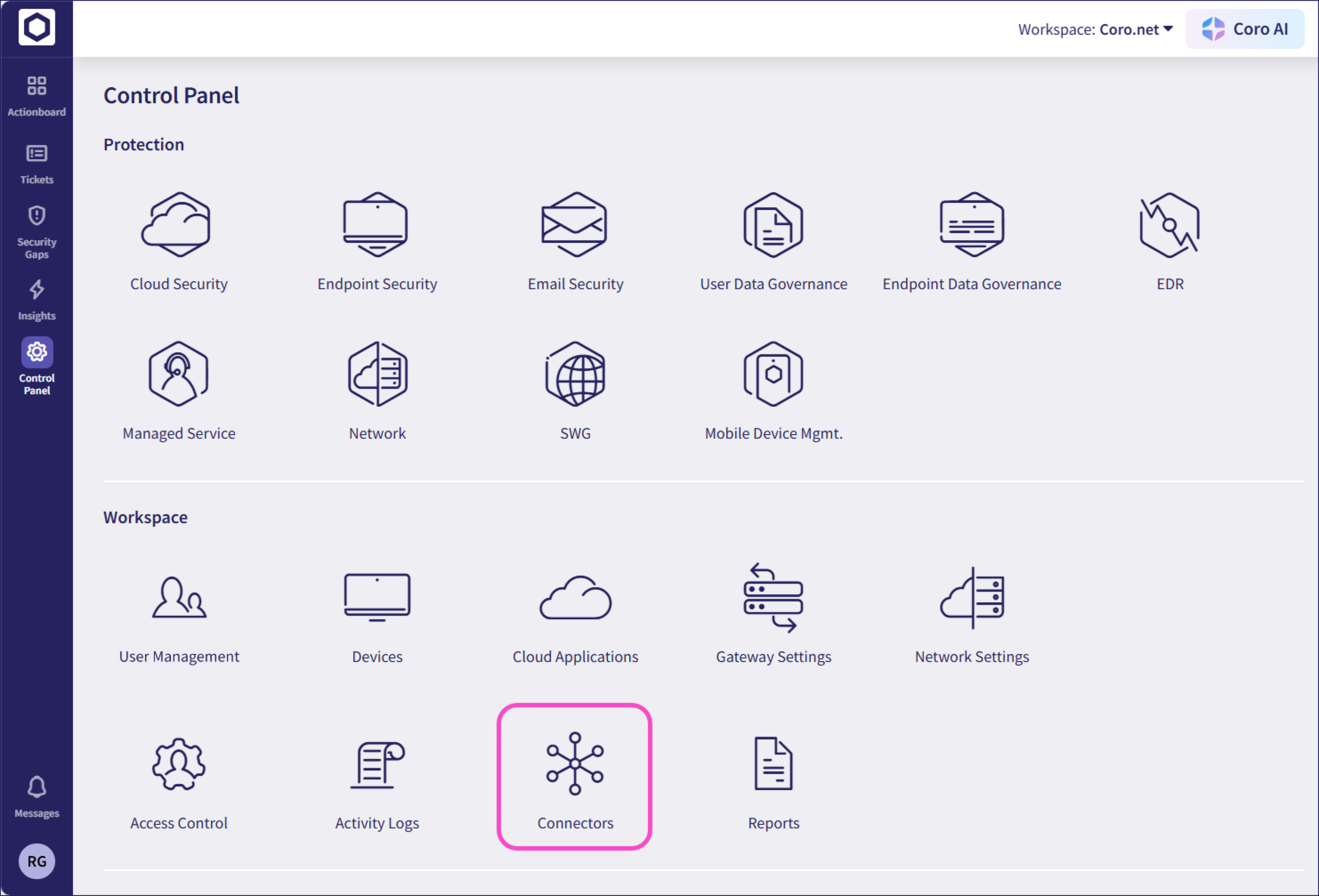
Coro displays the Connectors page.
Select SIEM:
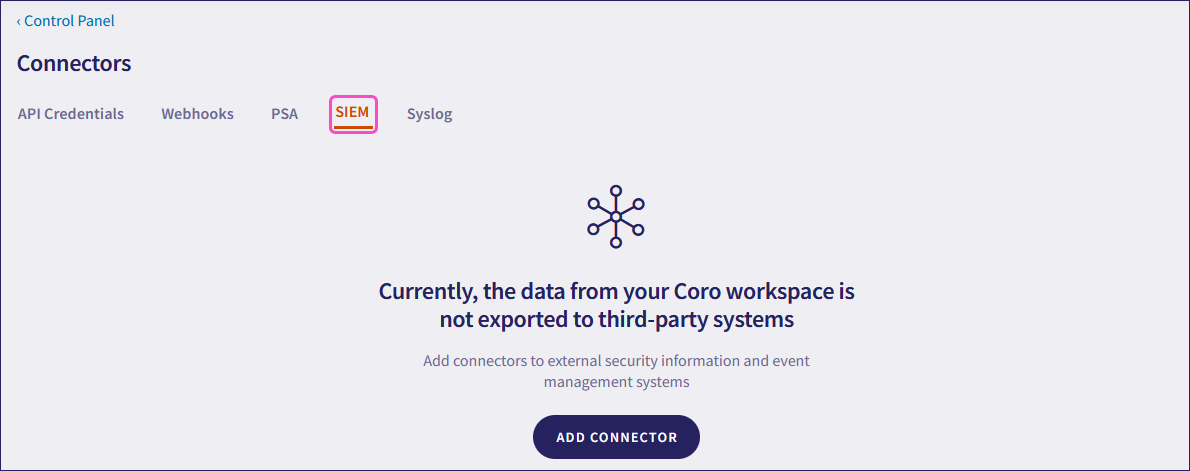
Select ADD CONNECTOR.
Coro displays the Add connector dialog:
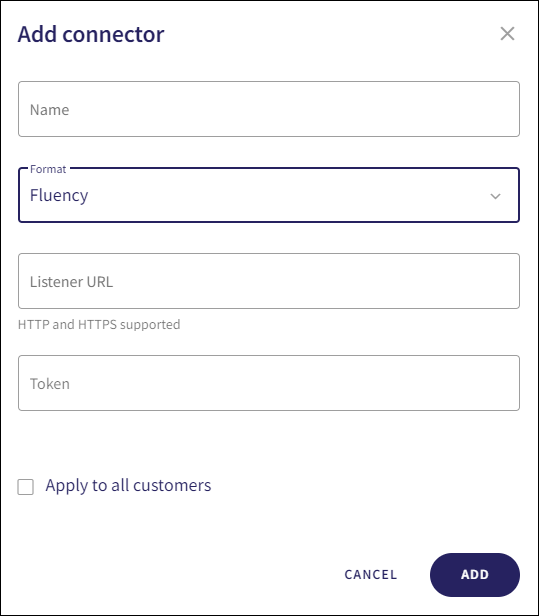
Configure the following connection settings:
Name: Enter a suitable connector name.
Format: Select Fluency.
Listener URL: Enter the URL endpoint provided by your SIEM platform.
Token: Enter the access token provided by your SIEM platform.
Apply to all customers: (MSP admin users only) Enable this option to automatically create the connector in all descendant workspaces linked to the channel workspace. Each descendant workspace then forwards events to the configured SIEM provider.
Select ADD:
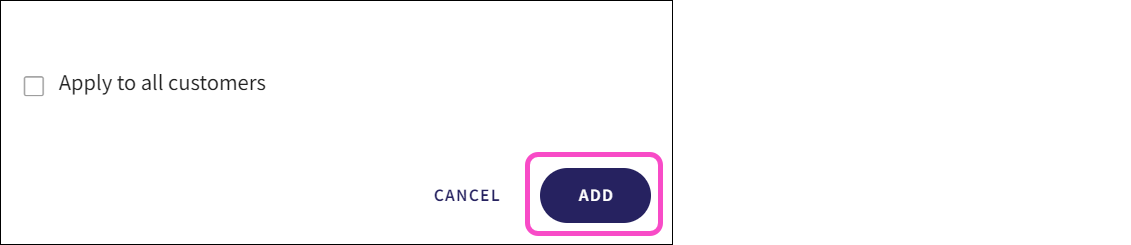
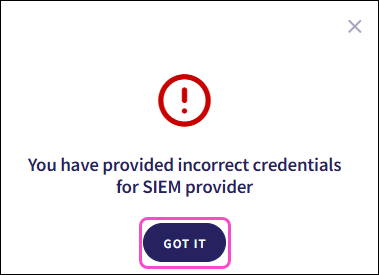
Coro sends a test event to verify your configuration. If the configuration is incorrect, Coro displays an error dialog. Select GOT IT to return to the Connectors page. Coro does not save the configuration:
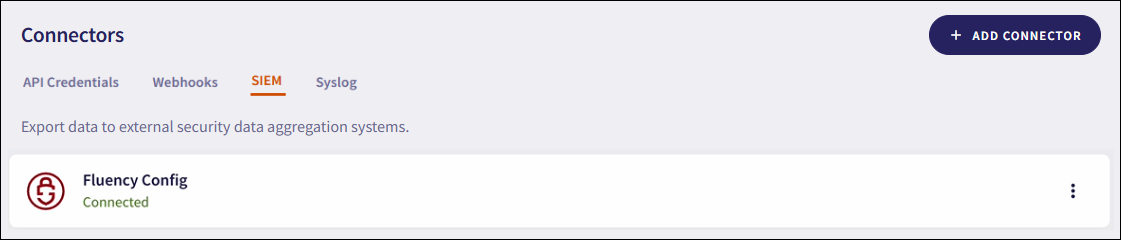
If the configuration is correct, Coro creates the connector with a status of Connected:
For MSP channel workspaces, Coro adds the connector to the channel workspace and, if Apply to all customers is enabled, to all connected descendant workspaces.
Coro sends event data and metadata to the configured SIEM in real time. If the SIEM is unavailable, Coro cannot collect or send event data.