If your scheduled endpoint device sensitive data scans are triggering tickets for known safe or low-priority data items, use the Exclusions tab to exclude named files and folders from scans. Make sure the files or folders you add here are trusted.
You can add exclusions for files or folders individually or through uploading a comma-separated value (CSV) file of multiple items.
The following rules apply when defining file and folder paths:
Coro derives the operating system (macOS or Windows) based on the use of forward slashes (/) or back slashes (\) in the path.
Windows drive identifiers (
C:) are valid only when used with back slashes.You cannot use these invalid characters:
,(comma),'(apostrophe),?(question mark),//(double forward slash),|(pipe).Coro supports the use of the following environment variables in file and folder paths, acting as placeholders for user directories and automatically resolving to the correct paths at scan-time:
__USERPROFILE__: The profile folder of the current user.On Windows devices, this is
C:\Users\<username>.On macOS devices, this is
/Users/<username>.Example without environment variable:
C:\Users\JohnDoe\Documents\ProjectsExample with environment variable:
__USERPROFILE__\Documents\Projects__TEMP__: The temporary files directory for the current user.On Windows devices, this is
C:\Users\<username>\AppData\Local\Temp.Example without environment variable:
C:\Users\JohnDoe\AppData\Local\Temp\TestFolderExample with environment variable:
__TEMP__\TestFolder
To access the Exclusions page:
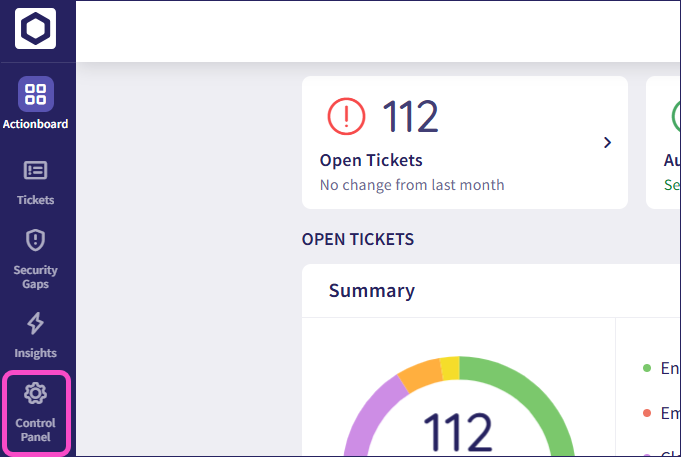
From the sidebar, select Control Panel:
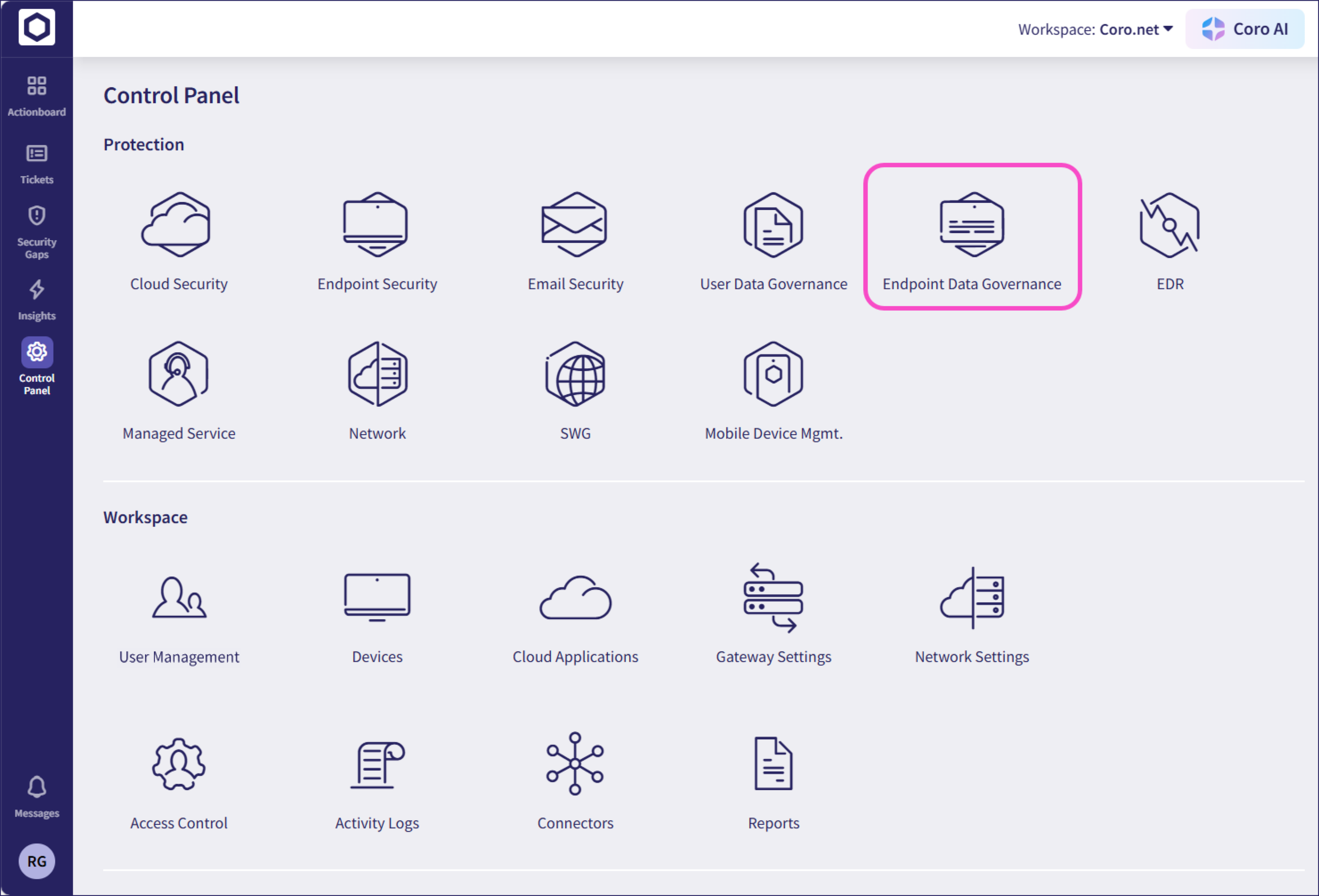
Select Endpoint Data Governance:
Select Exclusions:
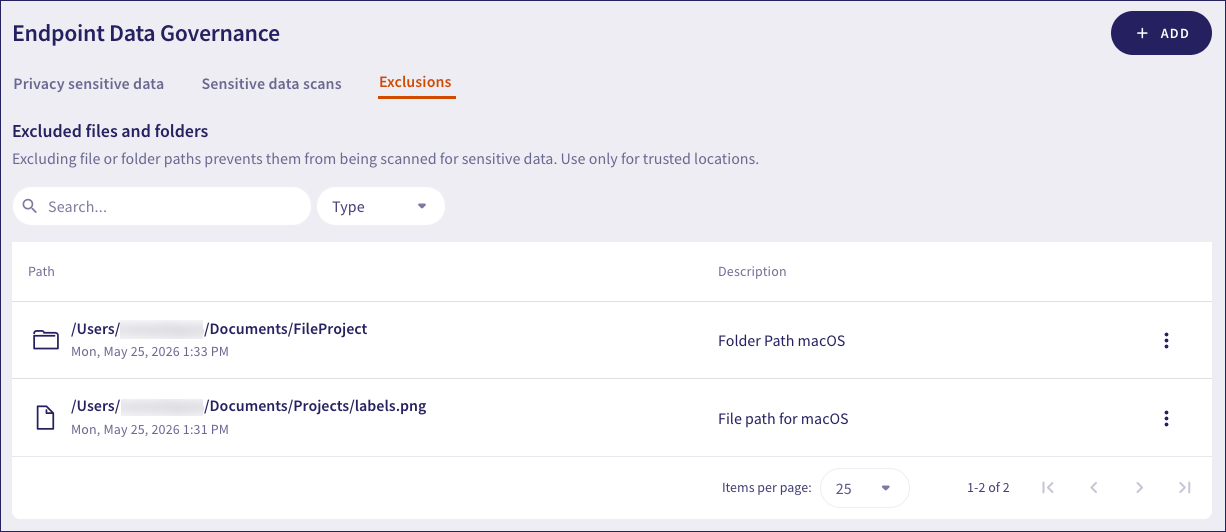
Use the search box to perform a text search on the list, or use the Type filter to show only file or folder entries.
To remove an exclusion, select Remove from the three-dot action menu adjacent to each entry.
Use this method if you want to exclude a single known file or folder location on all endpoint device drives:
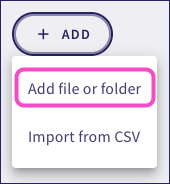
Select + ADD > Add file or folder:
Coro displays the Add file or folder to exclusion list dialog:
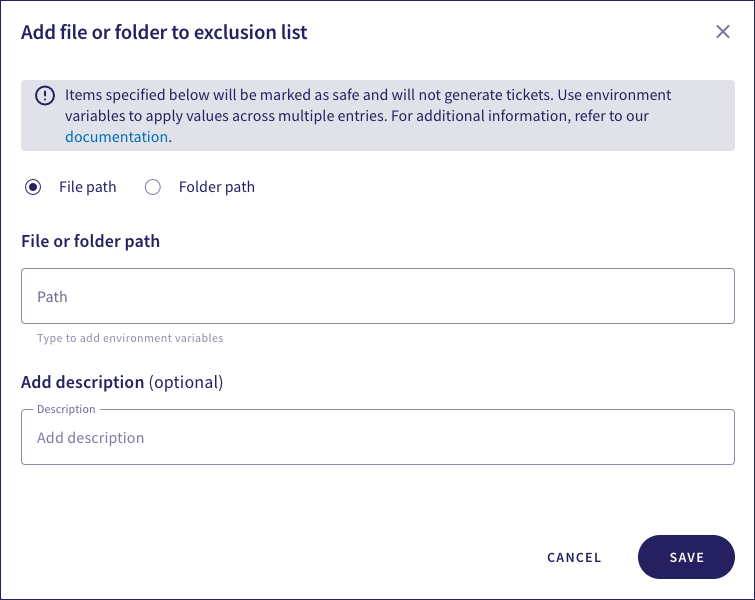
Select File path or Folder path as required.
Enter the expected full path of the file or folder on the endpoint device drive. Make sure to observe the rules outlined earlier.
(Optional) Add a description of the exclusion.
Select SAVE.
Use this method to import a CSV file containing multiple files or folder locations:
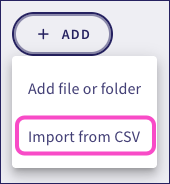
Select + ADD > Import from CSV:
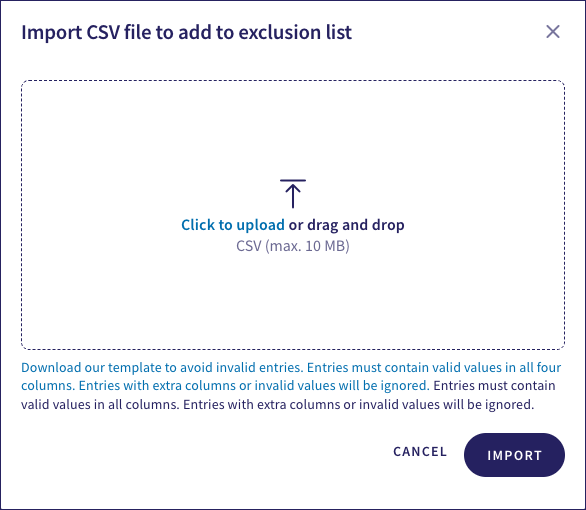
Coro displays the Import CSV file to add to exclusion list dialog:
(Optional) If you haven't created a valid CSV file, select Download our template to avoid invalid entries:
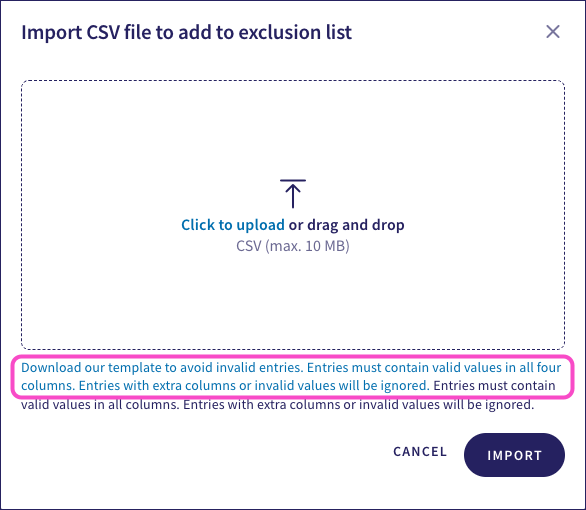
Use the downloaded template to ensure all required columns are completed.
Select Click to upload, then locate and open your CSV file from the system dialog:
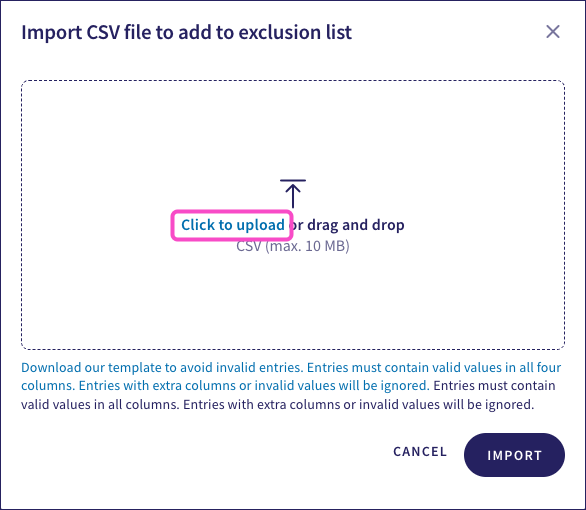
Alternatively, drag and drop the selected CSV file from your file explorer/finder application into the dialog.
Select IMPORT.