Admin users can create a schedule for regular endpoint device sensitive data scans on Windows and macOS devices. These scans activate at a specified time and frequency, for example, every 21 days at 3 a.m. Coro reports detected data items in Endpoint Data Governance tickets.
To avoid triggering detection alerts for trusted, known, or low-priority data items on endpoint device drives, configure exclusions for named files and folders.
Endpoint sensitive data scans can be time consuming and impact device performance, depending on the volume of files and your selected scan performance mode. When configuring a schedule for regular scans, select a time period of least impact to the device user. Coro advises against daily scans in most cases.
If an endpoint device is offline at the scheduled time, the scan starts when the device next connects to Coro - even if this is during active work hours.
Tesseract-OCR must be installed on a device for Coro to scan image files during sensitive data scans.
For more information, see:
To configure a new scheduled sensitive data scan:
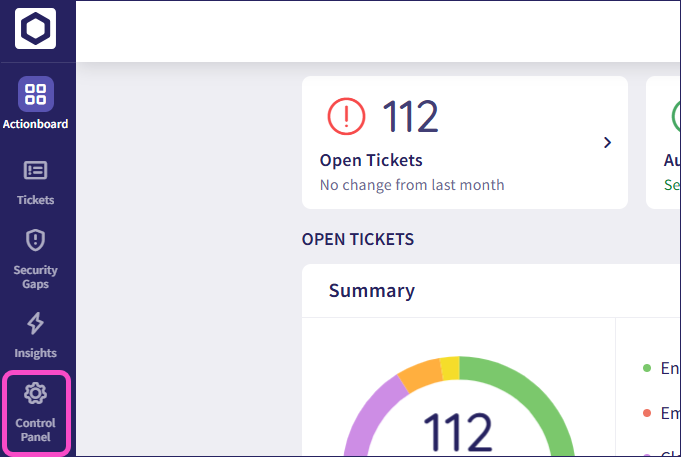
From the sidebar, select Control Panel:
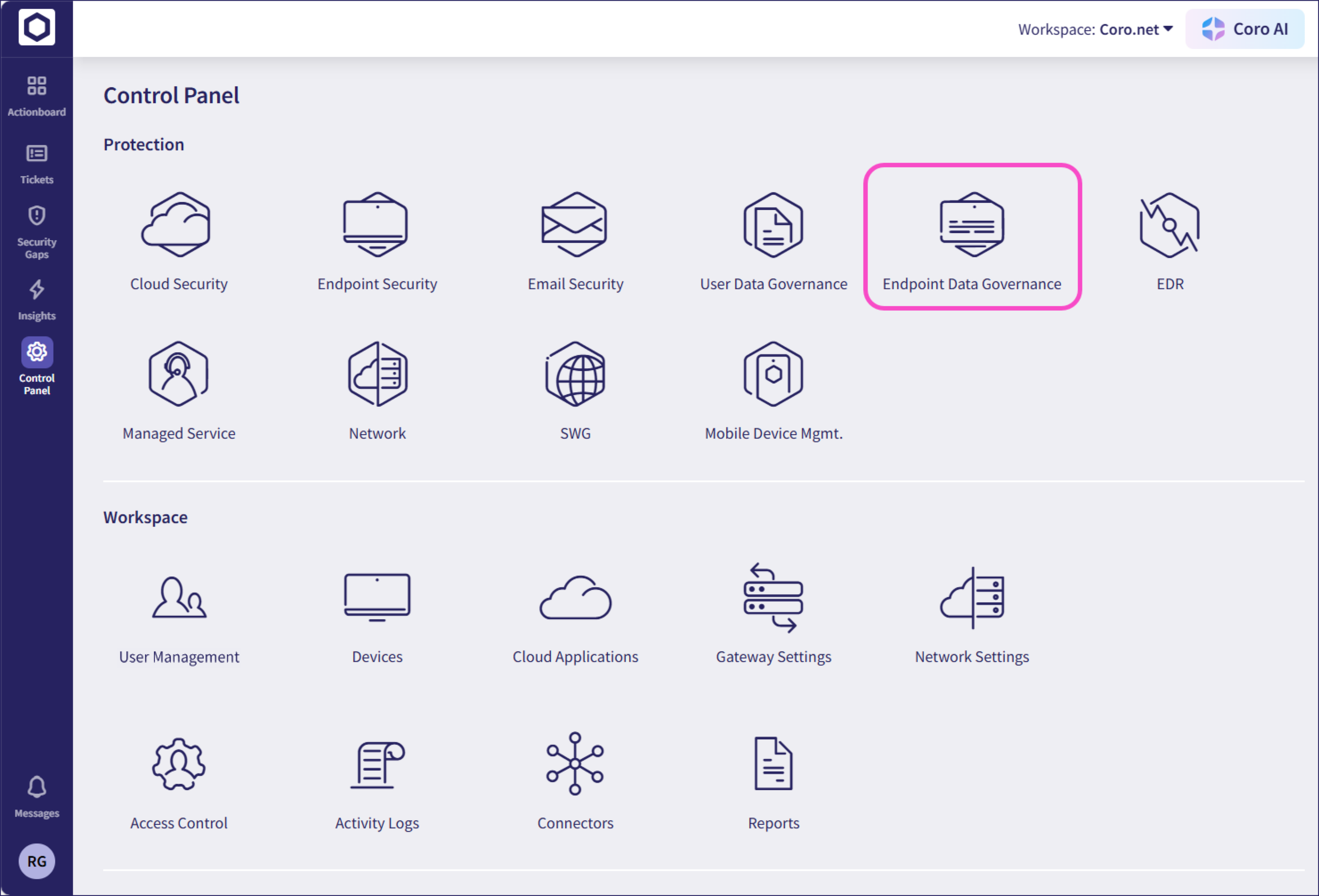
Select Endpoint Data Governance:
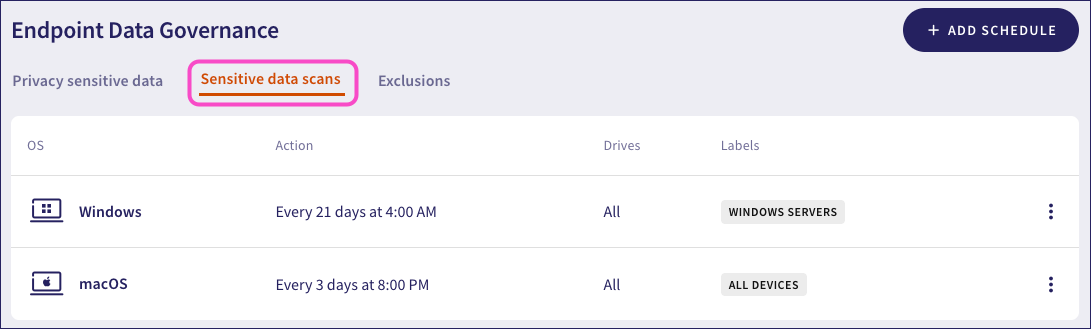
Select the Sensitive data scans tab:
 Note
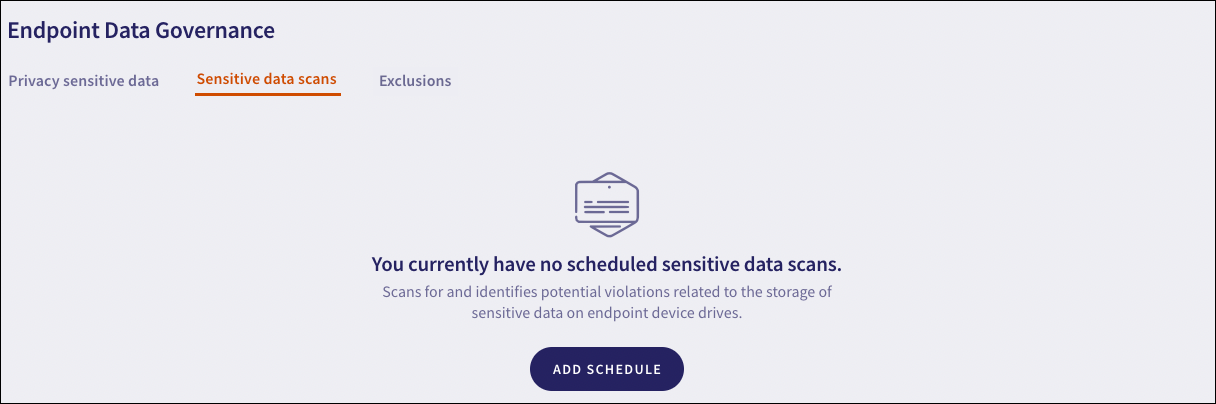
NoteIf you have no scans currently scheduled, Coro shows a banner page instead:
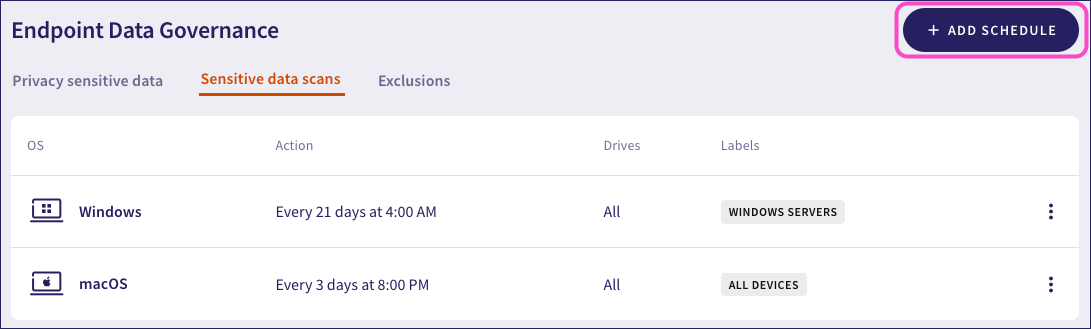
Select + ADD SCHEDULE:
Coro displays the Add new scan schedule dialog:
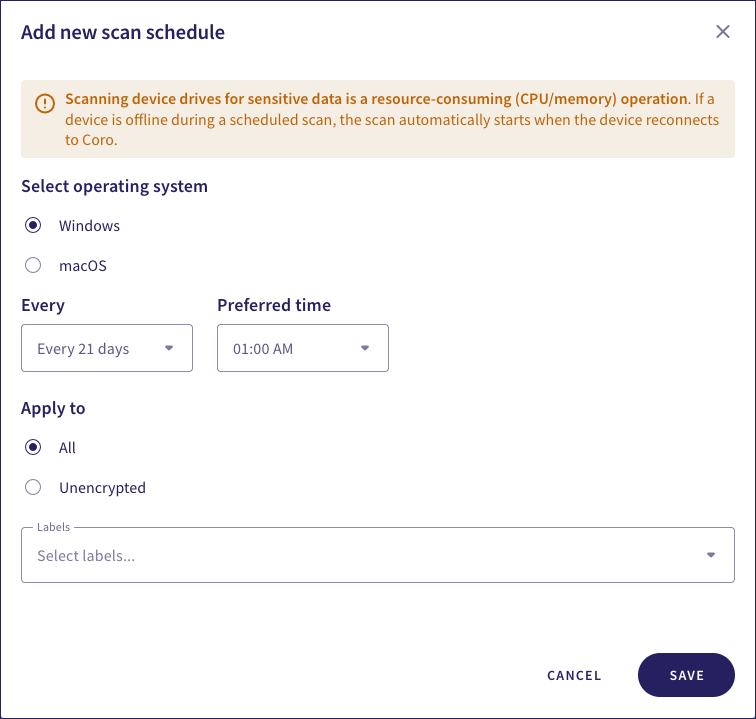
Configure the following settings:
- Select Operation System: Select the target device operating system - Windows or macOS.
- Every (days): Specifies how often the scheduled scan runs (maximum value 21 days.)
- Preferred time: Specifies the time to start the scheduled scan. The time corresponds to the current time zone of the device.
- Apply to: Specifies which drives are scanned for sensitive data:
- All: All device drives are included in the scheduled scan.
- Unencrypted: Only unencrypted drives are included in the scan.
- Labels: Enter the device label names (predefined or custom) to apply the scan schedule to the specified groups of devices.

Select SAVE to save your new schedule with the configured settings.
To update or delete a previously created scan schedule, select the three-dot menu adjacent to the schedule you want to change:
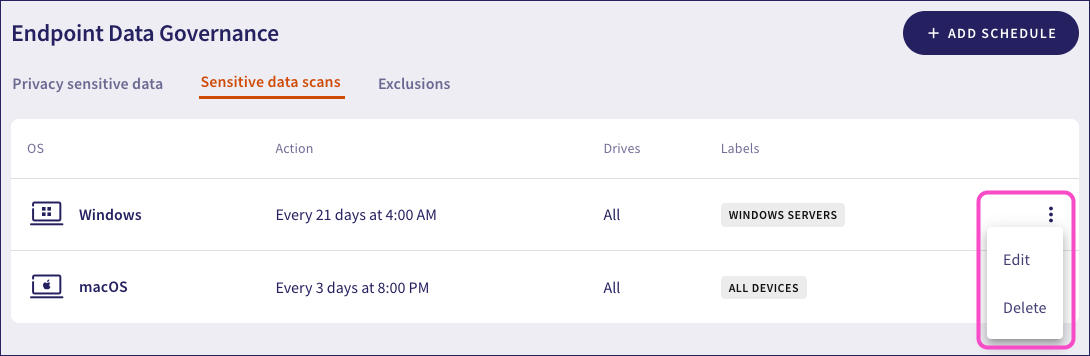
From the menu:
Edit: Presents an Edit scan schedule dialog enabling you to update the schedule configuration.
You cannot modify the operating system type for an existing schedule. All other settings are editable.
Delete: Permanently delete this schedule.
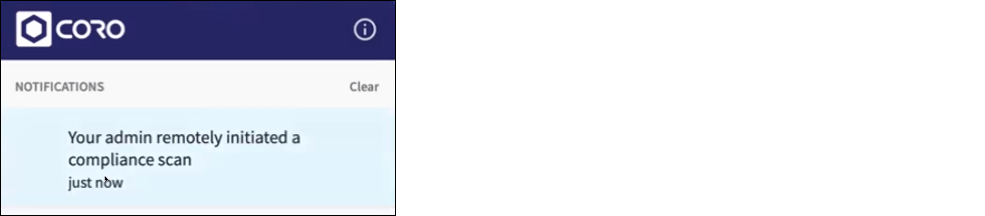
After a scheduled scan is activated, the Coro Agent displays a notification in the desktop app:
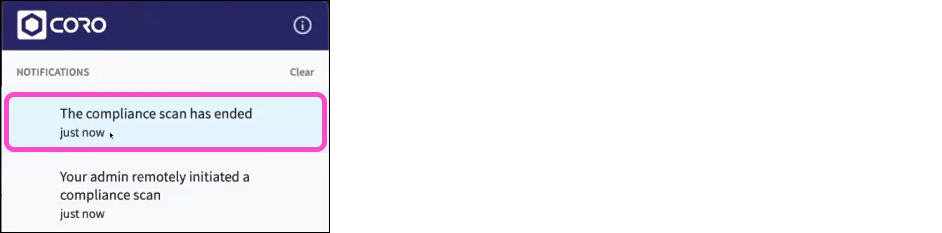
After the scan completes, the Coro Agent displays the following notification:
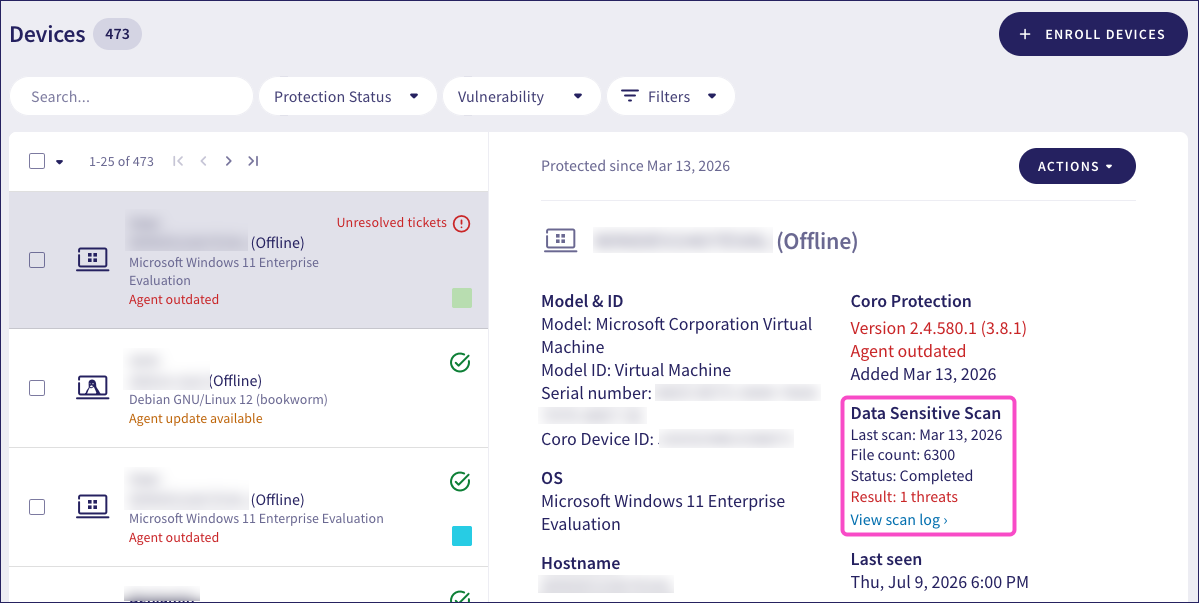
Admin users can review the status and outcome of scheduled scans by checking the target device in the Devices page:
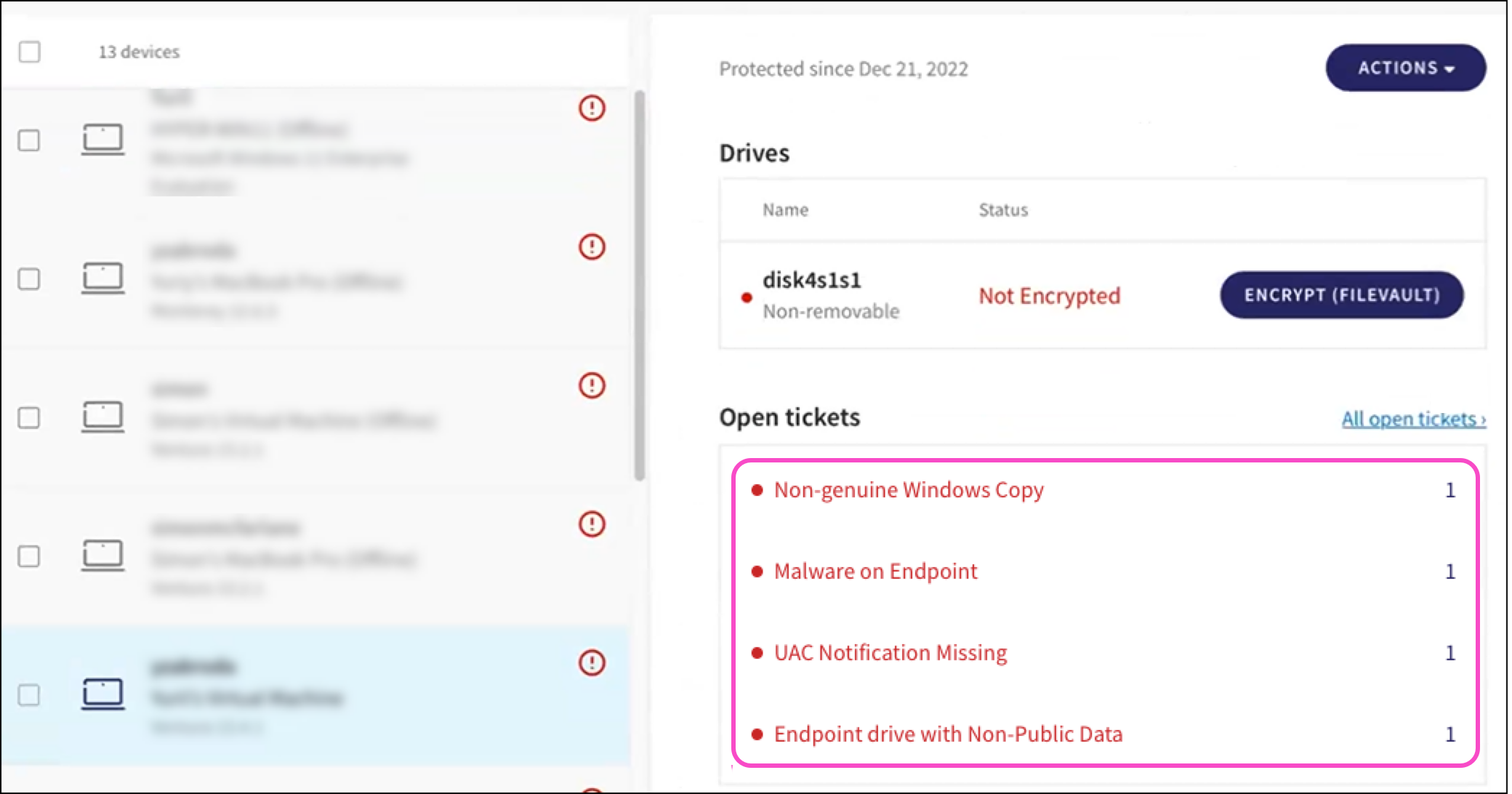
If any tickets were generated by the scheduled scan, select the device from the Devices page and review the Open Tickets section: