This guide is intended for customer workspaces that have subscribed to the Cloud Backup module. Managed Service Providers (MSPs) looking for details about how to add and manage their end-customer Cloud Backup subscriptions, should instead refer to Adding a customer workspace for cloud backups.
Coro enables individual workspace admin users with sufficient permissions to review Cloud Backup activity and settings from the Coro console.
If you need to make changes to your Cloud Backup settings, use your workspace's Keepit dashboard.
To see an overview of backup and restore activity:
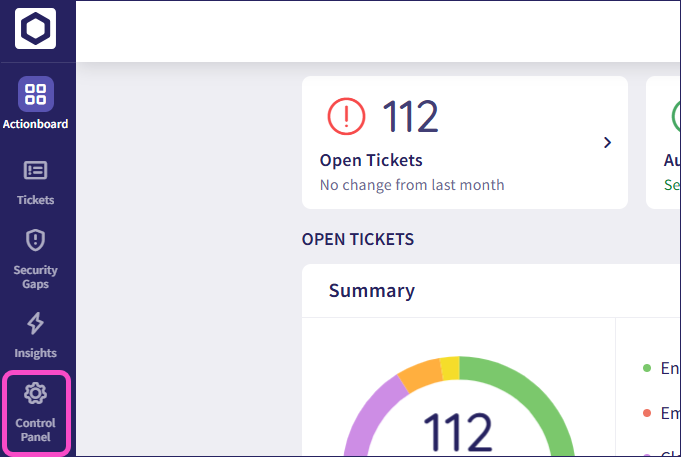
From the sidebar, select Control Panel:
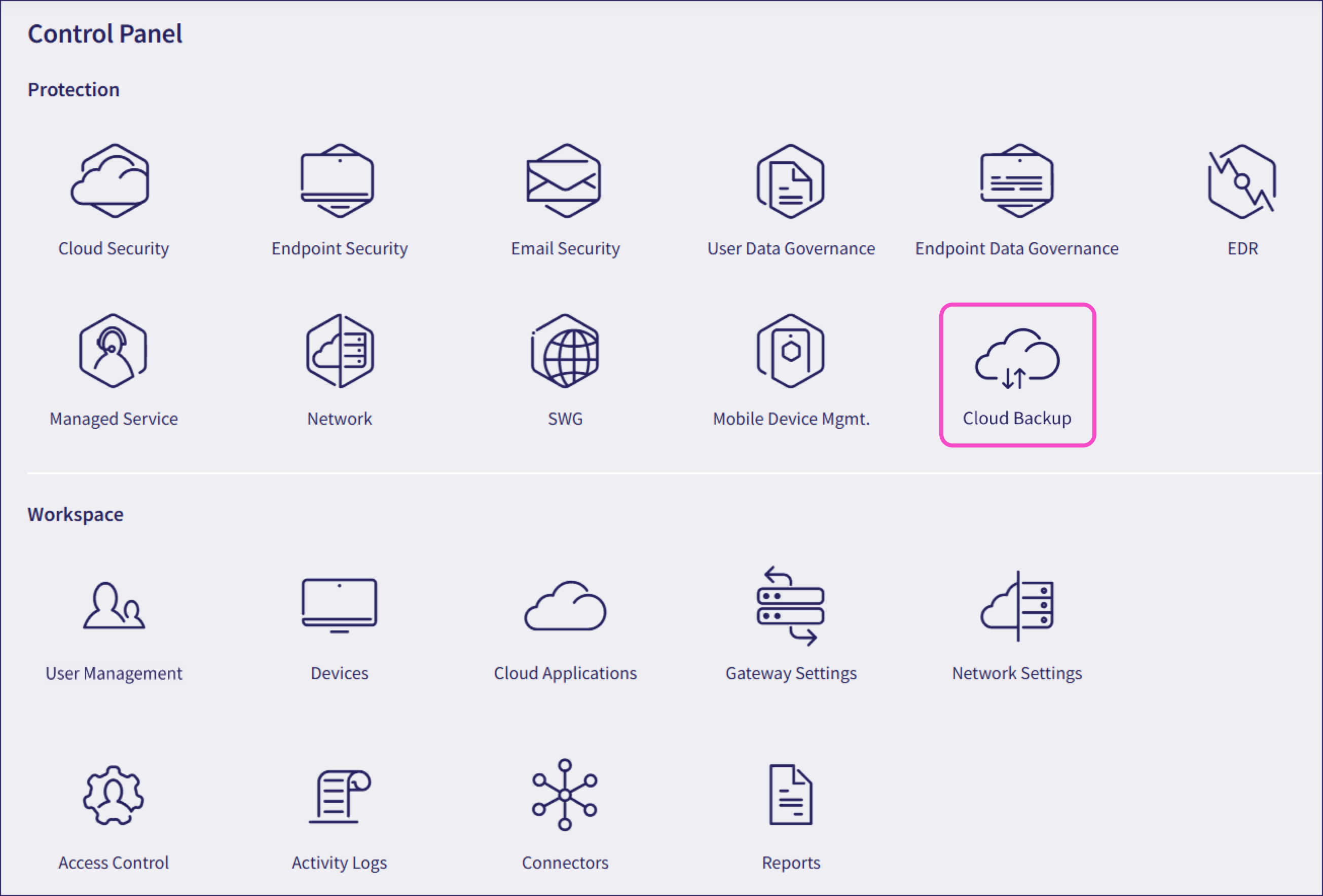
Select Cloud Backup:
Coro displays the Cloud Backup page, on the Overview tab.
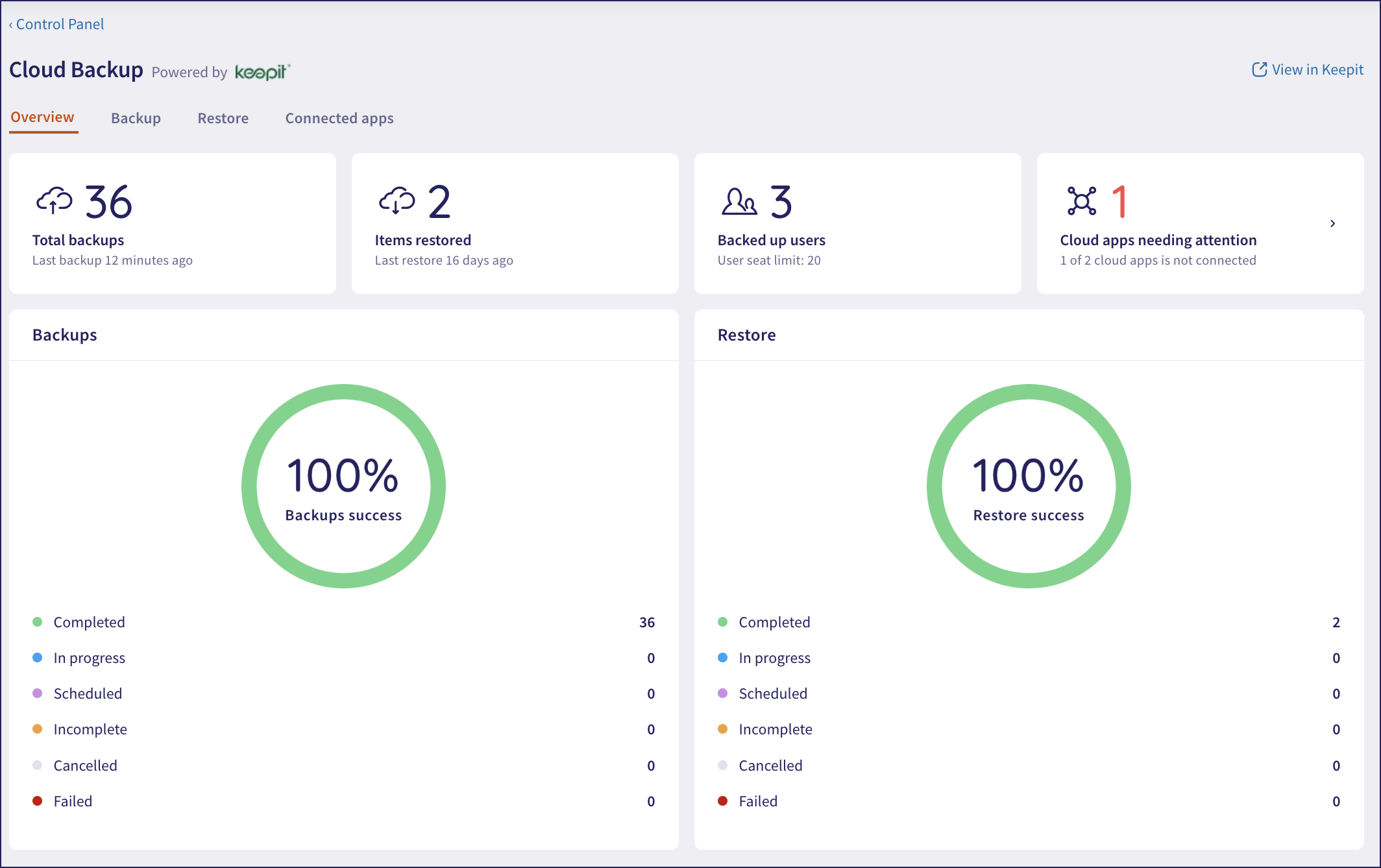
The top panels represent:
- Total backups: Total backup tasks completed.
- Items restored: Total restore tasks completed.
- Backed up users: The cumulative number of user accounts backed up across your connected apps. Coro also shows the cumulative seat limit for all connected apps.
- Cloud apps needing attention: The number of connected cloud apps that are not fully healthy. Select this panel to view the Connected apps tab.
The Backups panel shows a pie chart and percentage success indicator for backup tasks completed or scheduled. This is broken down as follows:
Successful: At least one or more items were successfully backed up and can be restored. Coro considers a scheduled backup task as successful even if no items have changed, or if some items were skipped (and marked as ready to be backed up at the next task).
Cancelled: The backup task was abandoned due to an interruption such as a software update or server reboot.
Incomplete: The backup task started, but was stopped due to an error. Coro may or may not have created an accessible partial backup in this instance, depending on the severity of the error.
Unsuccessful: The entire backup task failed.
In progress: The backup task is currently running.
Scheduled: The backup task is scheduled to start.
The Restore panel shows a pie chart and percentage success indicator for restore tasks completed or scheduled. This is broken down as follows:
Successful: The task successfully restored all items saved in the backup.
Cancelled: The restore task was cancelled from the Keepit console.
Incomplete: The task skipped restoring one or more items.
Unsuccessful: The entire restore task failed, or all items were skipped.
In progress: The restore task is currently running.
Scheduled: The restore task has been triggered and is scheduled to start.
This tab shows the backup tasks completed or attempted for your connected apps:
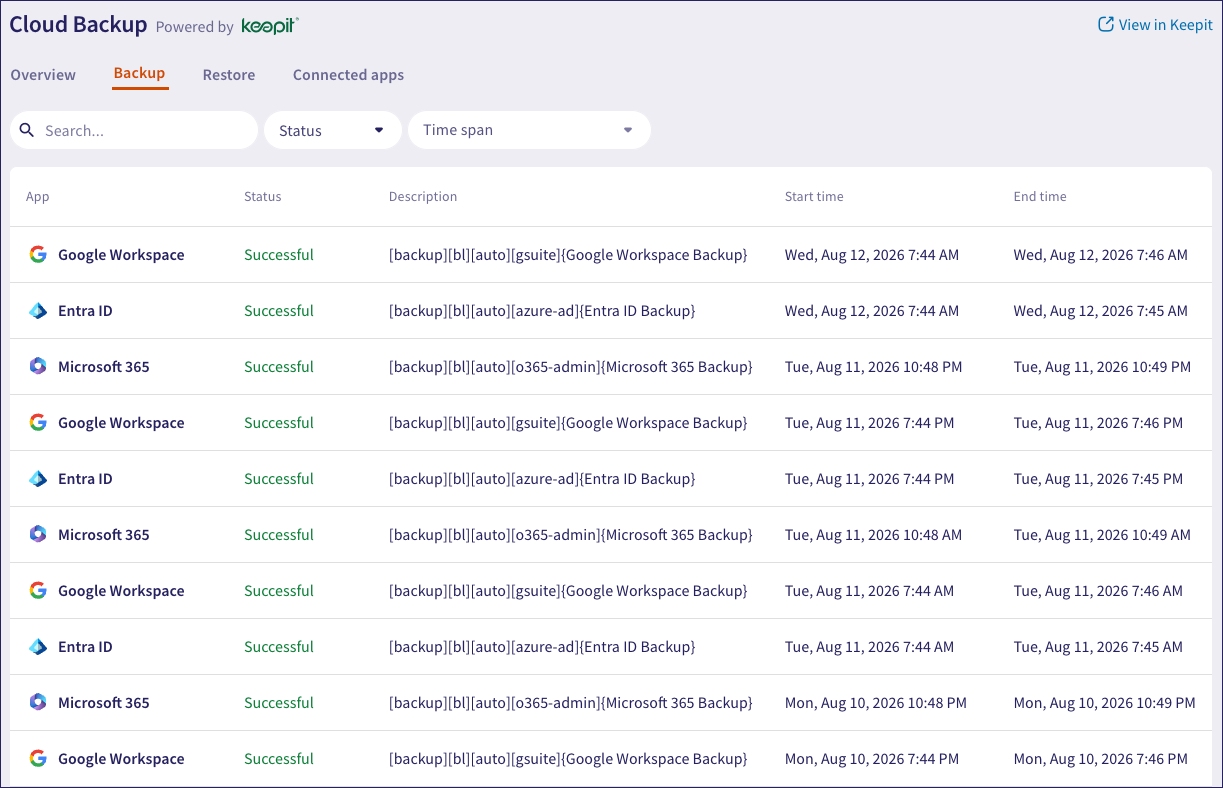
For each backup task, Coro shows:
| Field | Description |
|---|---|
| App | The cloud app that was backed up. |
| Status | The health status of the backup task. Refer to the list above for descriptions of each status. |
| Description | A report of the backup task description from the Keepit dashboard. |
| Start time | The date and time the backup task started. |
| End time | The date and time the backup task ended. |
Use the search at the top of the page to search by app or description, or use the filters to view selected backups based on:
- Status: Show only backups that match the selected status.
- Time span: Show only backups that occurred during the selected time period.
This tab shows the restore tasks completed or attempted for your connected apps:
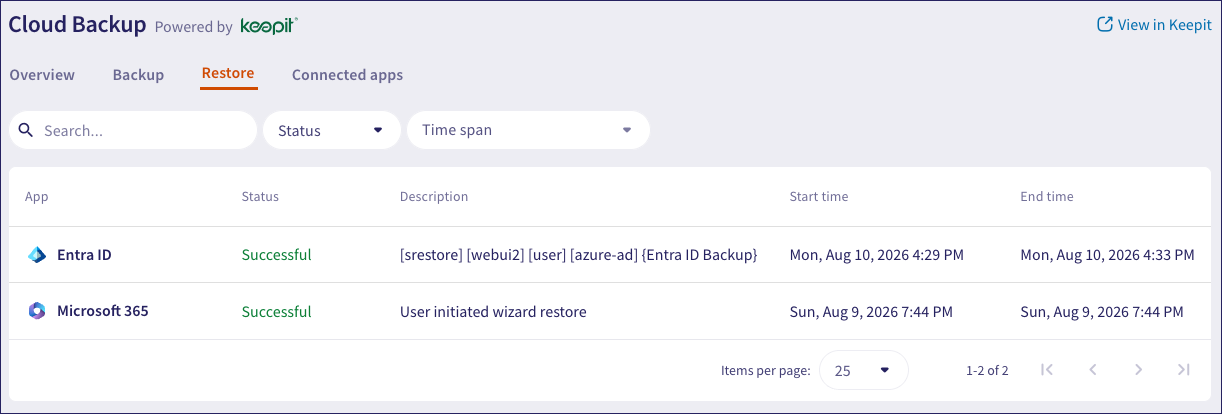
For each restore task, Coro shows:
| Field | Description |
|---|---|
| App | The cloud app that was restored. |
| Status | The health status of the restore task. Refer to the list above for descriptions of each status. |
| Description | A report of the restore task description from the Keepit dashboard. |
| Start time | The date and time the restore task started. |
| End time | The date and time the restore task ended. |
Use the search at the top of the page to search by app or description, or use the filters to view selected restores based on:
- Status: Show only restores that match the selected status.
- Time span: Show only restores that occurred during the selected time period.
This tab shows the cloud apps connected to your backup service:
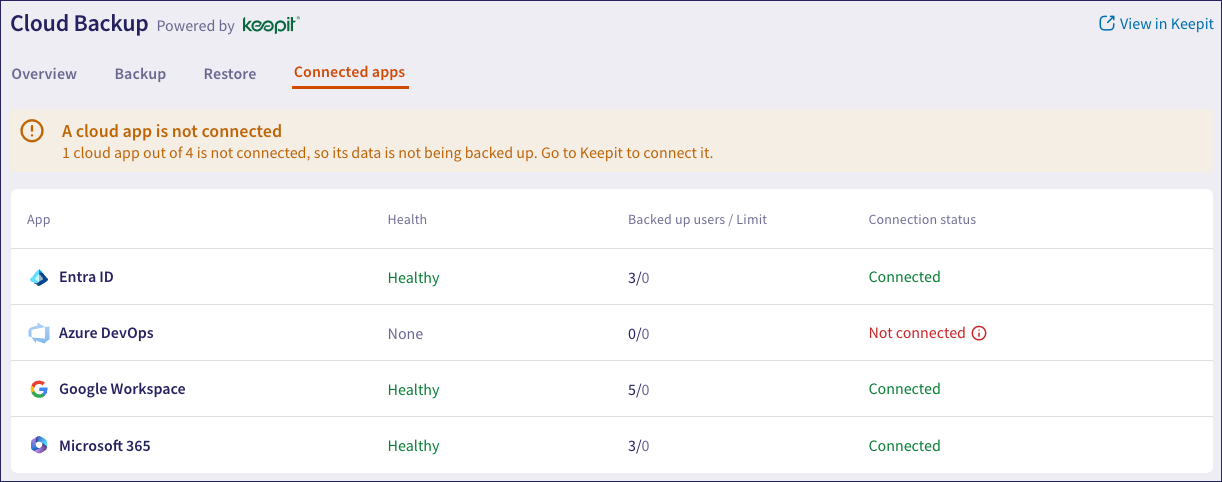
For each connected app, Coro shows:
| Field | Description |
|---|---|
App | The connected cloud app. Coro shows the icon as greyed out/disabled if the app is not connected. |
Health | Shows the health status of the backup service for the app:
|
| Backed up users/Limit | The number of user accounts backed up against the configured user seat limit. |
| Connection status | The connection status for your cloud app. |