This article is applicable to Managed Service Provider (MSP) customers only.
Coro Cloud Backup is powered by Keepit. To start using Cloud Backup, activate your MSP account through the Coro console. Coro creates a Keepit service account for MSPs, enabling MSP admin users to add their customer workspaces to the Cloud Backup service, but does not include backup or restore capabilities for the MSP workspace itself.
Perform the following steps:
Make sure that the Cloud Backup module has been added to your MSP workspace subscription. For more information, contact Coro Support.
Select Global view from the top of the console:

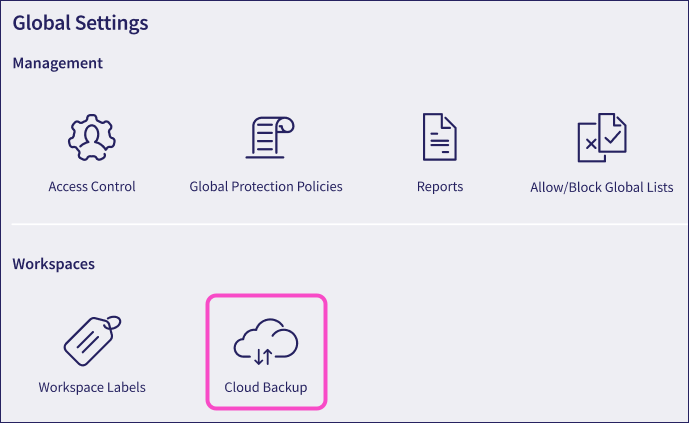
From the sidebar, select Global Settings > Cloud Backup:
Coro presents the Cloud Backup page:
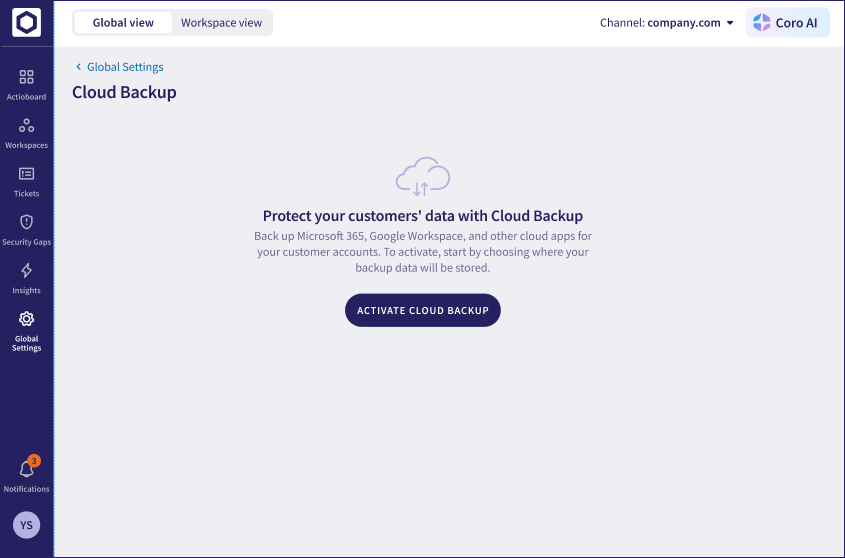
Select ACTIVATE CLOUD BACKUP to get started.
Coro displays the Activate Cloud Backup dialog:
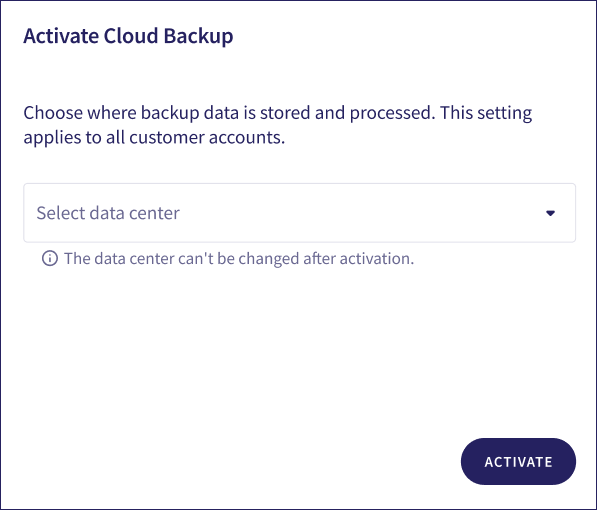
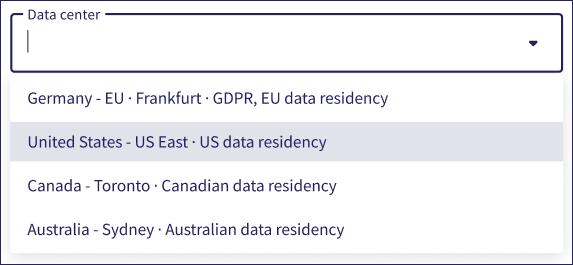
Use the Data center dropdown to select the regional data center in which you want backup data to be stored. This applies to all customers added for cloud backups:
 Important
This is a one-time setting. You cannot change the region after activation.
Select ACTIVATE to complete the process.
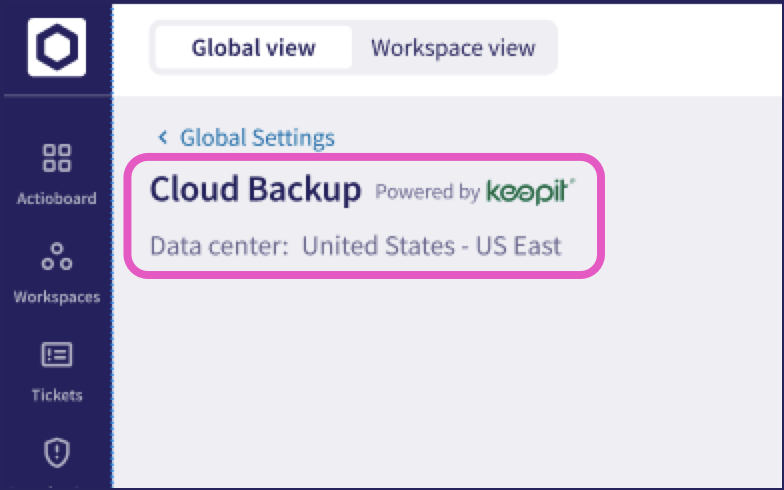
After a short wait, Coro returns to the Global Settings > Cloud Backup page, showing your activated data center:
You can now add customer workspaces for cloud backups.