Starting on January 1, 2027, Coro will enforce a minimum supported agent version in accordance with our End-of-life policy. Devices running older agent versions will no longer be protected or supported.
To ensure uninterrupted protection, continued support, and access to the latest security enhancements, Coro strongly recommends enabling automatic updates or upgrading your agents to the latest version as soon as possible.
To view a list of supported versions, see Coro Agent support information.
If you have any questions or need assistance, contact support@coro.net.
Use one of the following methods to enable automatic updates on your organization's devices:
To view a short video of this procedure, select this link: coroagent_selfupdate_workspace.mp4.
Perform the following steps:
Select Control Panel > Devices > Settings.
Locate and enable Allow self-update to the latest stable version:

Add device labels to ensure Coro updates all relevant devices:
 Important
You must add at least one device label, and the label must have devices associated with it. Coro recommends adding the predefined label ALL DEVICES to ensure complete coverage.
You can check label and device associations on the Device labels page.
For more information, see Device protection settings.
To view a short video of this procedure, select this link: coroagent_selfupdate_msp.mp4.
Use a Global Protection Policy to update all devices within your child workspaces:
Select Global view from the top of your console:

From the sidebar, select Global Settings > Protection Policies:
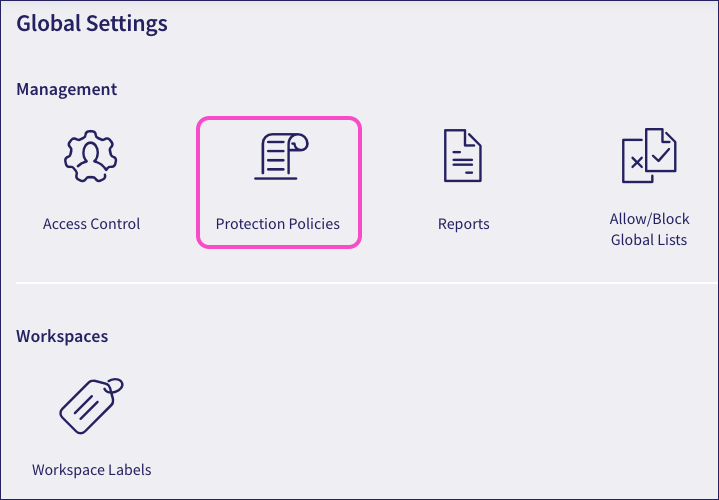
Coro displays the Protection Policies page:
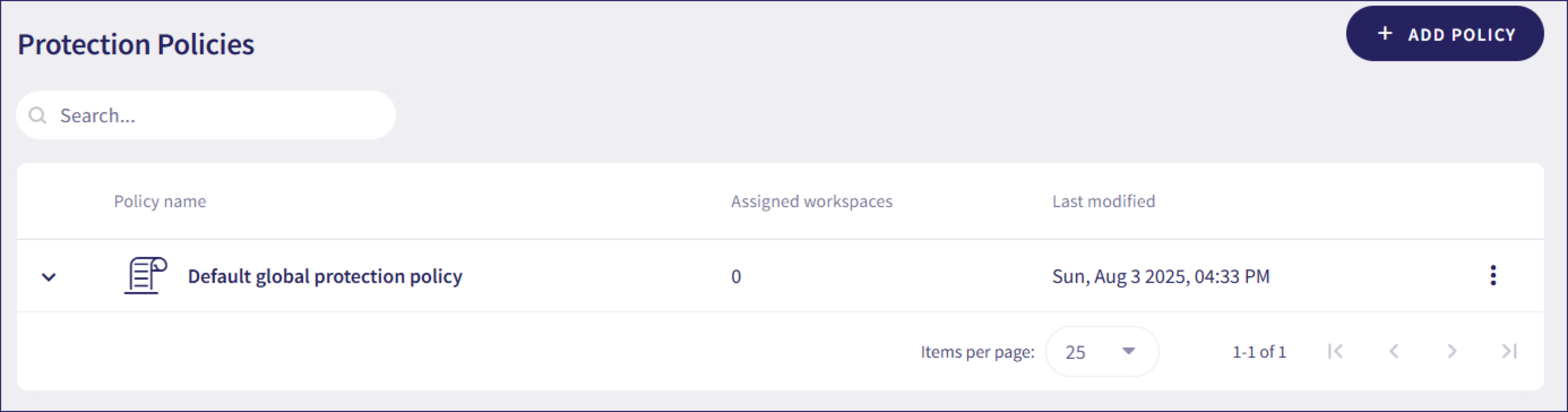
Make a copy of your existing global policy to preserve the settings, or select ADD POLICY to add a new global policy.
In General Information, add a name for your new policy.
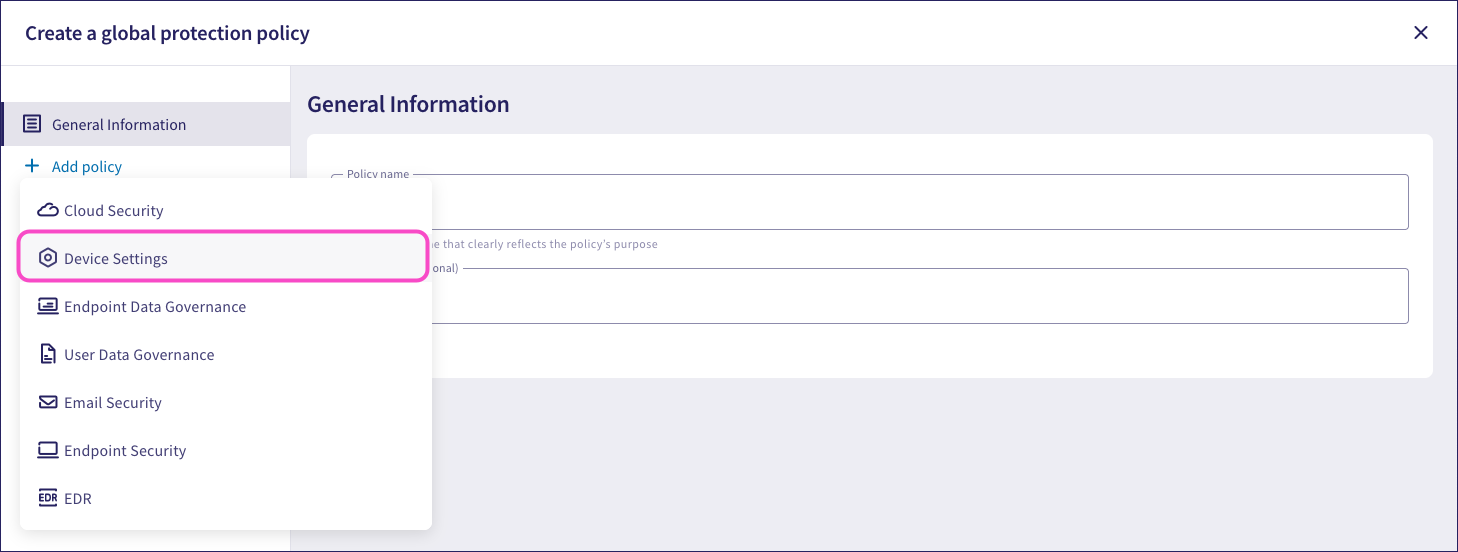
From the left-hand menu, select Add policy > Device Settings:
If you duplicated an existing policy, this section might already exist.
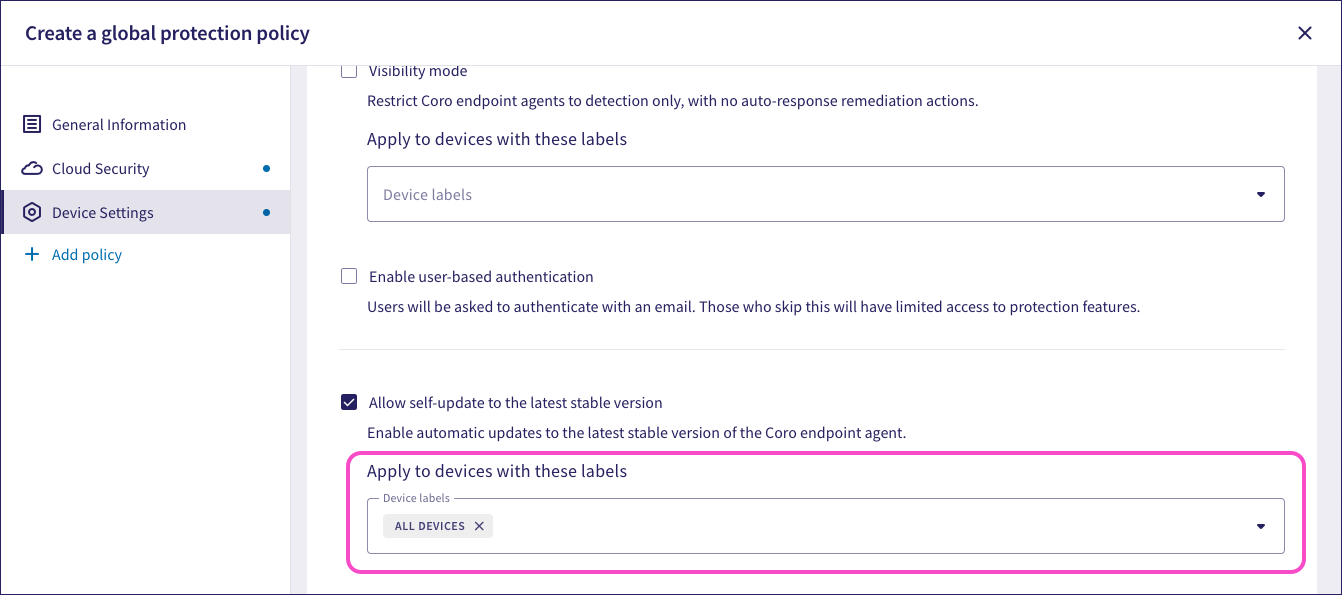
Locate and enable Allow self-update to the latest stable version:
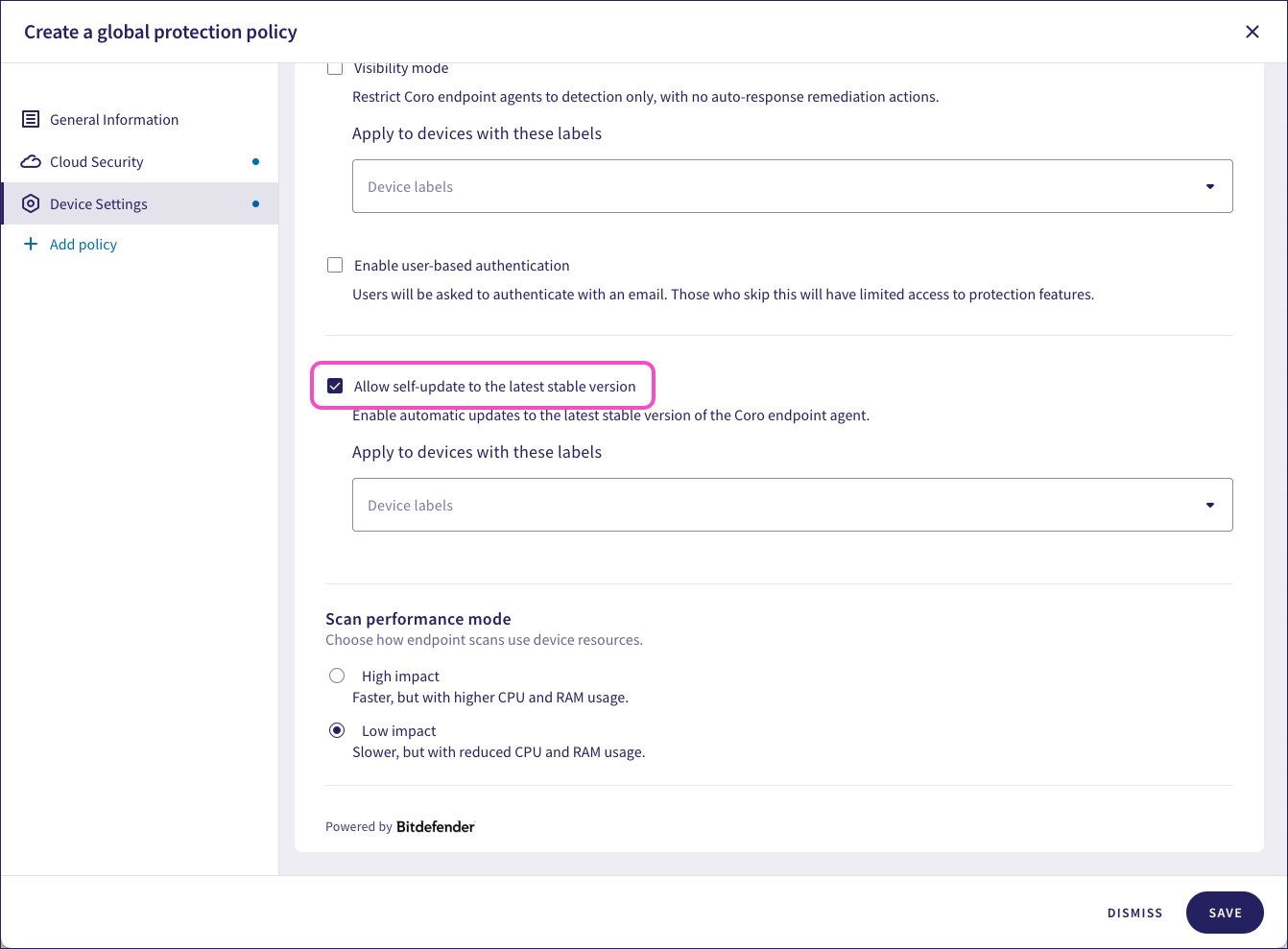
Add device labels so Coro updates all relevant devices:
 Important
You must add at least one common device label, and the label must have devices associated with it. Coro recommends adding the predefined label ALL DEVICES to ensure complete coverage across all workspaces.
You can check label and device associations on the Device labels page.
Select SAVE.
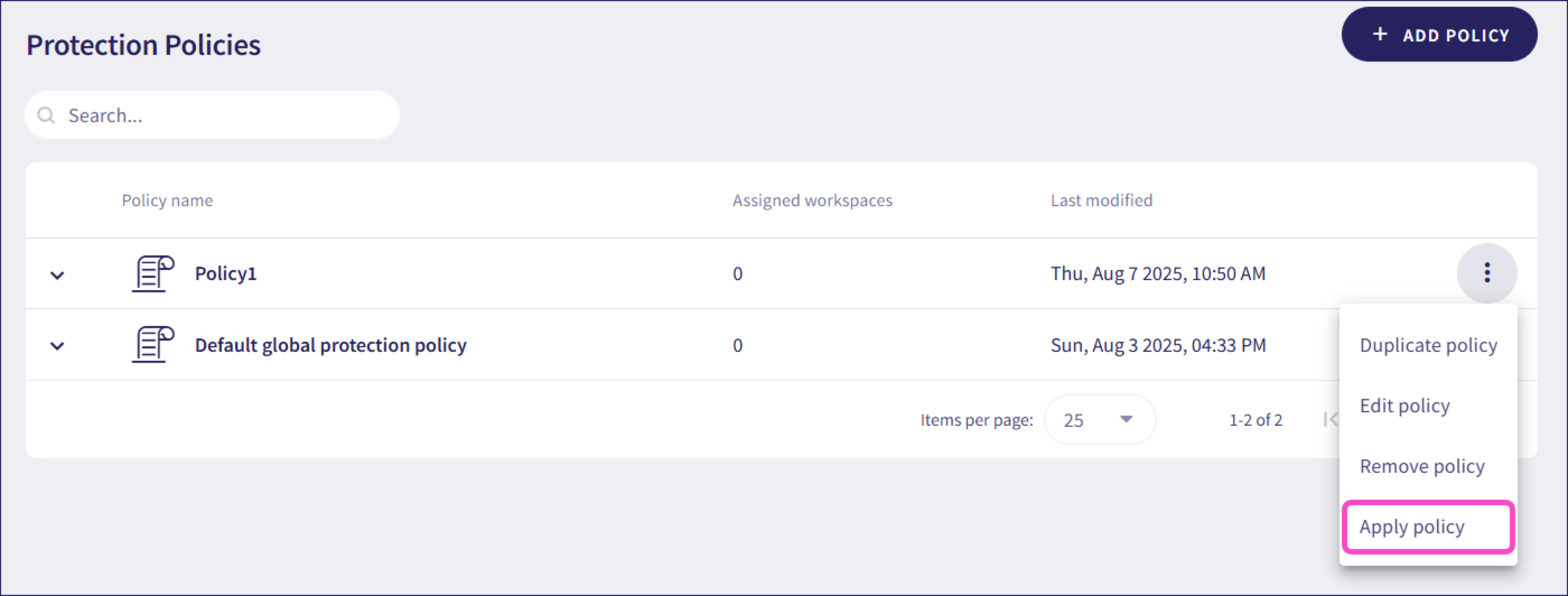
Apply the policy across your child workspaces. From the three-dot menu next to your policy, select Apply policy:
Coro displays the Apply global policy dialog:
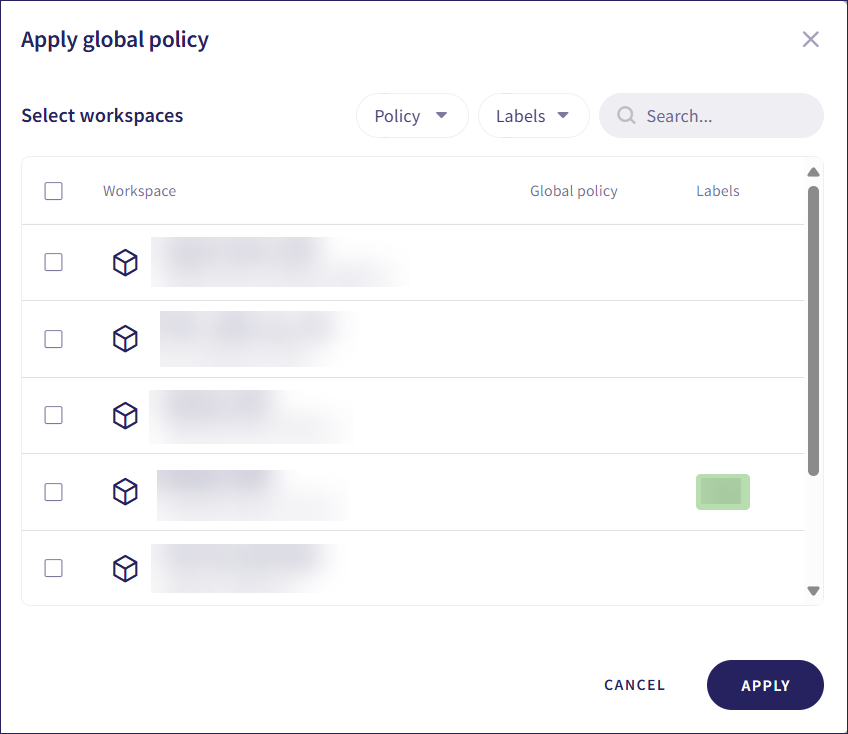
Select the workspaces for which the policy should apply, then select APPLY.
Coro may warn you that this action overrides the existing global policy applied to your customer workspaces. If you started with a copy of the existing policy, it is safe to continue.
Coro applies the global protection policy to the selected workspaces.
For more information, see Global protection policies.