The Coro Gmail add-in enables users to assist in refining email threat detection by reporting potentially missed malicious emails to IT personnel and reviewing flagged emails for accuracy. The Gmail add-in is deployed as an admin managed installation for all protected users.
This article describes how to:
To install the Coro Gmail add-in, you must have:
- An active subscription to the Coro Email Security module.
- A Google Workspace administrator account.
- One or more connected Google Workspace cloud applications.
- Protected users.
Install the Gmail add-in for all protected users directly from the Coro console.
You must have a Google Workspace administrator account to install the add-in for all your protected users.
To install the add-in for all protected users:
Access the Email Security configuration page.
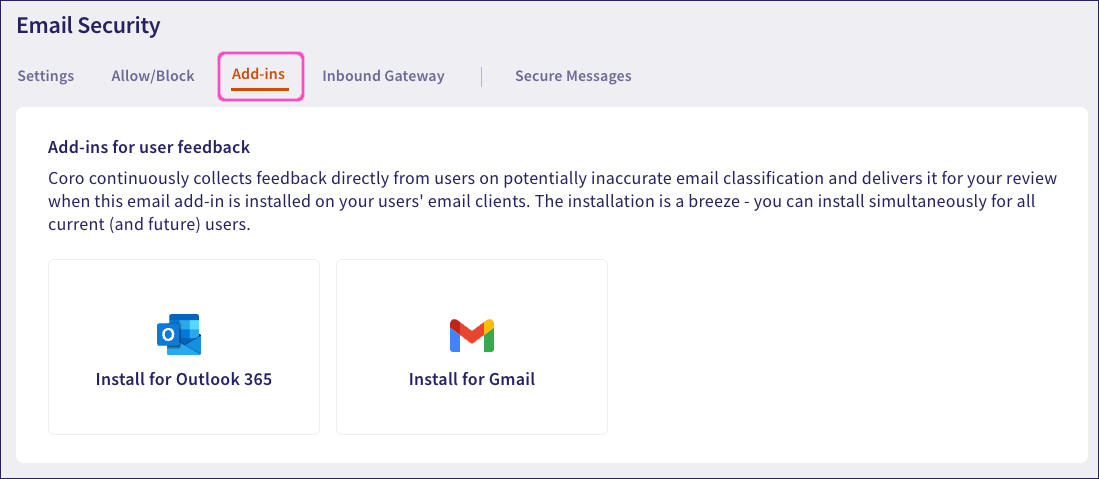
Select Add-ins:
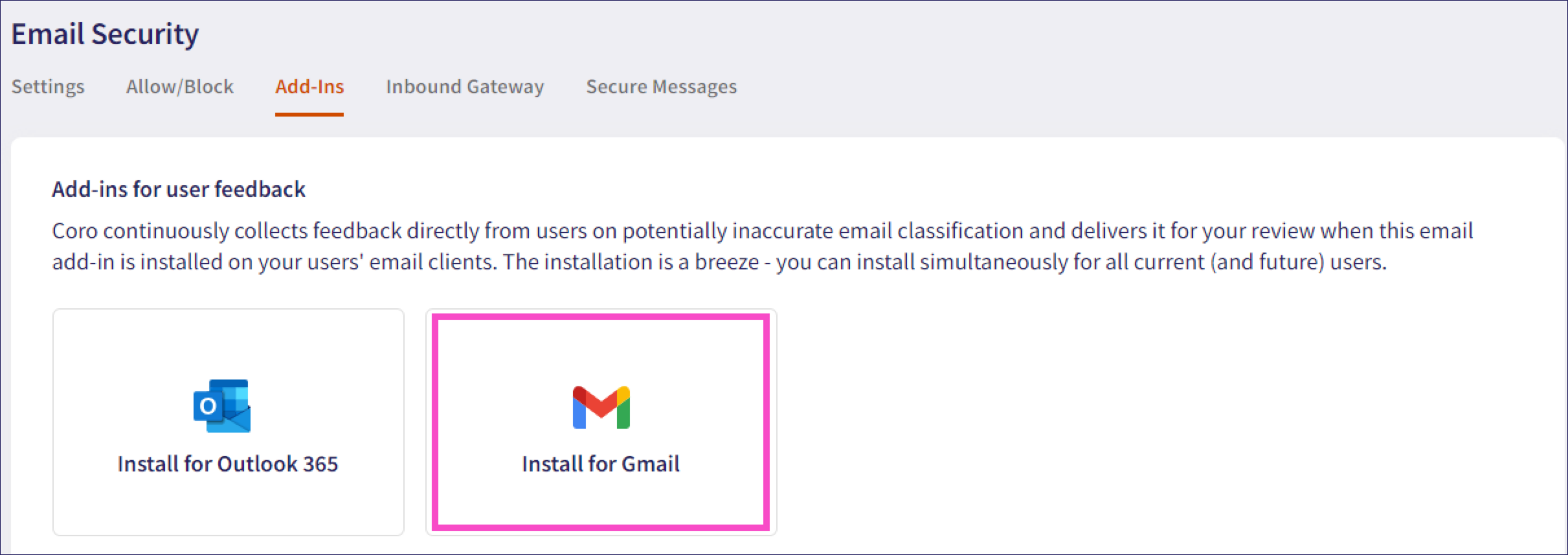
Select Install for Gmail:
Coro displays the Google Workspace Marketplace page.
Select Admin install:

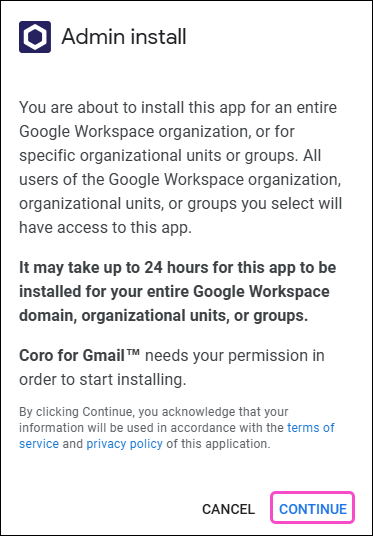
Google Workspace Marketplace displays the Admin install dialog.
Select CONTINUE:
Select Everyone at your organization. Review and accept the terms of service and privacy policy, then select FINISH to continue:
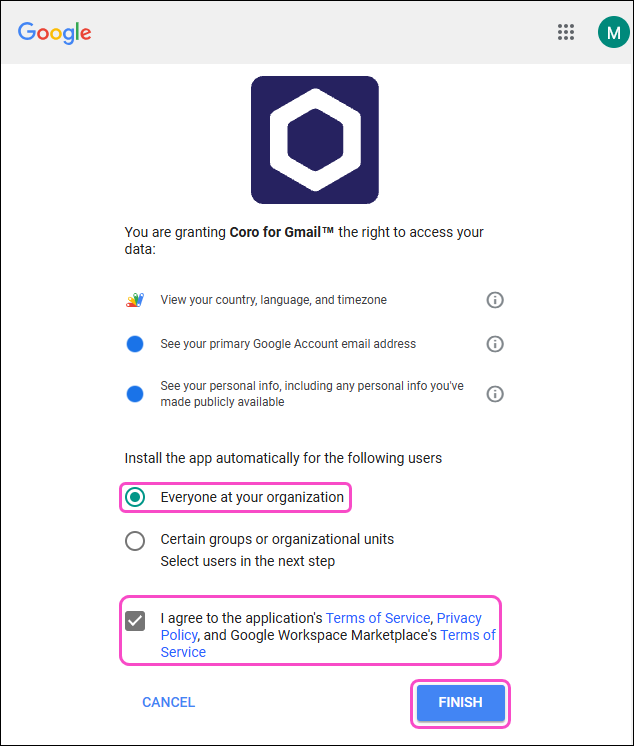
Google Workspace deploys the add-in for all protected users.
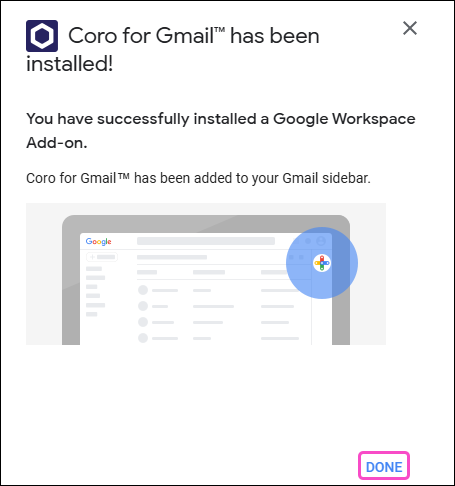
To complete the installation process select DONE:
Remove the Gmail add-in for all protected users from the Google Workspace admin console.
You must have a Google Workspace administrator account to remove the add-in for all your protected users.
To remove the add-in for all protected users:
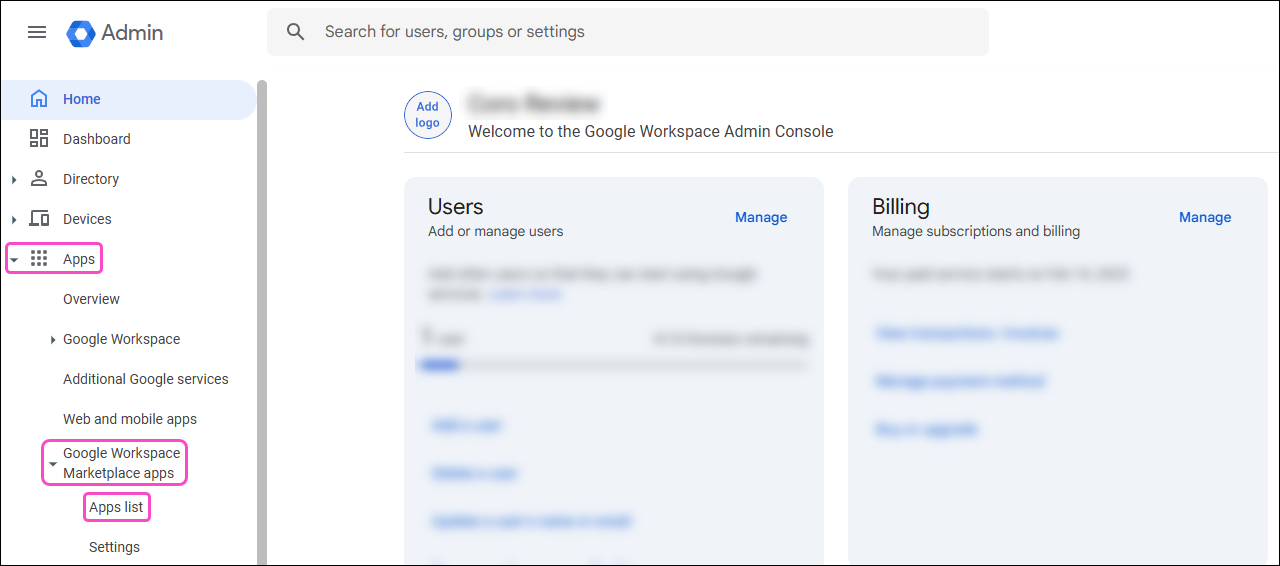
Sign in to the Google Workspace admin console.
From the sidebar, select Apps > Google Workspace Marketplace apps > Apps list:
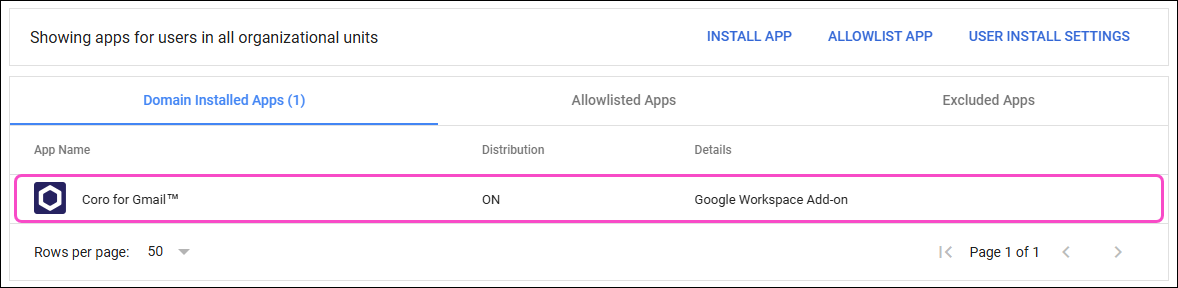
Select the Coro for Gmail app:
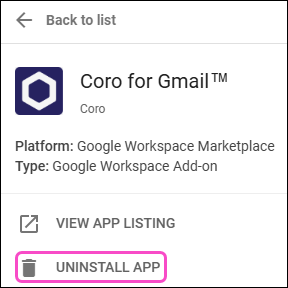
Select UNINSTALL APP:
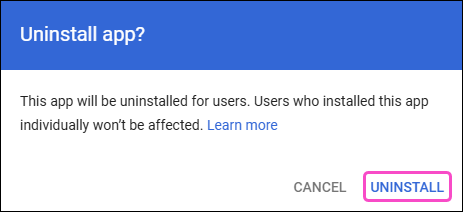
The Google Workspace admin console displays the Uninstall app? dialog.
Select UNINSTALL:
Google Workspace removes the Gmail add-in for all protected users and displays a success confirmation dialog:

For information on how to use the Coro Gmail add-in, see Installing and using the Coro add-in for Gmail.